
Apploye's MCP server lets you connect your Apploye data to an AI assistant like Claude, ChatGPT Codex, or Cursor. Once connected, you can ask questions about your team in plain language and get answers straight from your Apploye account.
What you can ask
Here are the kinds of questions your AI assistant can answer once Apploye is connected:
Time and activity
- "How many hours did each member track last week?"
- "Show me Tuesday's breakdown for the design team."
- "Who hasn't tracked any time in the last three days?"
Projects and budgets
- "How many hours has the Grasshopper project used so far?"
- "What's the hourly rate set on this project?"
- "Which tasks are still open, and who's assigned to them?"
Apps and URLs
- "What apps did the team spend the most time in this month?"
- "Compare this month's app usage to last month's."
Payroll and invoices
- "Which invoices are still unpaid?"
- "What do we owe each member for August?"
Leave
- "Who's on leave next week?"
- "What's the remaining leave balance for each member?"
What data it covers
MCP access is grouped into eight areas. You choose which ones to turn on when you create your MCP key:
| Area | What it covers |
|---|---|
| Timesheets | Timesheets, idle time, live tracking status |
| Reports | Clock in/out records, time and activity, activity trends |
| Apps & URLs | App and URL usage, suspicious activity logs |
| Projects | Projects, tasks, members, billable rates |
| Payroll | Invoices, payments, payables, payroll summaries |
| Leave | Leave applications, balances, policies, types |
| Organization | Organization details, members, teams, clients |
| Screenshots | Screenshot records |
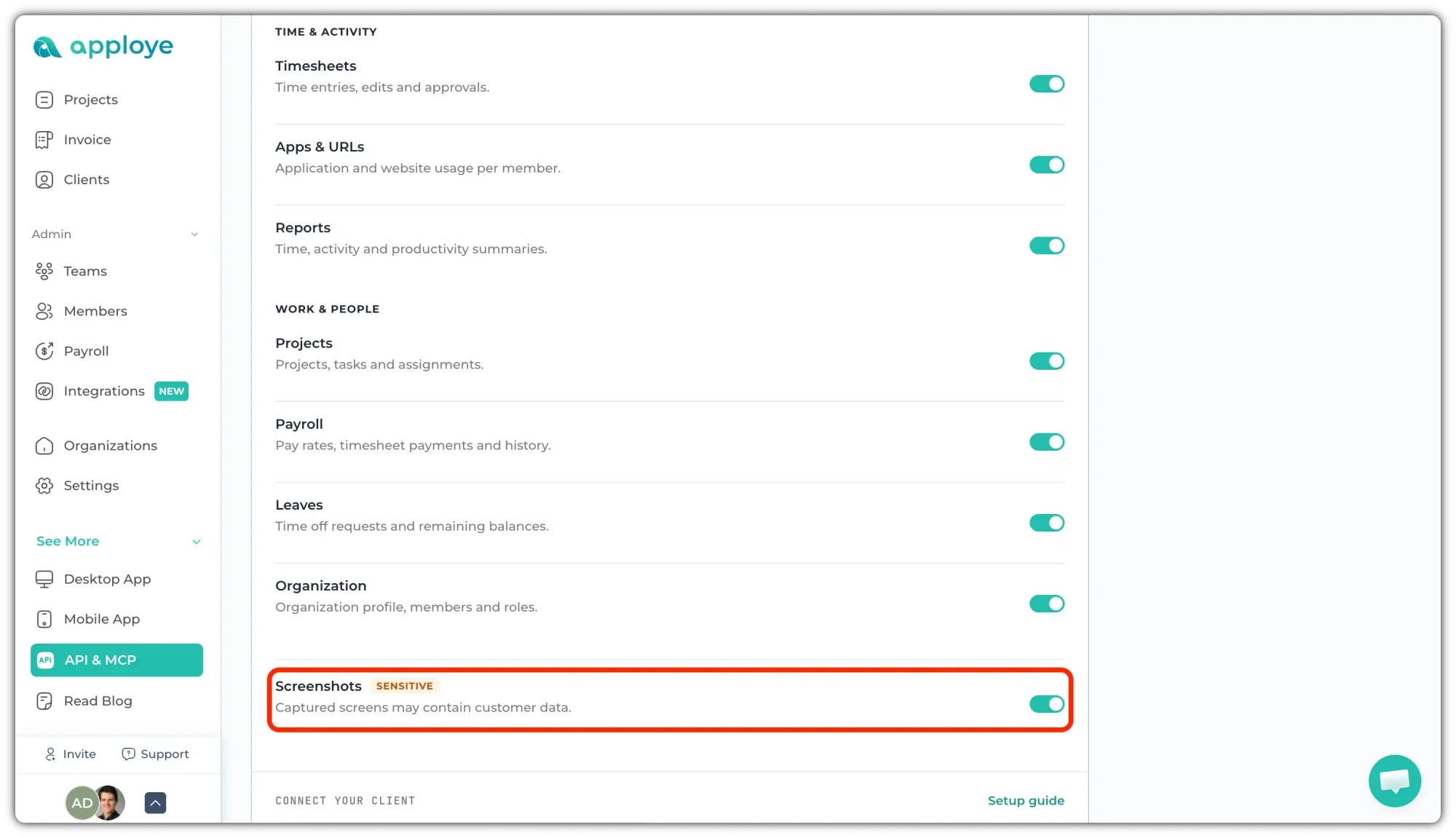
Screenshots are off by default. Because screenshots can contain personal information, you have to turn on the toggle yourself after creating the key.
Why teams use it
For owners and admins: Get a straight answer without opening five report pages. Ask about last week's hours, an unpaid invoice, or a project's budget and move on.
For managers: Spot the things that are easy to miss, e.g. someone tracking far more hours than usual, a project quietly running past its budget, a member who stopped tracking mid-week.
For developers: Skip the integration work. Your AI tool discovers what's available on its own, so there's no need to read API docs or hardcode endpoints before you can pull data.
Good to know
- It's read-only. MCP can look at your data, but it can't change it. Nothing can be created, edited, or deleted through it.
- Your key controls what's visible. Your AI assistant only sees the areas you turned on. Leave an area off and its tools won't appear at all.
- Data stays within your organization. An MCP key is tied to one organization and returns only that organization's data.
- Your MCP key is separate from your regular API key, so you can revoke or rotate it on its own at any time.
Setting it up
Your MCP key is created in the same place as your API keys. Go to API & MCP page and click on "Generate Key" to create the MCP key.
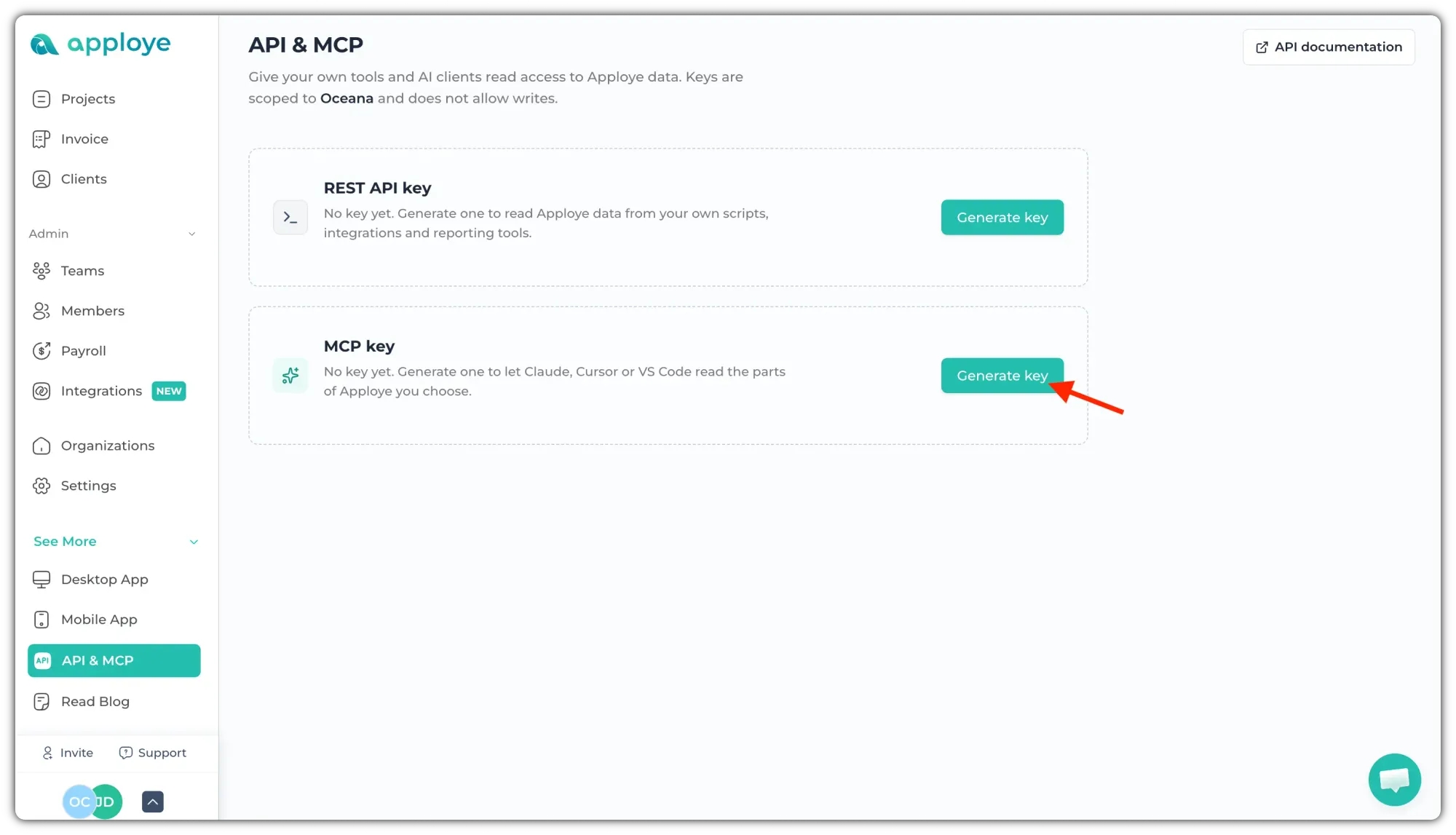
After that, you'll need to add the key into configuration file and share that file with your AI tool.
👉 See Connecting an AI client for the setup steps for Claude, Codex, Cursor, and other tools.
👉 MCP is part of the API Access add-on. See Apploye Addons Overview to turn it on.
Still have questions? Email us at support@apploye.com. We're happy to help.
