
To create shifts in Apploye, navigate to the Schedule section of the web app and click Calendar.
From the Calendar section, you can:
- View your employees' shifts in daily, weekly, or monthly views.
- Create daily, weekly, or monthly working shifts for your employees.
To create a new shift, click the Create Shift button and follow the on-screen steps.
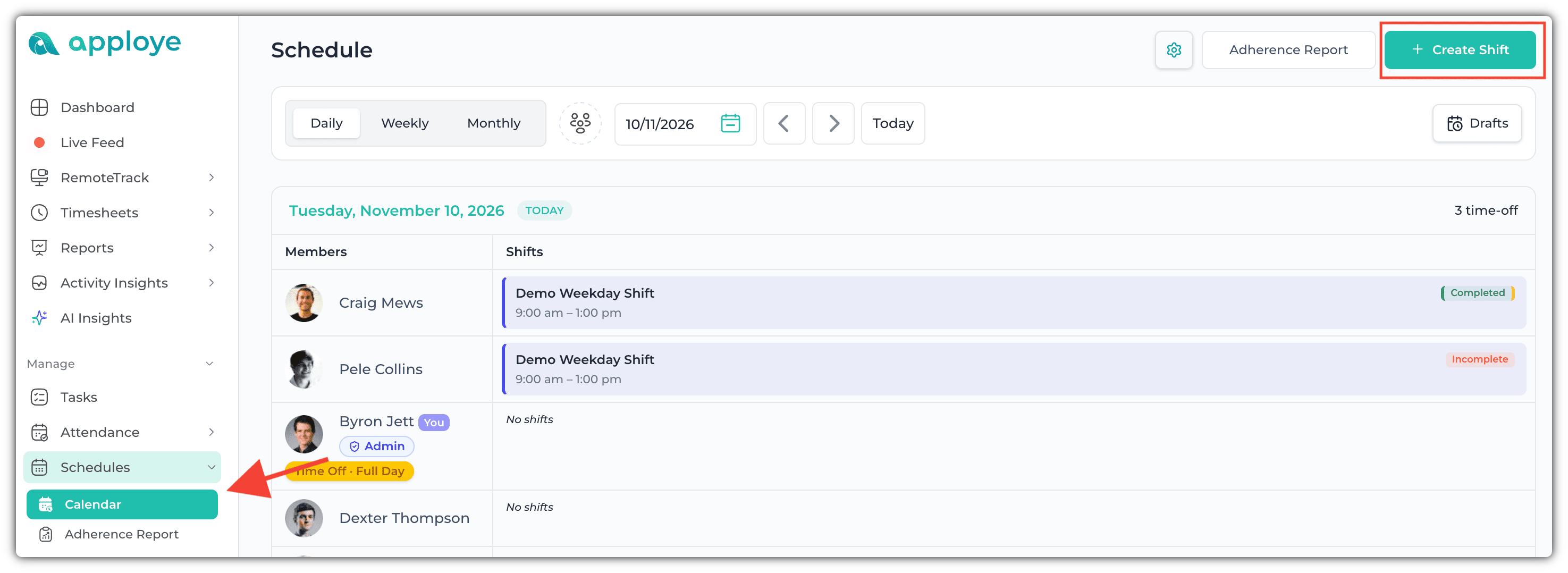
Now, complete the required steps to create a shift:
- Enter a Shift Name.
- Assign the relevant Members or Teams.
- Set the Shift Time and configure the other available options.
Once you've configured everything according to your preferences, click Create Shift to save it.
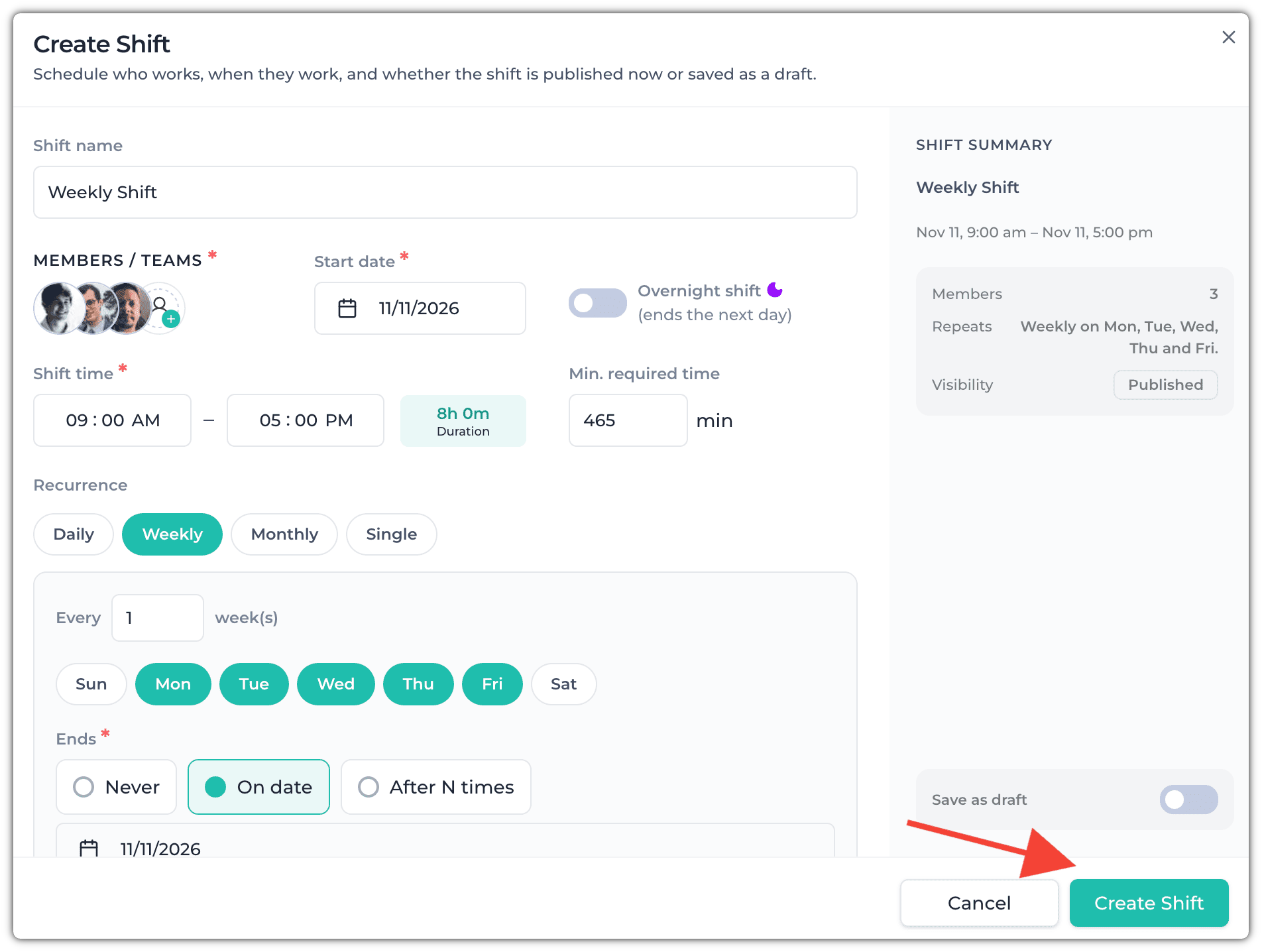
Once you click Create Shift, your shift will be created successfully. You can then repeat the same process to create additional shifts for your employees.