
The screenshot section of Apploye allows owners, admins, and team managers to review employee screenshots captured during tracked time. Also, employees can view their own screenshots only.
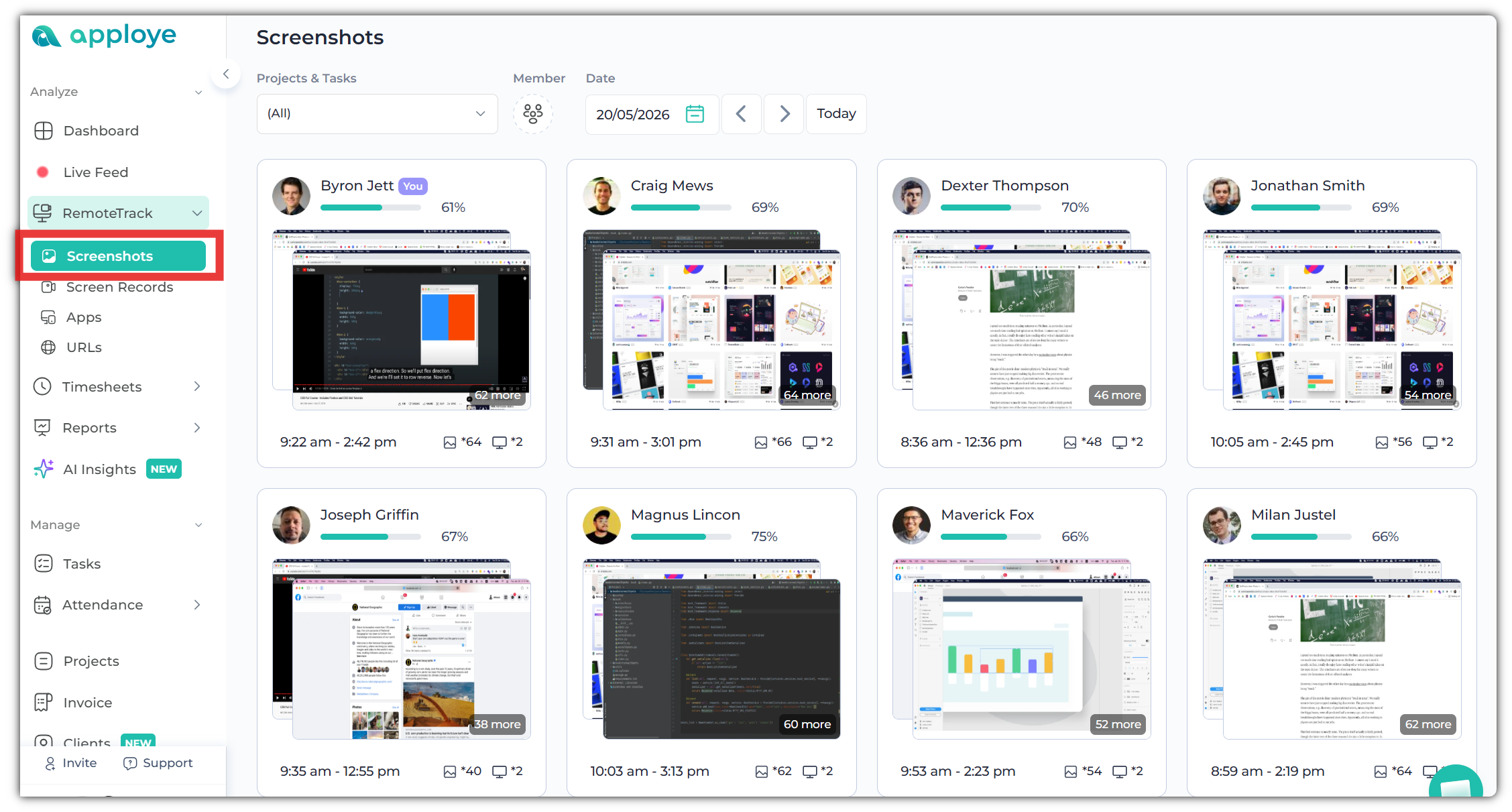
To access the Screenshot section, first, log in to the Apploye Dashboard and go to Remote Track from the left sidebar. Next, select Screenshots. At a glance, you will get an overview of all of your employees' screenshots.
Once you click on any specific member's screenshot, it will open that member's screenshot details.
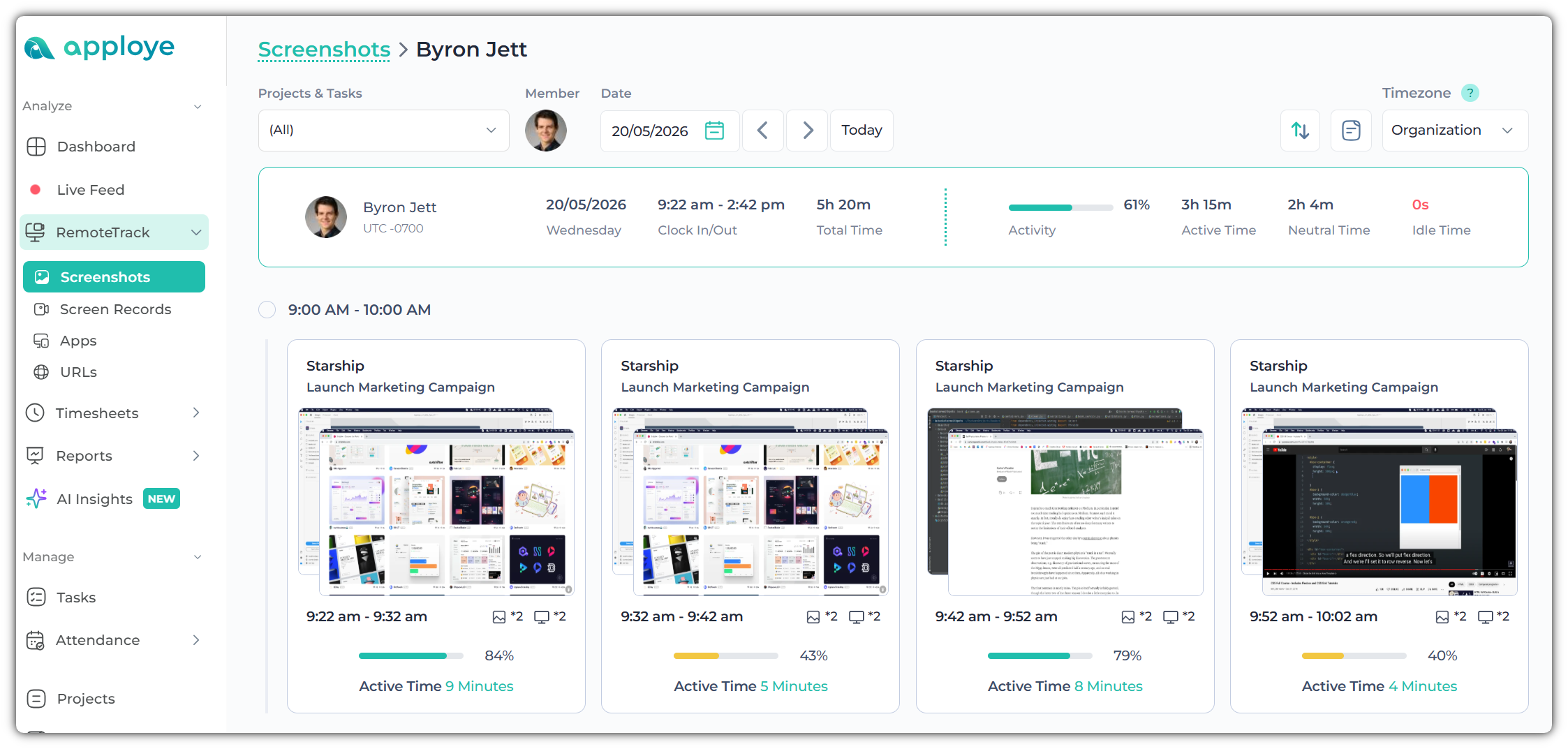
Also from the Screenshot section, you can view screenshot timestamps, associated projects/tasks, total worked time, clock in/out time, active time, neutral time, IDLE time, and employee activity levels.