
Apploye can remove idle time from tracked time on its own, so you don't have to review each idle stretch. You set it up on the Idle time tab of your activity settings.
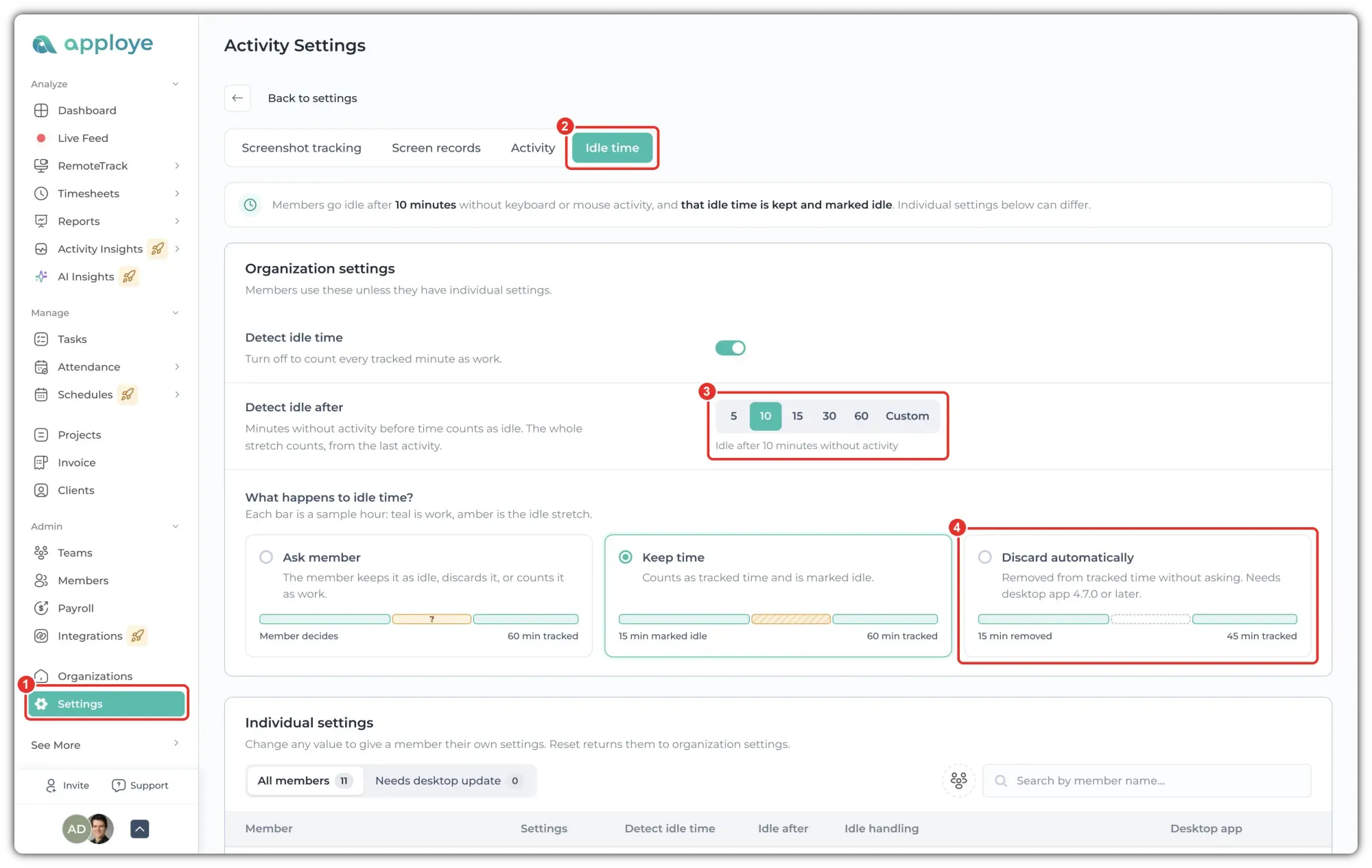
To open it, go to Settings (1) → Activity, then click the Idle time tab (2).
Choose when time counts as idle
Under Organization settings:
- Make sure Detect idle time is on. If it's off, every tracked minute counts as work.
- Under Detect idle after (3), pick how many minutes without keyboard or mouse activity count as idle: 5, 10, 15, 30 or 60. To enter another number, click Custom and type any whole number above 5 minutes.
Once a member goes idle, the whole stretch counts as idle time, starting from their last activity. It doesn't start at the moment the limit is reached.
Choose what happens to idle time
Under What happens to idle time?, pick one of three options. Each card shows a sample hour, with work in teal and the idle stretch in amber.
- Ask member: the member decides in the desktop app. They can keep it as idle, discard it, or count it as work.
- Keep time: idle time stays in tracked time and is marked as idle.
- Discard automatically: idle time is removed from tracked time without asking anyone. In the sample hour, 15 idle minutes are removed and 45 minutes stay tracked.
To discard idle time automatically, select Discard automatically (4). The change saves as soon as you pick it, and the line at the top of the tab updates to say "that idle time is discarded automatically".
Note: Automatic discard needs the Apploye desktop app, version 4.7.0 or later. Until a member updates, their idle time still counts as work.
Give one member different settings option
Organization settings apply to everyone unless a member has their own. To change them for one person, scroll down to Individual settings and change any value in that member's row:
- Detect idle time: on or off.
- Idle after: the number of minutes, from 5 to 1,439.
- Idle handling: Ask member, Keep time or Discard automatically (1).
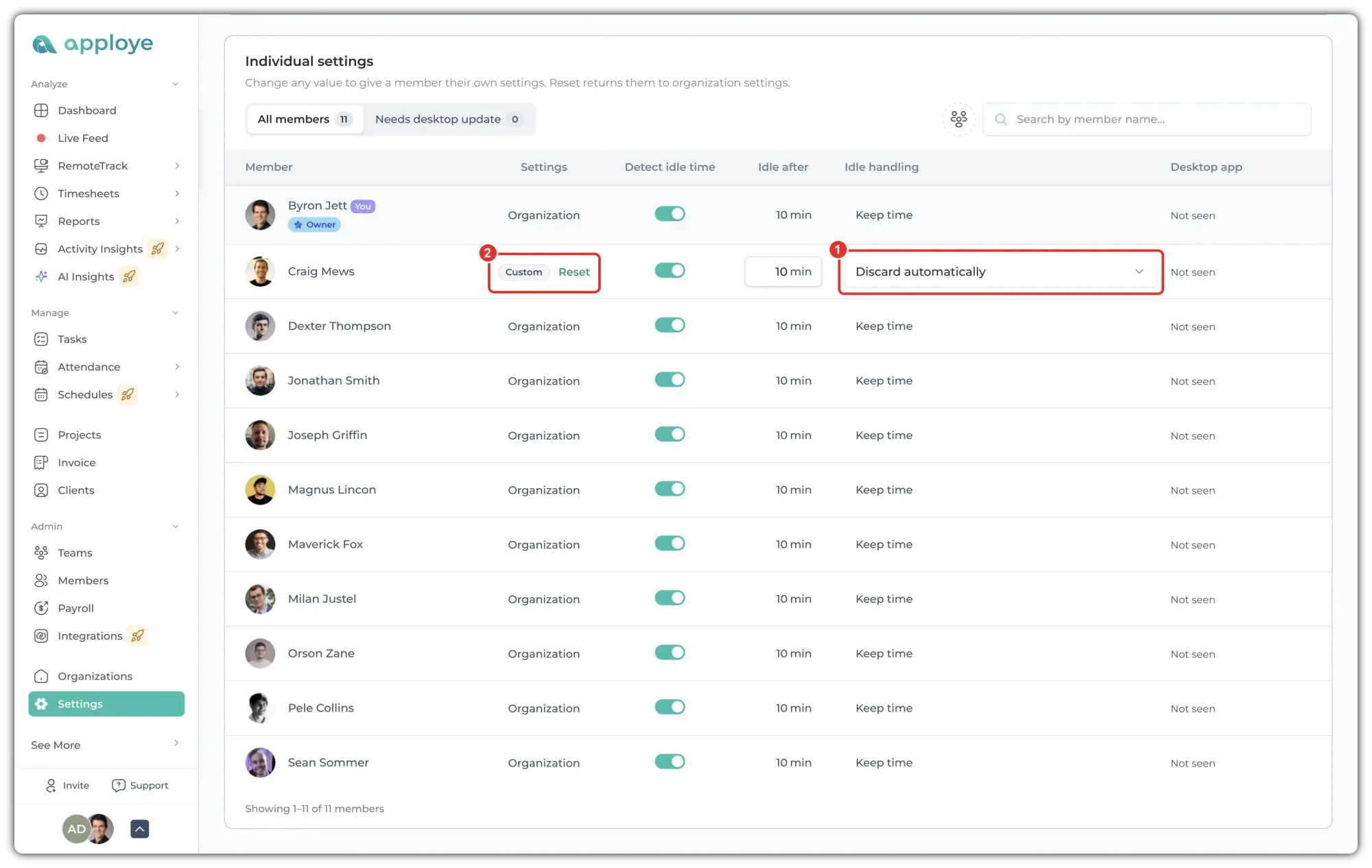
When a member has their own settings, their Settings column (2) shows Custom instead of Organization. To put them back on the organization's settings, click Reset.
Related Articles: