
This guide will show you how you can integrate Apploye with Slack.
First, navigate to the Integrations section of the Apploye web app. You’ll see the Slack integration there. Click Connect to proceed.
After clicking Connect, you will see the Connect Workspace button. Click Connect Workspace.
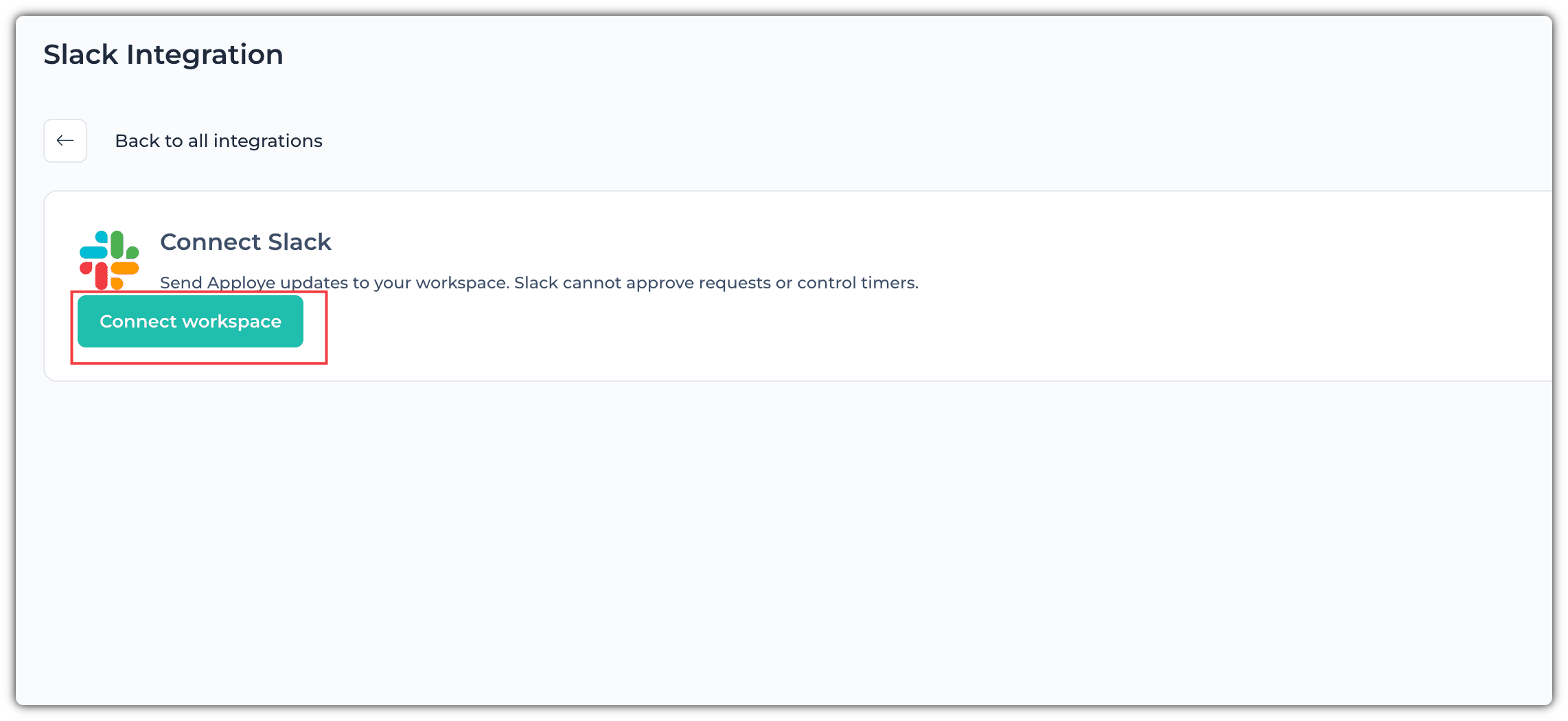
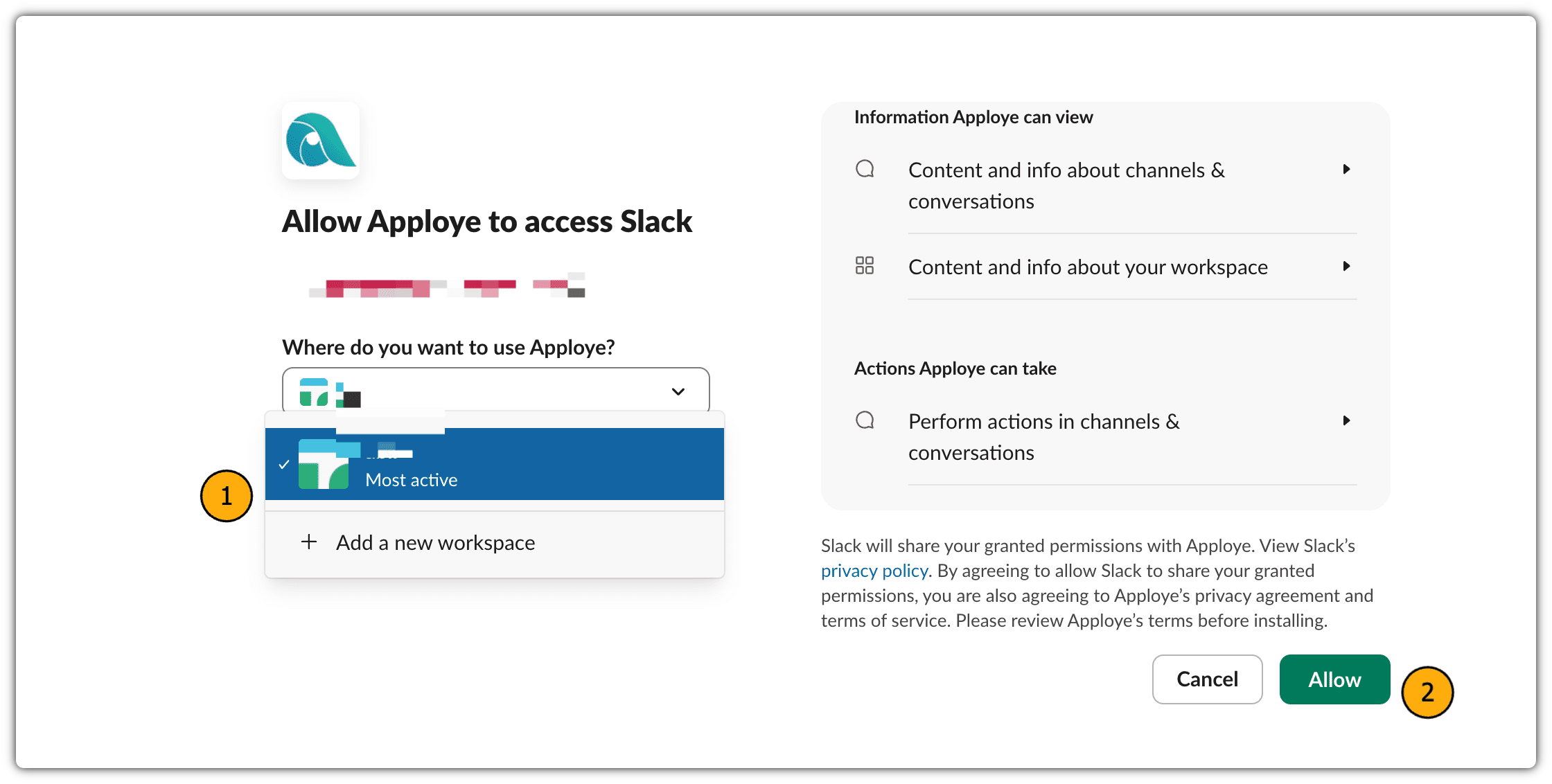
Once you click Connect Workspace, you'll be asked to select your Slack workspace. You can also create a new workspace if needed. After selecting your workspace, click Allow to complete the connection.
Once you've completed these steps, your Slack workspace will be successfully connected to Apploye, and you'll receive a confirmation message from the system.
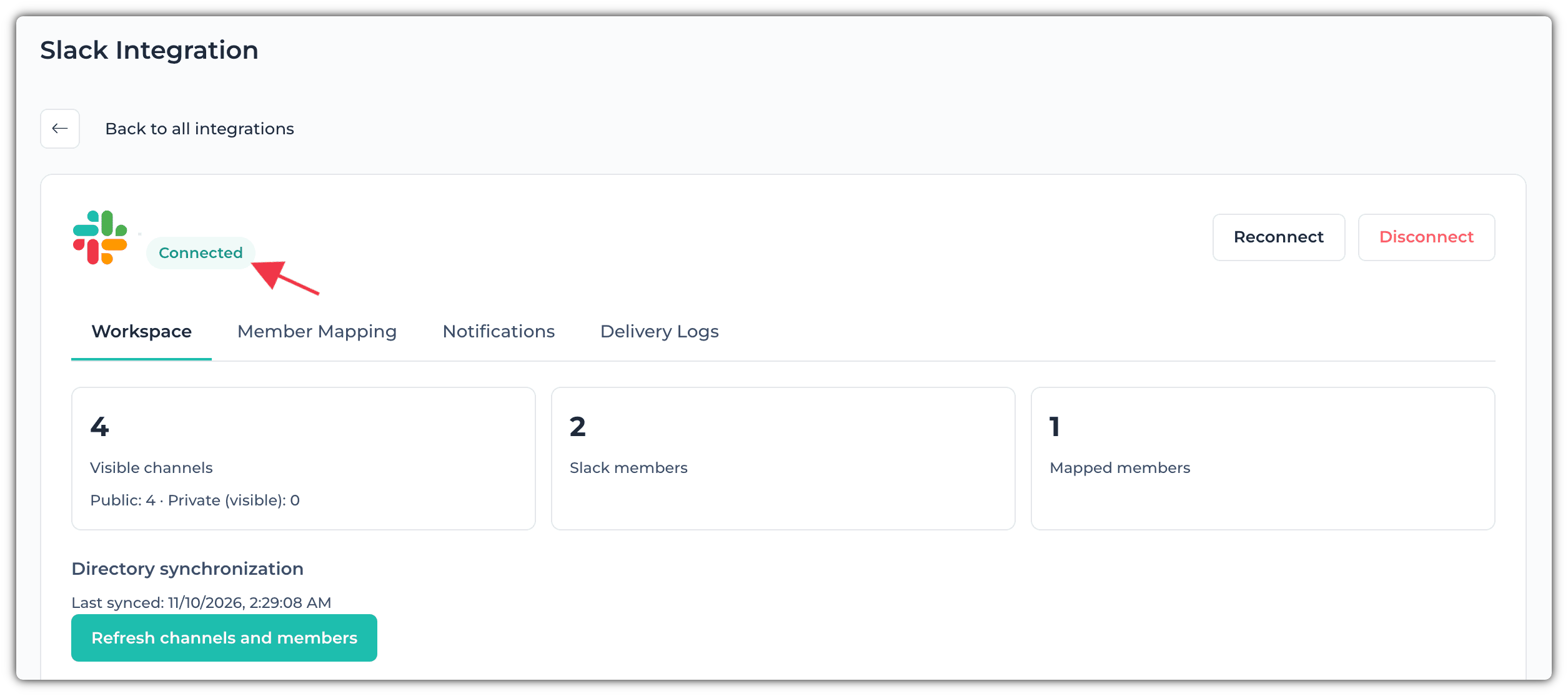
Now, from the Slack Integration page, you can optimize the settings of your workspace based on your preferences.
You can also configure member mapping and notification settings, as well as view and set up delivery logs.
Member Mapping:
If a member isn't part of your Apploye organization, their status will appear as Unmapped. To resolve this, you'll need to add them to your Apploye organization.
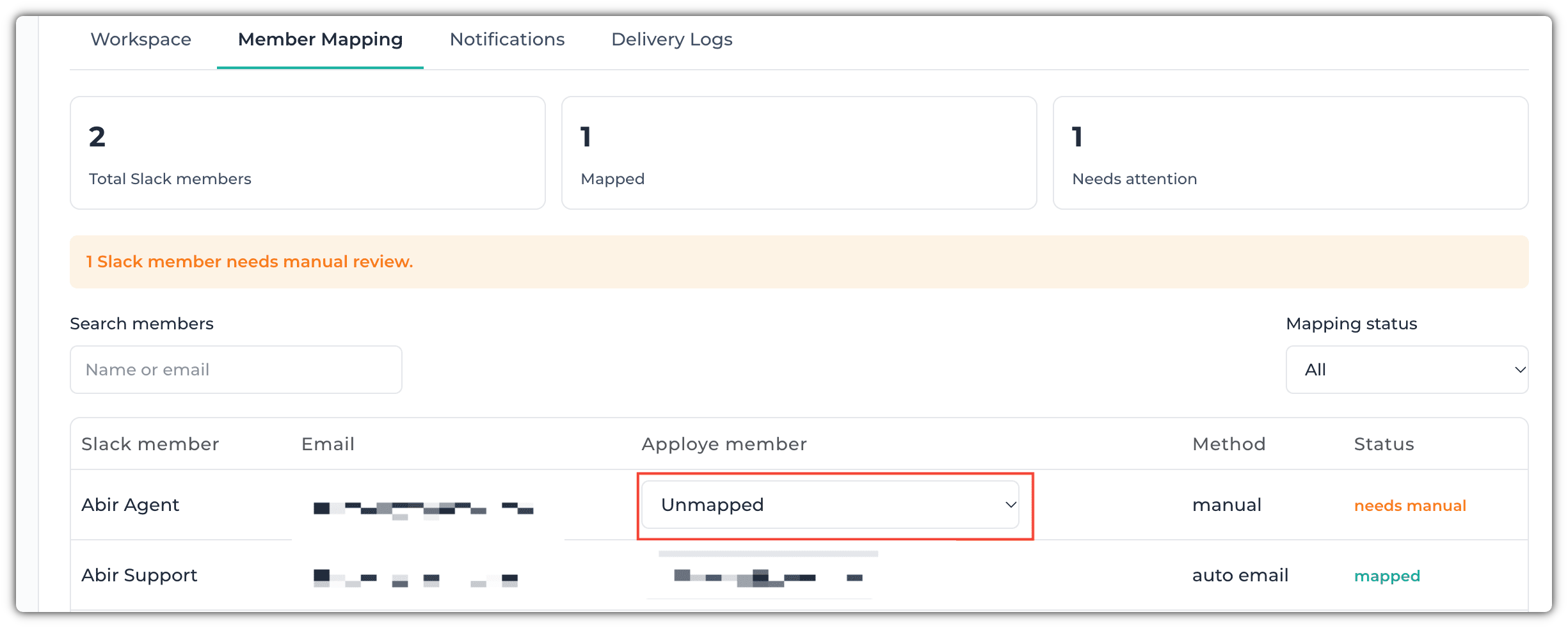
If you see the Unmapped status, in that case you need to take action to add that person to your Apploye organization.
If the status shows Mapped, it means the member has already been added to both Slack and Apploye using the same email address.
Notifications:
From the Notifications tab, you can choose which notifications you'd like to receive in your designated Slack channel. You can also configure notifications for specific teams or individual members, depending on your preferences.
You can set up Slack notifications for:
- New Member Joined
- Member role update
- Project Member Added
- Project Member Removed
- Task Member Added
- Task Member Removed
- Time Off Submitted
- Time Off Approved
- Time Off Rejected
- Time Updated
- Time Sheet Approved
- Time Sheet Rejected
- Timer Started
- Timer Stopped
- Idle Time Reported
If you have any further queries, you can reach out to us here: Send Email