
Apploye lets you add a Display Name (nickname), an Employee ID, and a Designation for each of your team members. These three fields are organization-specific, which means they are visible only inside your organization, and the member's own name and profile stay unchanged.
Adding them helps you identify people faster in the Members list, timesheets, and reports, especially when you have members with similar names.
Only the Owner and Admins can add or edit these fields.
Go to the Member Details page
Go to Members from the left sidebar. You will see the list of all the active members of your organization.
Click on the name of the member you want to update.
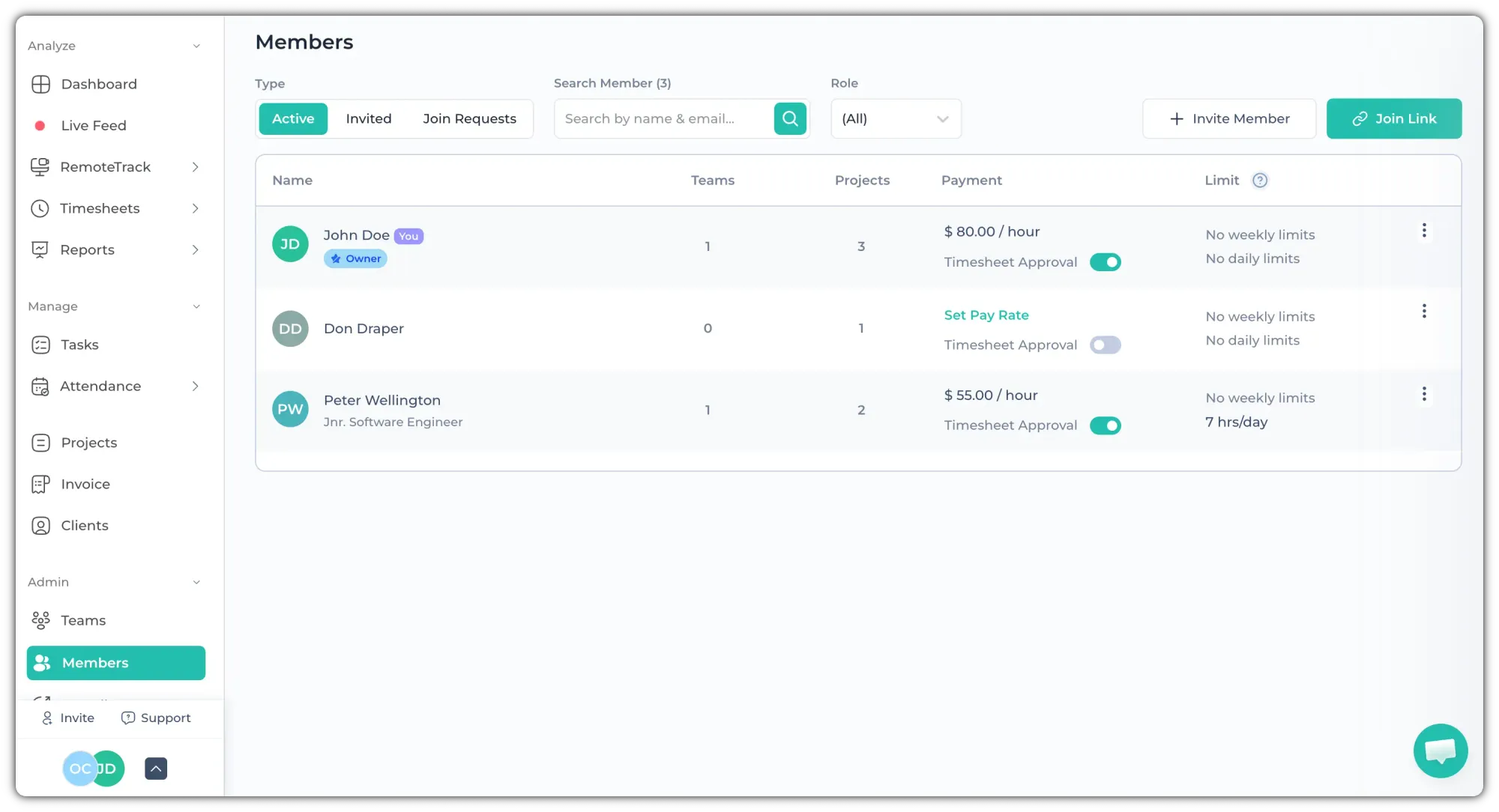
This will take you to the Member Details page for that member.
Add Display Name, Employee ID, and Designation
On the Member Details page, scroll down a little. Right under the line "Display name, employee ID, and designation are organization-specific", you will find the three fields side by side.
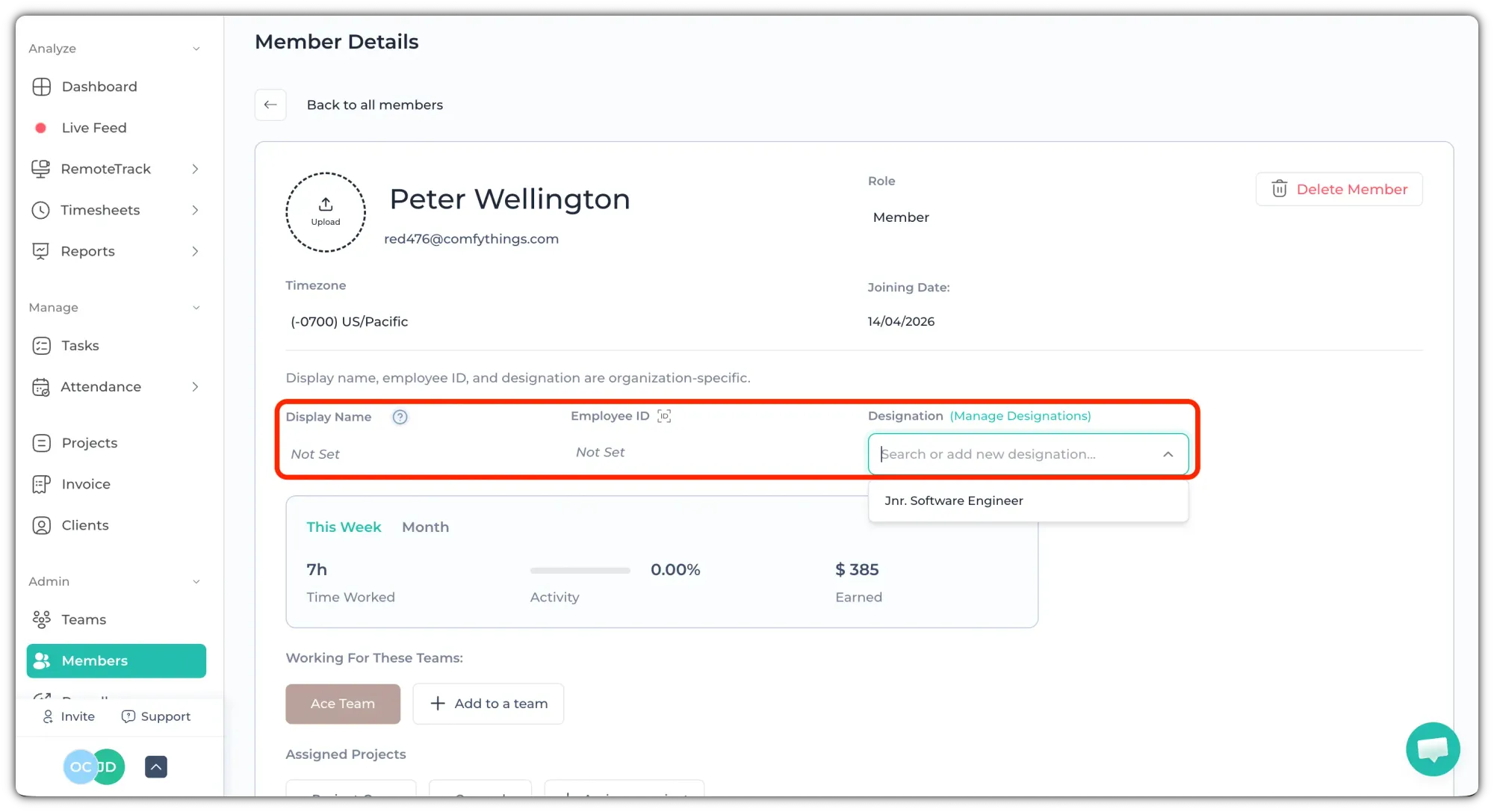
Display Name – Add the nickname or short name you want to see for this member across the app. Click on the "Not Set" text, type the name, and save it.
Employee ID – Add the internal ID your organization uses for this employee. Click on the "Not Set" text, type the ID, and save it.
Designation – Click on the "Search or add new designation…" field, type the designation (for example, Jnr. Software Engineer), and add it.
How the Designation dropdown works
The first time you use a designation, you have to type it in. Once you add it, that designation is saved for your organization.
From the next time, you don't have to type it again. Just click on the field, and you'll be able to pick it from the dropdown list. You can also start typing to filter the list.
To rename, remove, or organize the designations you have already created, click on (Manage Designations) beside the Designation label.
After it's saved, the designation will show right under the member's name on the Members page.
Still got any queries? Reach out to us here: Support@apploye.com or knock us in the Live chat.