
Apploye lets owners and admins download screenshots as a zip file, so you can keep a copy outside the dashboard for audits, client reporting, or record-keeping. You can export a single day or a custom date range, and narrow the export down to specific members, projects, and tasks.
Where to find the export option
Log in to the Apploye Dashboard and go to RemoteTrack from the left sidebar. Next, select Screenshots.
At the top right of the Screenshots page, you will find the download icon. Click on it to open the export window.
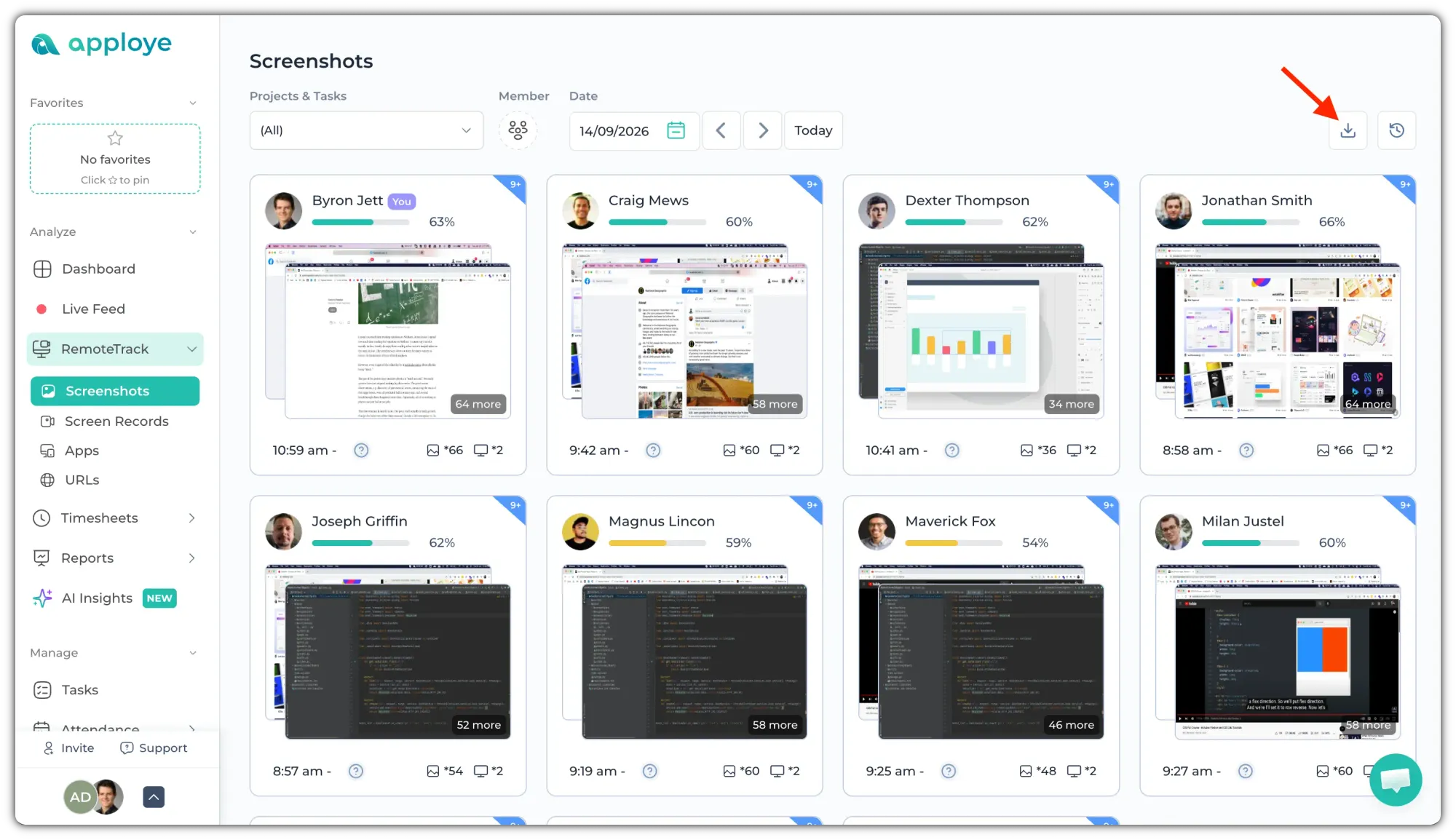
Right beside it, the history icon takes you to your Exports list, where all of your previously exported files are stored.
Setting up your export
Once the Export screenshots window opens, set up the export like this:
1. Choose what to export. Under What to export, select This day to export screenshots from the date currently selected on the Screenshots page, or Custom range to pick a start and end date.
2. Add the members. Under Members, click on + Add member and select the employees whose screenshots you want to include. This step is required — the export button will stay disabled until at least one member is selected.
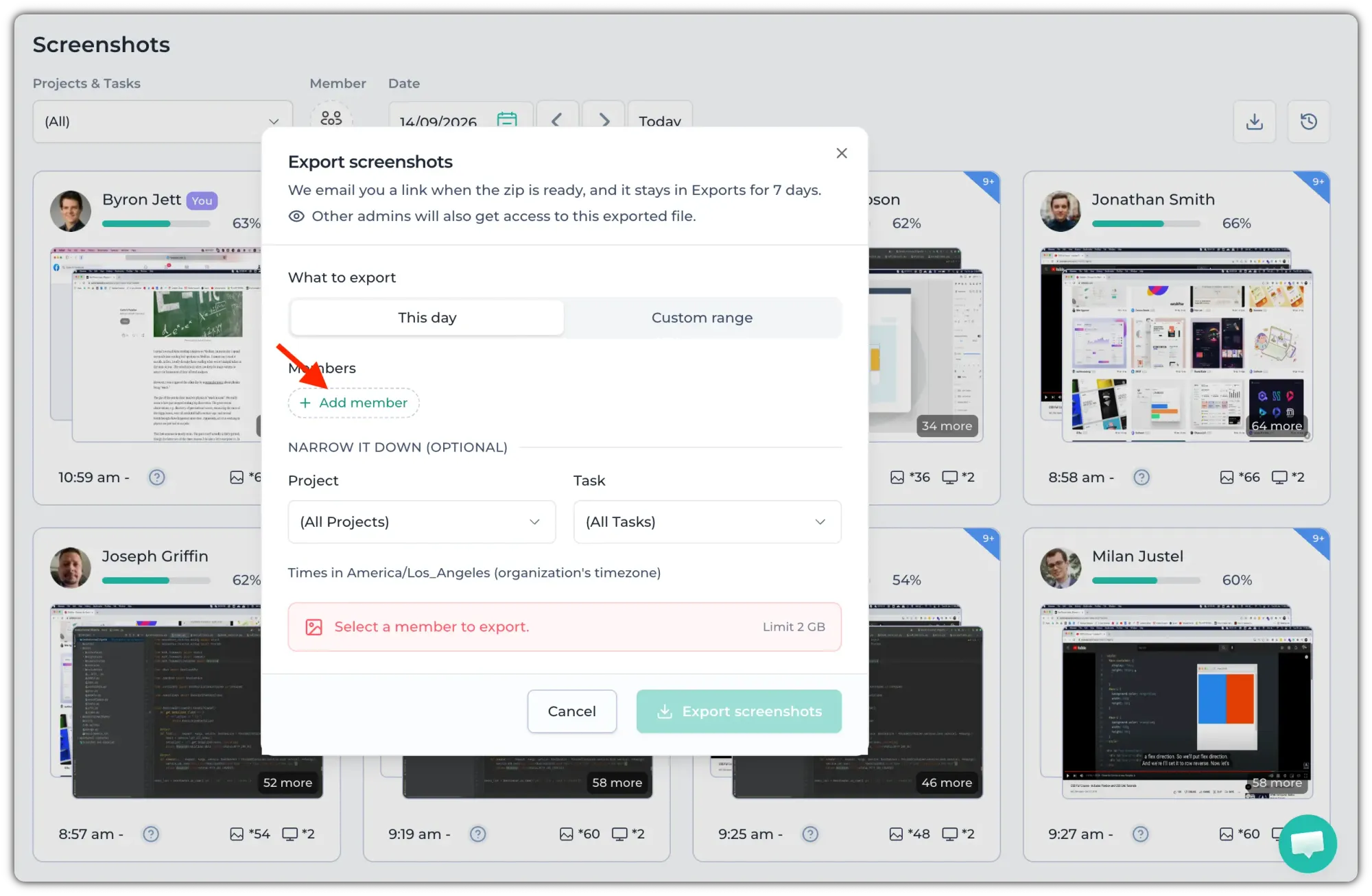
3. Narrow it down (optional). Use the Project and Task dropdowns if you only want screenshots from a specific project or task. By default, both are set to (All Projects) and (All Tasks).
All times shown in the export follow your organization's timezone, which is displayed at the bottom of the window.
4. Click on Export screenshots.
After you export
Apploye prepares the zip file in the background, so you do not have to keep the page open. Once it is ready:
- You will receive an email with the download link.
- The file also appears in the Exports list and stays there for 7 days.
- Other admins of your organization will also get access to this exported file.
Things to keep in mind
- Each export has a 2 GB limit. If your selection is too large, reduce the date range or select fewer members and export in smaller batches.
- Only owners and admins can export screenshots.
- Screenshots are only available if your employees tracked time using the Apploye desktop app.
If you have any other queries, reach out to us here: support@apploye.com