
Two-Factor Authentication (2FA) adds a crucial layer of security to your Apploye account by requiring a time-based code from an authenticator app in addition to your standard login credentials.
Prerequisites
Before starting, make sure you have an authenticator app installed on your smartphone or desktop. Apploye supports standard TOTP (Time-Based One-Time Password) apps, including:
- Google Authenticator
- Authy
- 1Password
- Microsoft Authenticator
Setup Instructions
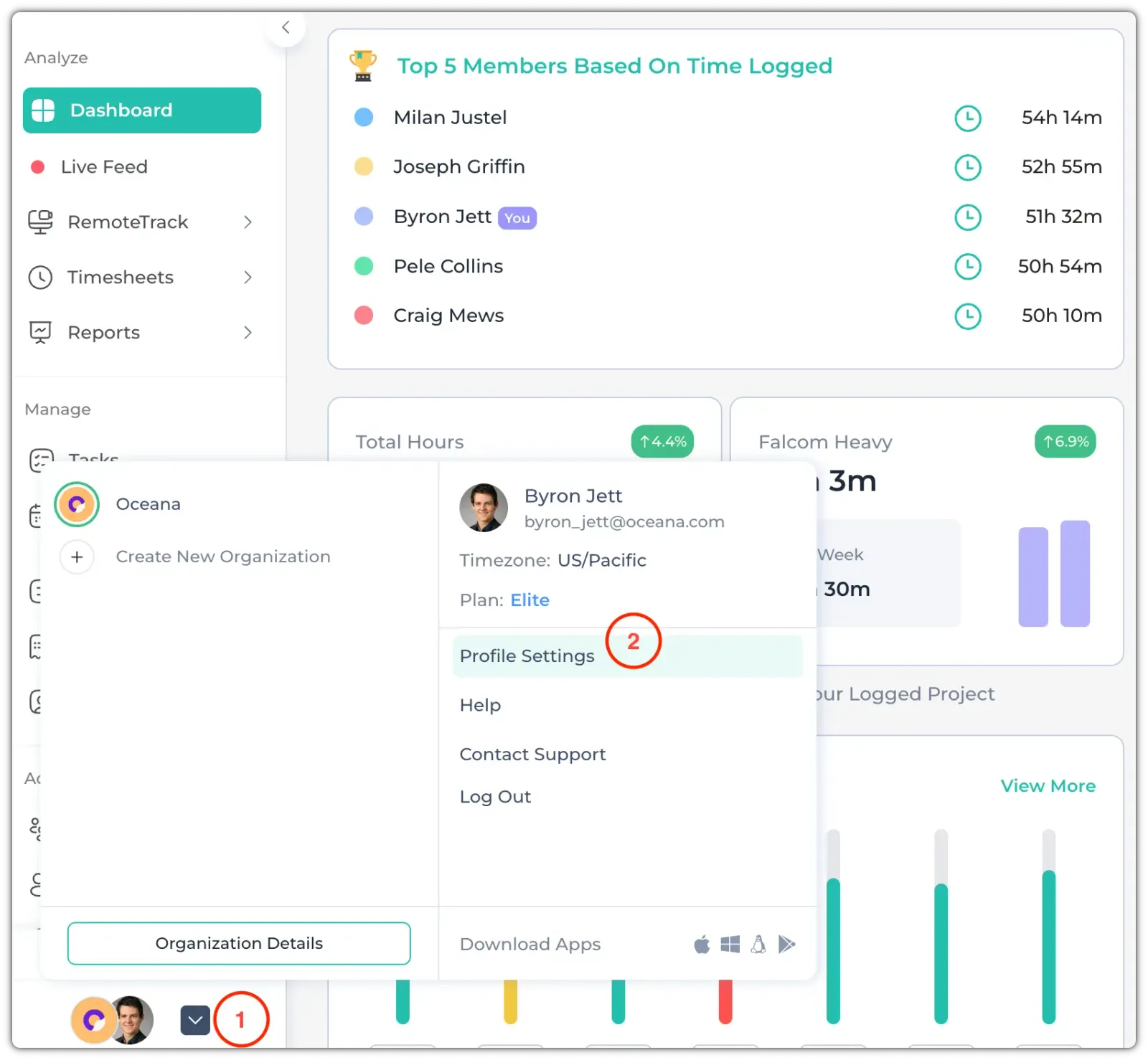
1. Log in to your Apploye account, click your profile icon, and navigate to Profile Settings.
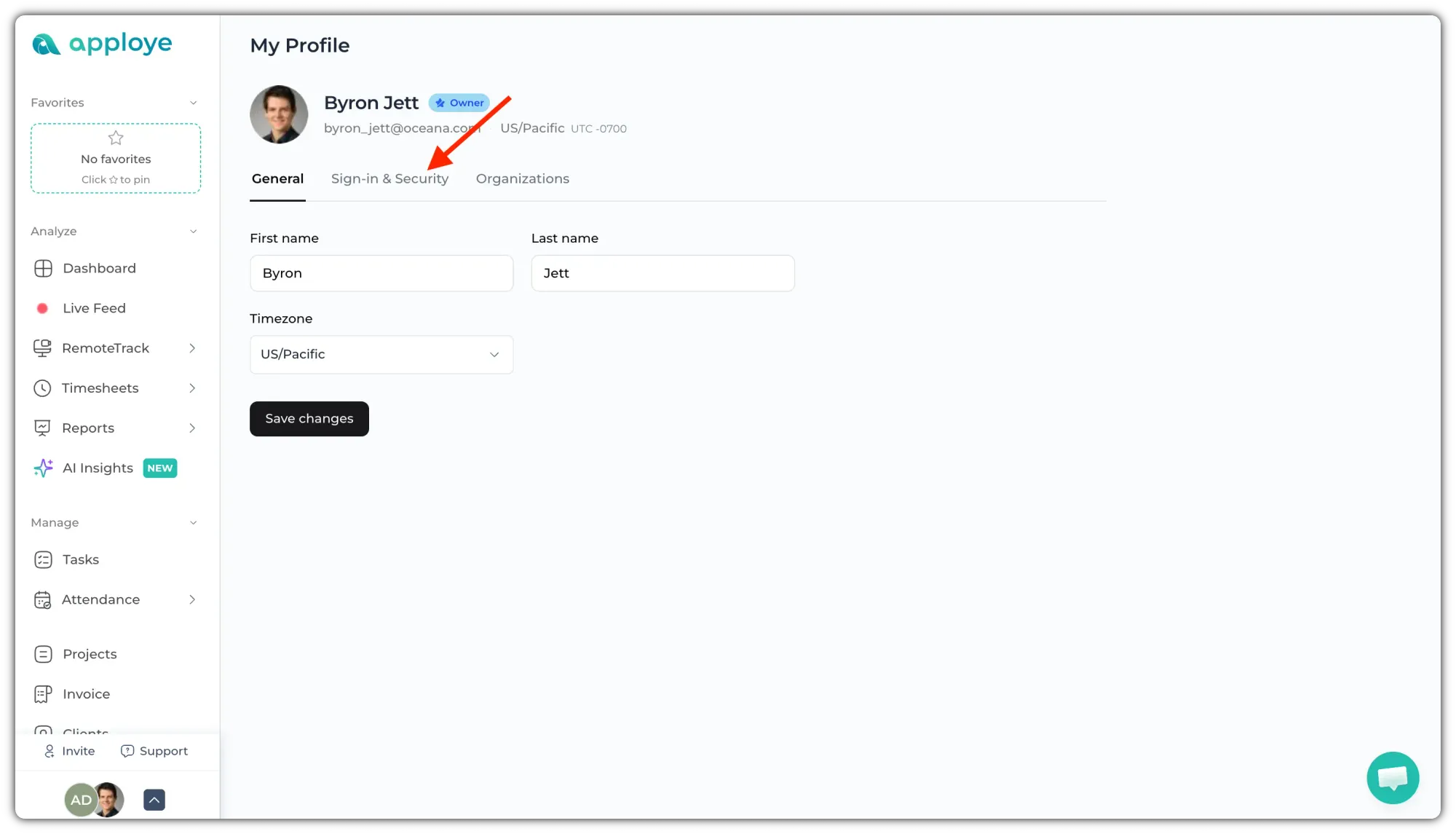
2. Select Sign in & Security.
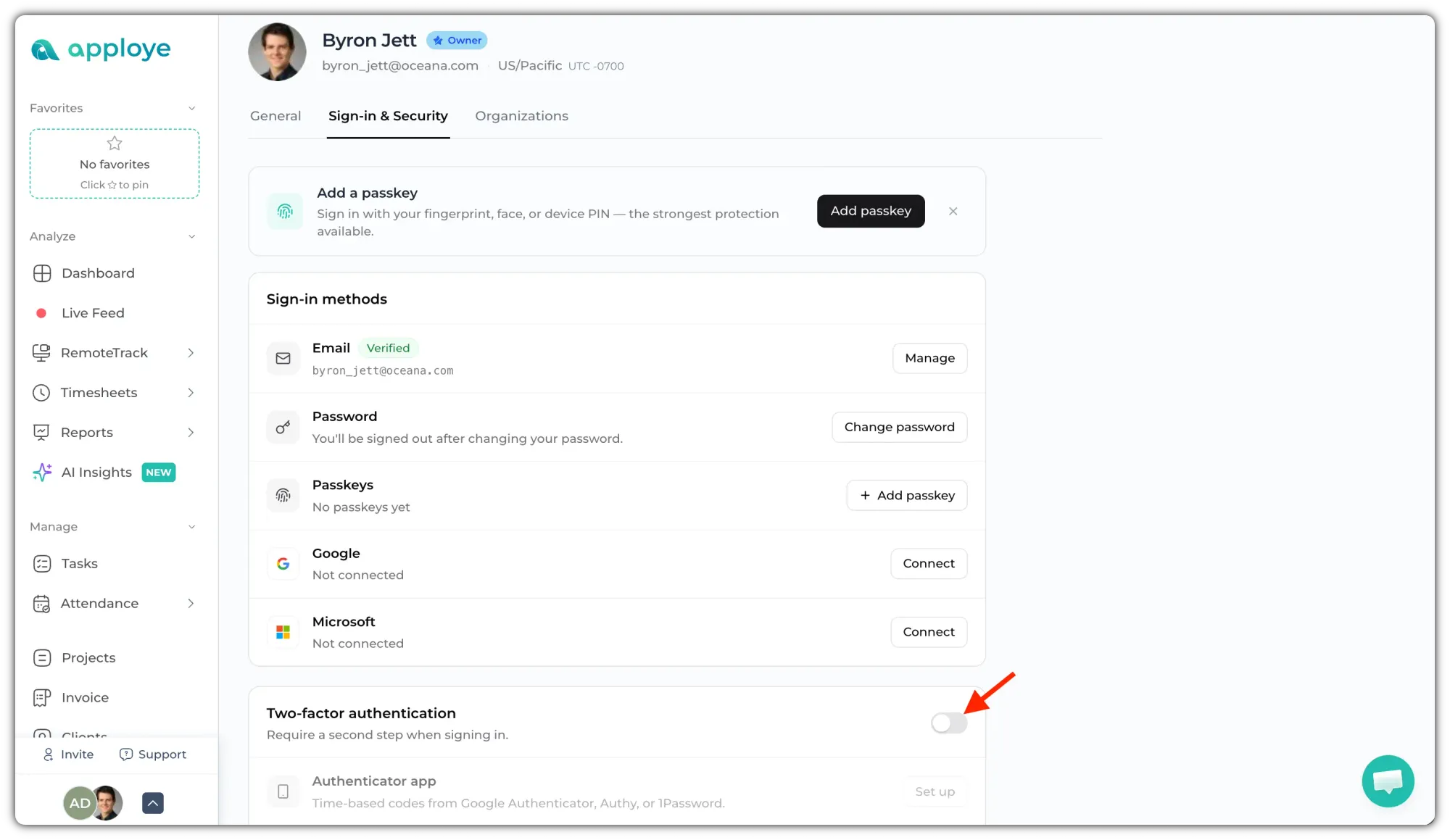
3. Scroll down to the Two-Factor Authentication section. Click the toggle button to turn on 2FA. Now, select "Authenticator App" as the method. It will generate your account's unique setup key and QR code.
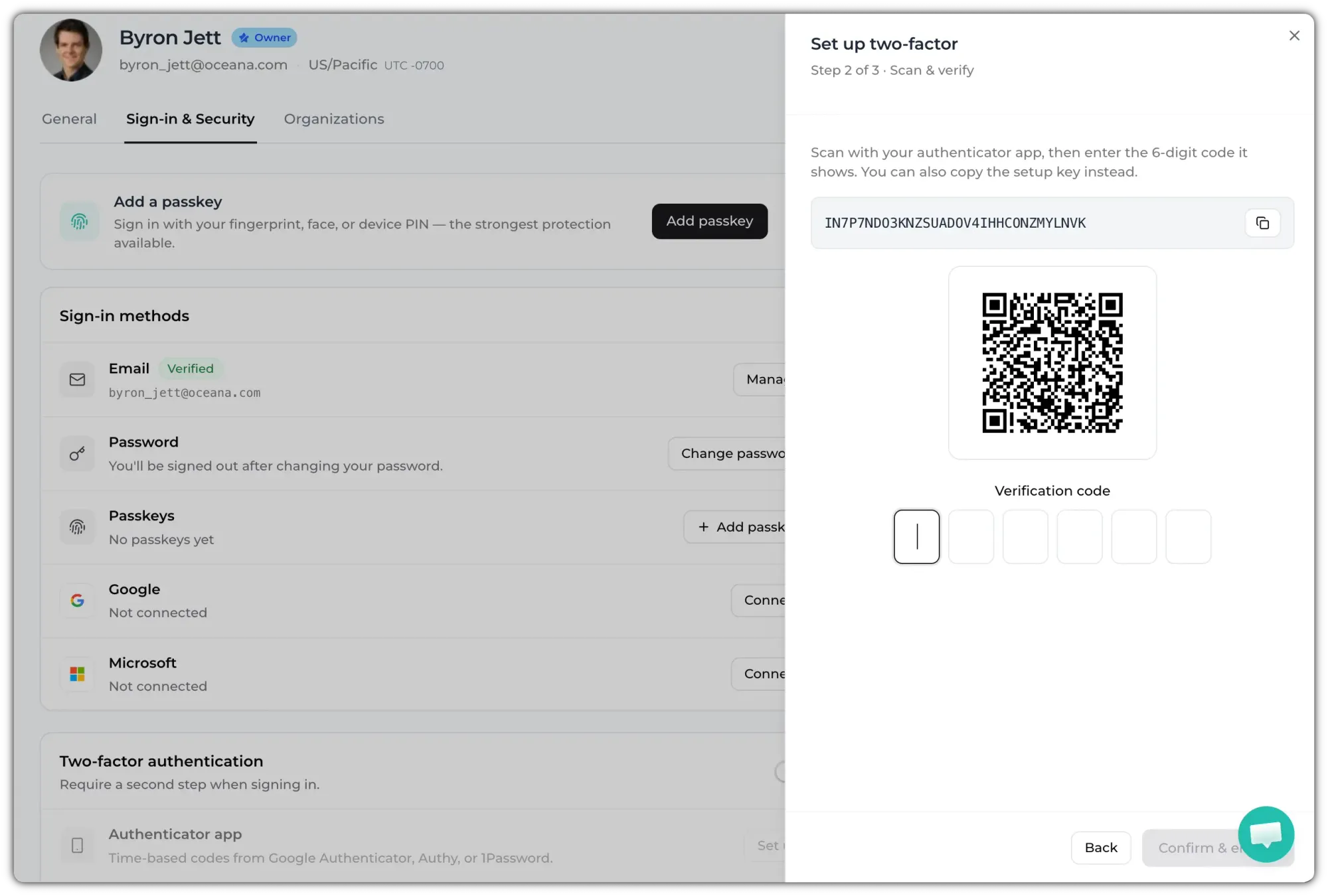
4. Open your authenticator app (e.g., Google Authenticator, Authy) and either scan the displayed QR code or manually copy and paste the setup key into the app. Enter the 6-digit verification code generated by your app to complete the link.
Upon successful setup, Apploye will issue one-time recovery codes. Download them as a TXT file or copy them to a safe location. These codes ensure you do not lose access to your account if you lose your phone or primary device.
You can also use a passkey (biometric or device PIN) as additional authentication.