
Apploye can send time off notifications straight to your email inbox. This is controlled from Email Preferences, and admins/owner can turn it on or off for their own inbox.
Turning on time-off notification emails
1. Go to Settings. Log in to the Apploye Dashboard and click on Settings from the left sidebar.
2. Open Email Preferences. Scroll down to the Workspace & Notifications section and click on Email Preferences.
3. Enable the time off notifications. Tick the checkbox for Send time off notifications in email. The setting is saved right away.
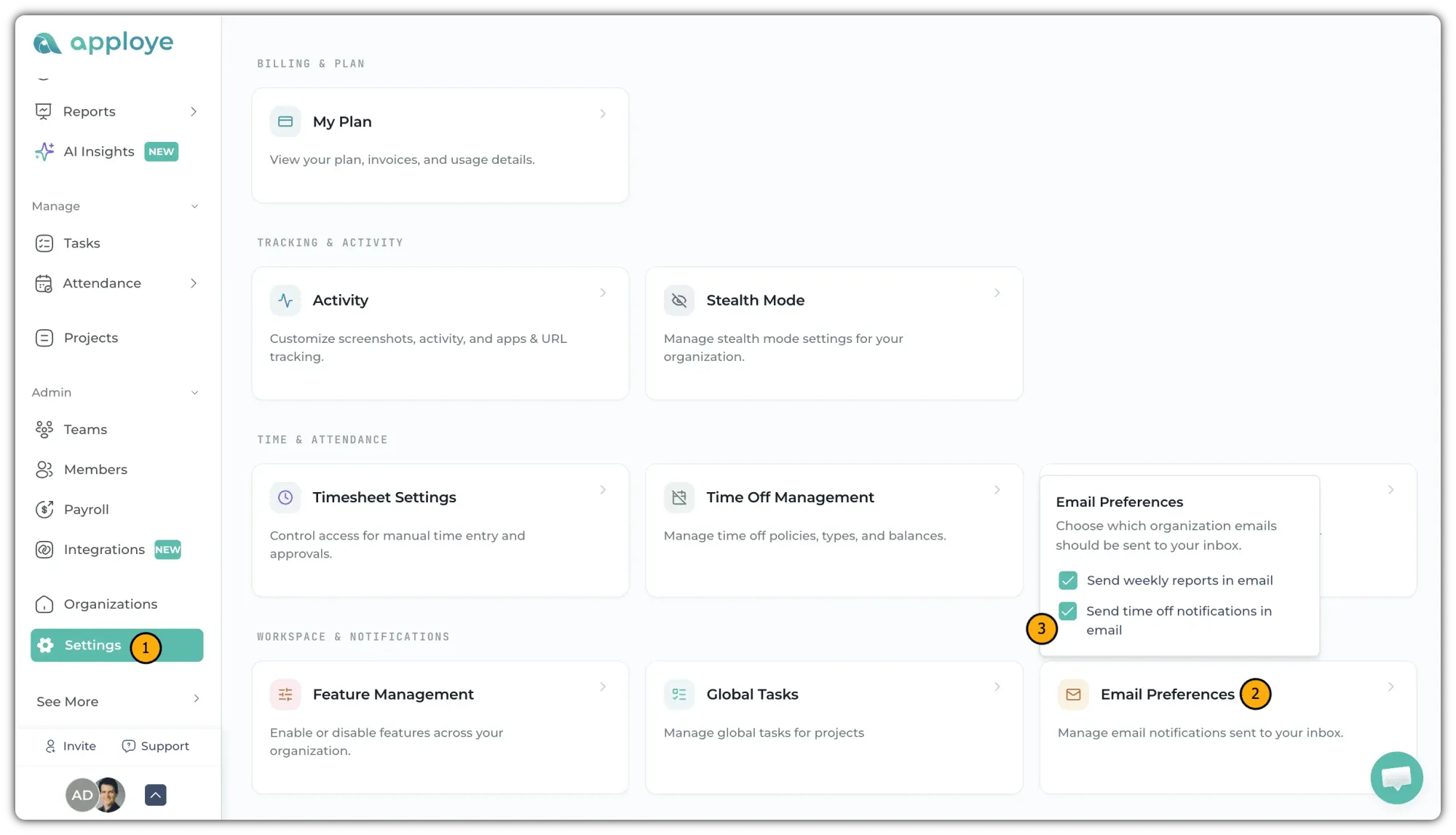
In the same panel, you will also find Send weekly reports in email, which sends you a weekly summary of your organization's tracked time. You can keep both on, or turn on only the one you need.
To stop receiving these emails, simply come back to Settings > Email Preferences and untick the same checkbox.
Things to keep in mind
- Email preferences are your personal settings. Turning the option off only stops the emails going to your own inbox. It does not change anything for your teammates.
- The emails are sent to the address connected to your Apploye account.
- If you have enabled it but are not receiving the emails, check your spam or promotions folder first.
Check out this guideline to set up your time off system in Apploye.