
Apps Productivity decides which apps and websites count as productive, unproductive or neutral time in your reports. Apploye sets it up for you, and you change only what doesn't fit.
To open it, go to Settings → Productivity.
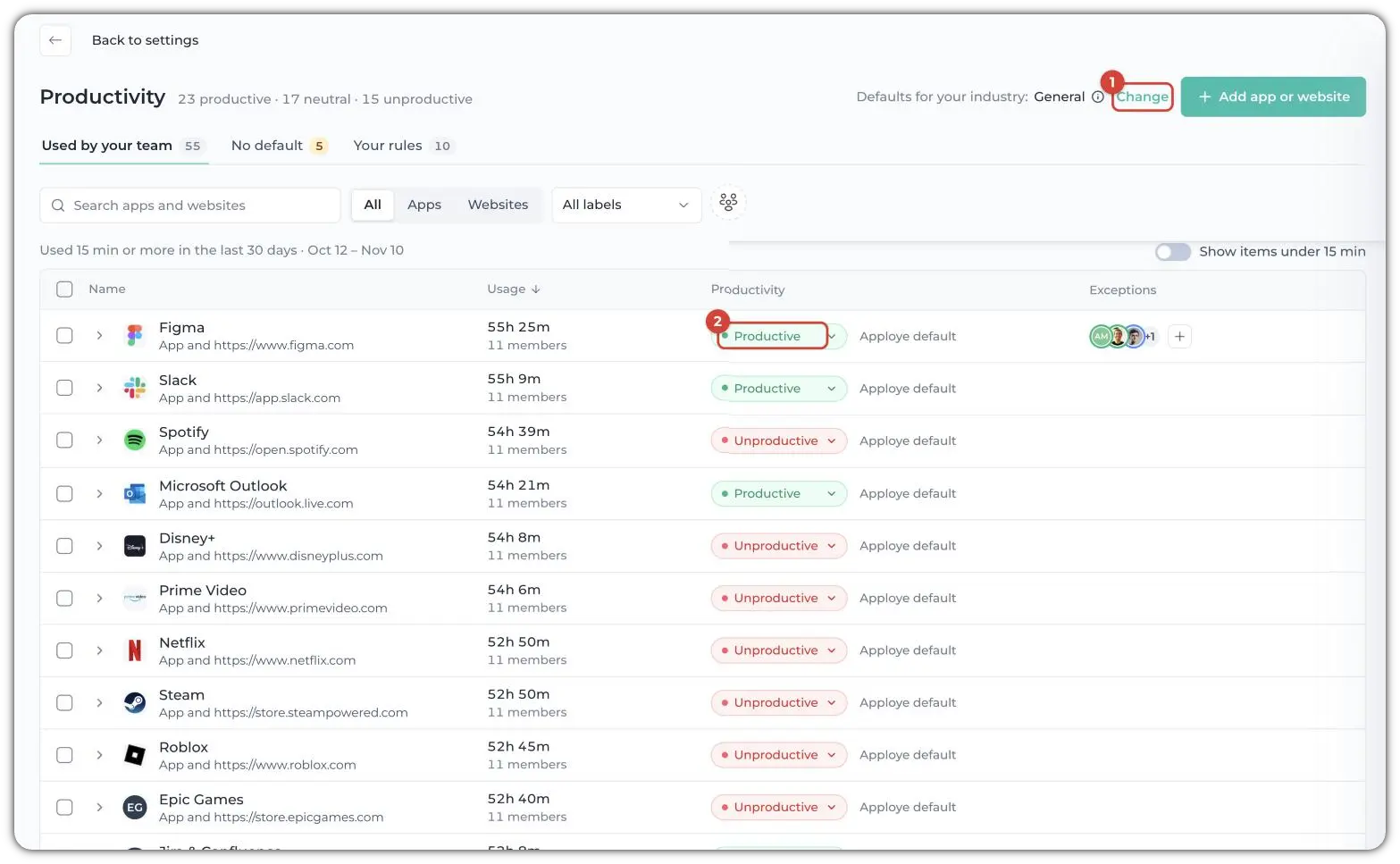
The heading shows how many apps and websites are in each group, for example "23 productive · 17 neutral · 15 unproductive".
Step 1: Pick your industry
Apploye pre-labels common apps for your industry, and the same app can differ between industries. Next to Defaults for your industry, click Change (1) and choose one of:
Agency, Digital Work, E-commerce, Healthcare, General, Retail, Software & IT, or Virtual Assistant.
Your own rules always win over the industry defaults.
Step 2: Check what your team uses
The Used by your team tab lists the apps and websites your members used for 15 minutes or more in the last 30 days, most used first. Each row shows:
- Name: the app or website, and below it whether it's an app, a website or both.
- Usage: total time and how many members used it.
- Productivity (2): its level, Productive, Neutral or Unproductive. Click it to choose another. "Apploye default" beside it means the level is Apploye's. If you've set your own, you'll see Reset instead.
- Exceptions: members who have a different level for it.
Use the search box, All / Apps / Websites and All labels to find things. Turn on Show items under 15 min to include the rarely used ones.
Apploye's own app and sites are always Productive. You can't change them.
Step 3: Label what has no default
The No default tab lists apps and websites Apploye has no label for in your industry. They count as Neutral until you label them. Choose a level for each, and it applies to your whole team from today's tracking.
A count on the tab and the dashboard strip ("5 apps need review") tell you when something is waiting.
Step 4: Add exceptions
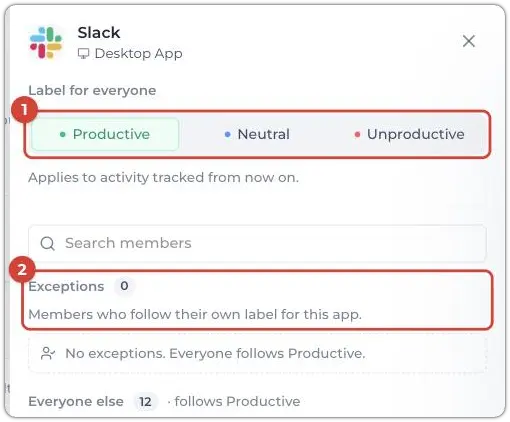
Sometimes a site is work for one person and a distraction for everyone else. After you open an app/site, click + Add exception on its row. A panel opens with:
- Label for everyone (1): Productive, Neutral or Unproductive. It applies to activity tracked from now on.
- Exceptions (2): the members who follow their own label for this app or website.
- Everyone else: the members who follow the label for everyone.
Your rules
The Your rules tab lists every label you've changed or added, with its exceptions, so you can see what's different from Apploye's defaults. Use Reset to go back to Apploye's default for a row.
Add something that isn't listed
Click Add app or website (top right), then type a name or address in Search Apploye's library or type a name. Most apps already have an Apploye default, so search first and change that if it's there. If not, add your own.
Good to know
- Changes apply to future tracking only. Time already tracked keeps its old label.
- You can also change a level straight from the Productivity report, by clicking it next to an app in a member's list.
Related Articles: