
Activity Insights shows what time was spent on, and whether the activity was real. It sorts every tracked minute into productive, unproductive and neutral time by the apps and websites behind it, and it flags tools that make a computer look busy while nobody is working.
You'll find it in the sidebar under Activity Insights. It has two pages:
- Productivity: where your team's time went, per member and for the whole team.
- Unusual Activity: mouse jigglers, auto-clickers, and other tools that fake activity.
How it works
While a member tracks time, the Apploye desktop app records which app or website is in front of them. Each app and website has a level: Productive, Unproductive, or Neutral. Apploye adds up the time in each, so the three always come to the member's total.
You don't have to label anything to get started. Apploye already labels more than a thousand common apps and websites for your industry.
At the same time, the desktop app watches for software that clicks, types or moves the mouse on its own, and flags it in Unusual Activity.
The Productivity report
Go to Activity Insights → Productivity to view the productivity reports.
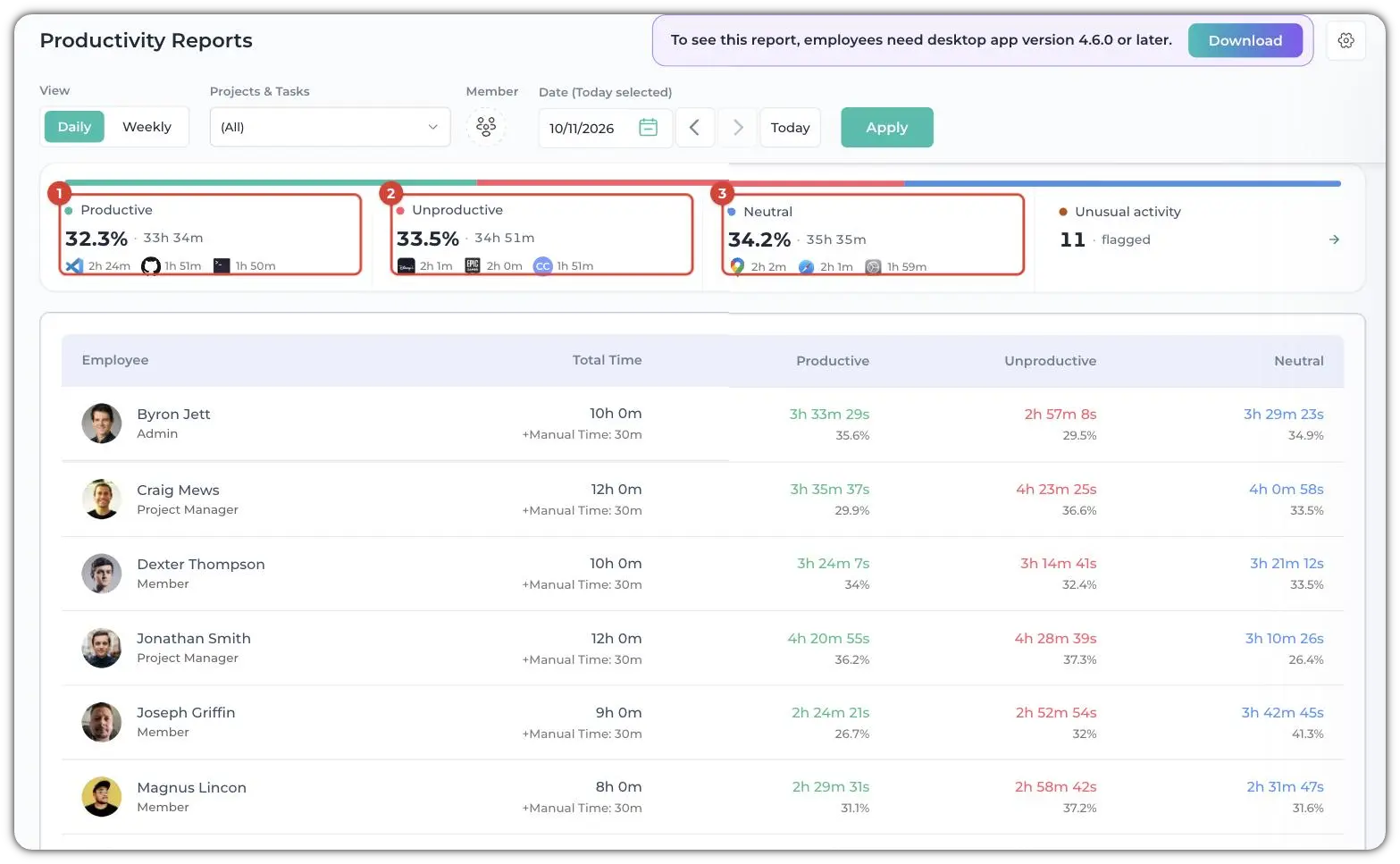
At the top, you can choose Daily or Weekly. You can also filter by Projects & Tasks, Member and Date.
Four cards show your team's totals for the period:
- Productive (1), Unproductive (2) and Neutral (3): each one's share of the time and its total, for example "33.2% · 164h 27m", with the three apps or websites that took the most time.
- Unusual activity: how many activities were flagged. View report opens Unusual Activity.
You can see each member with Total Time, then Productive, Unproductive and Neutral time, each with its percentage. Manual time is shown under the total, for example "+Manual Time: 30m". It is not counted in productivity.
View a member's apps and websites
Click a member's name. A panel opens with their productive, unproductive and neutral split for that day, their total tracked time, and every app and website they used, longest first, with the level of each. Anything Apploye has no label for shows a No default tag next to Neutral.
Productive vs Unproductive vs Neutral Time in Apploye explains the three kinds of time in more detail.
Productivity settings
Go to Settings → Productivity to decide what counts as productive for your team. You can also click on the Settings/Cogwheel on the productivity reports page to get to these settings.
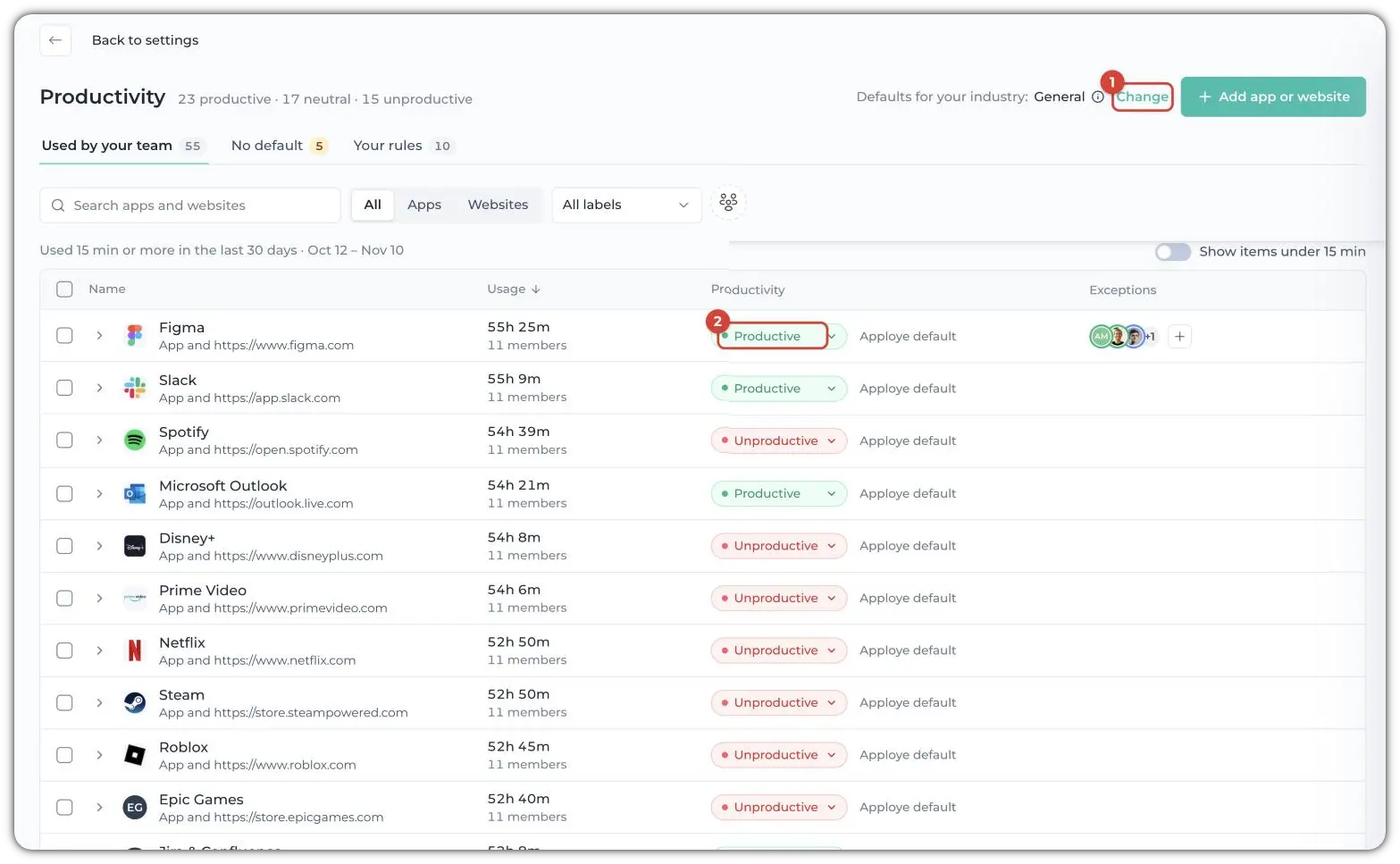
- Defaults for your industry: Apploye's labels depend on the industry you pick: Agency, Digital Work, E-commerce, Healthcare, General, Retail, Software & IT, or Virtual Assistant. Click Change to switch.
- Used by your team: the apps and websites your members used for 15 minutes or more in the last 30 days, with each one's usage and level. Click a level to change it for everyone.
- No default: apps and websites Apploye has no label for. They count as Neutral until you choose a level.
- Your rules: every level you've changed, so you can see what's different from Apploye's defaults. Reset goes back to the default.
- + Add exception: gives one member a different level for an app or website. Useful when a site is work for one person and a distraction for everyone else, such as social media for whoever runs your accounts.
- Add app or website: labels something that isn't on the list yet.
Your rules always win over Apploye's defaults. Apploye's own app and sites are always Productive and can't be changed.
Apps Productivity Setup Overview walks through each step.
Unusual Activity
Go to Activity Insights → Unusual Activity. It opens on the last 7 days. You can change the dates or pick a member.
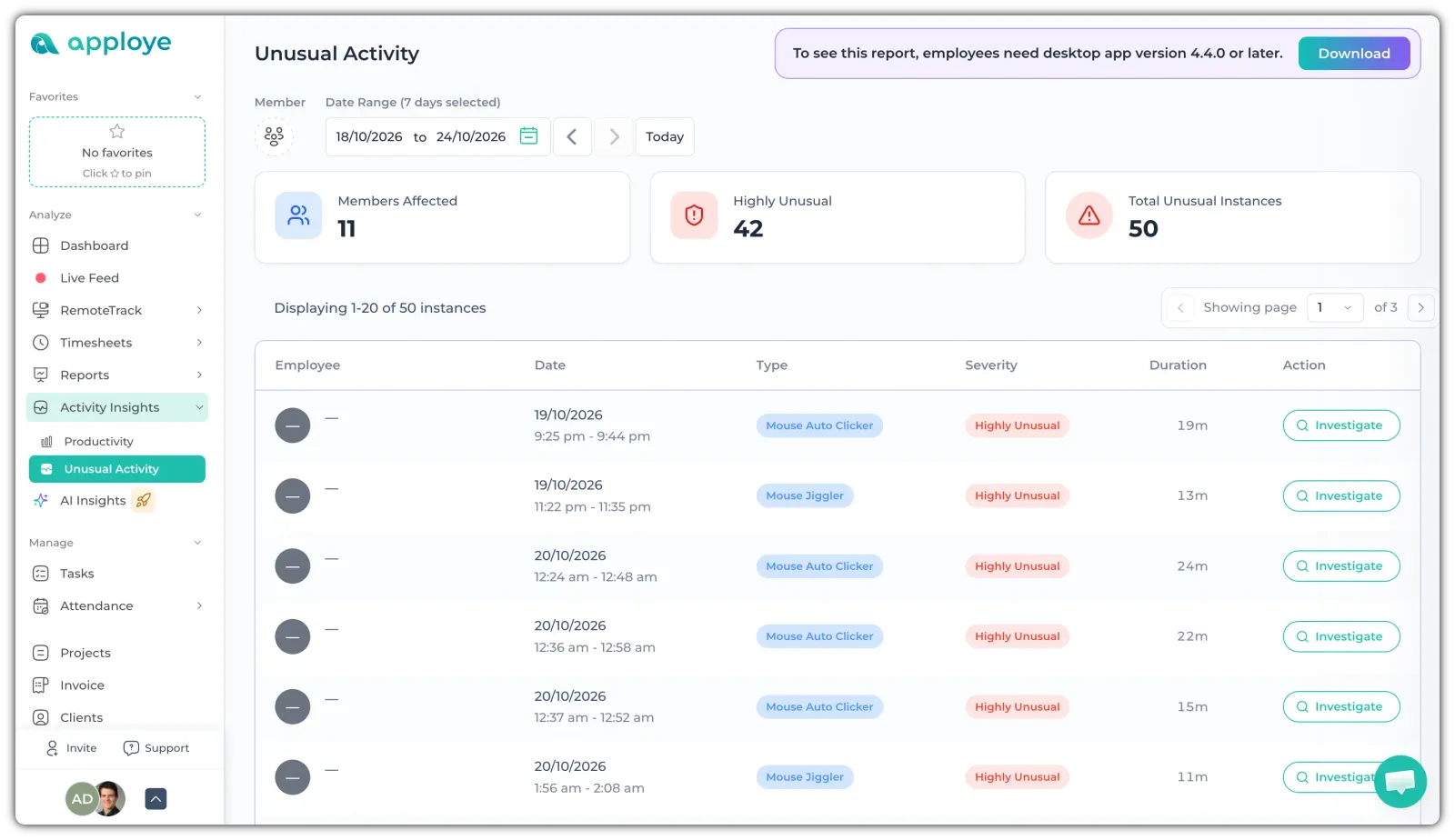
The summary shows Members Affected, Highly Unusual and Total Unusual Instances. Below it, each flag is a row with the Employee, Date and time range, Type, Severity and Duration.
Type names the kind of tool Apploye found, for example Mouse Jiggler, Mouse Auto Clicker, Multi Functional Auto Clicker, Sleep Preventer, Macro App or Automation Tool. Severity is either Highly Unusual or Unusual.
Click Investigate (on the right side) to see the evidence for a flag:
- The time range, duration, severity and type.
- View member activity: jumps to the member's Screenshots or Screen Records for that time.
- Affected screenshots: the screenshots taken while the tool was running.
- Suspicious apps: the app Apploye detected, for example, Mousejiggler.exe and when it was active.
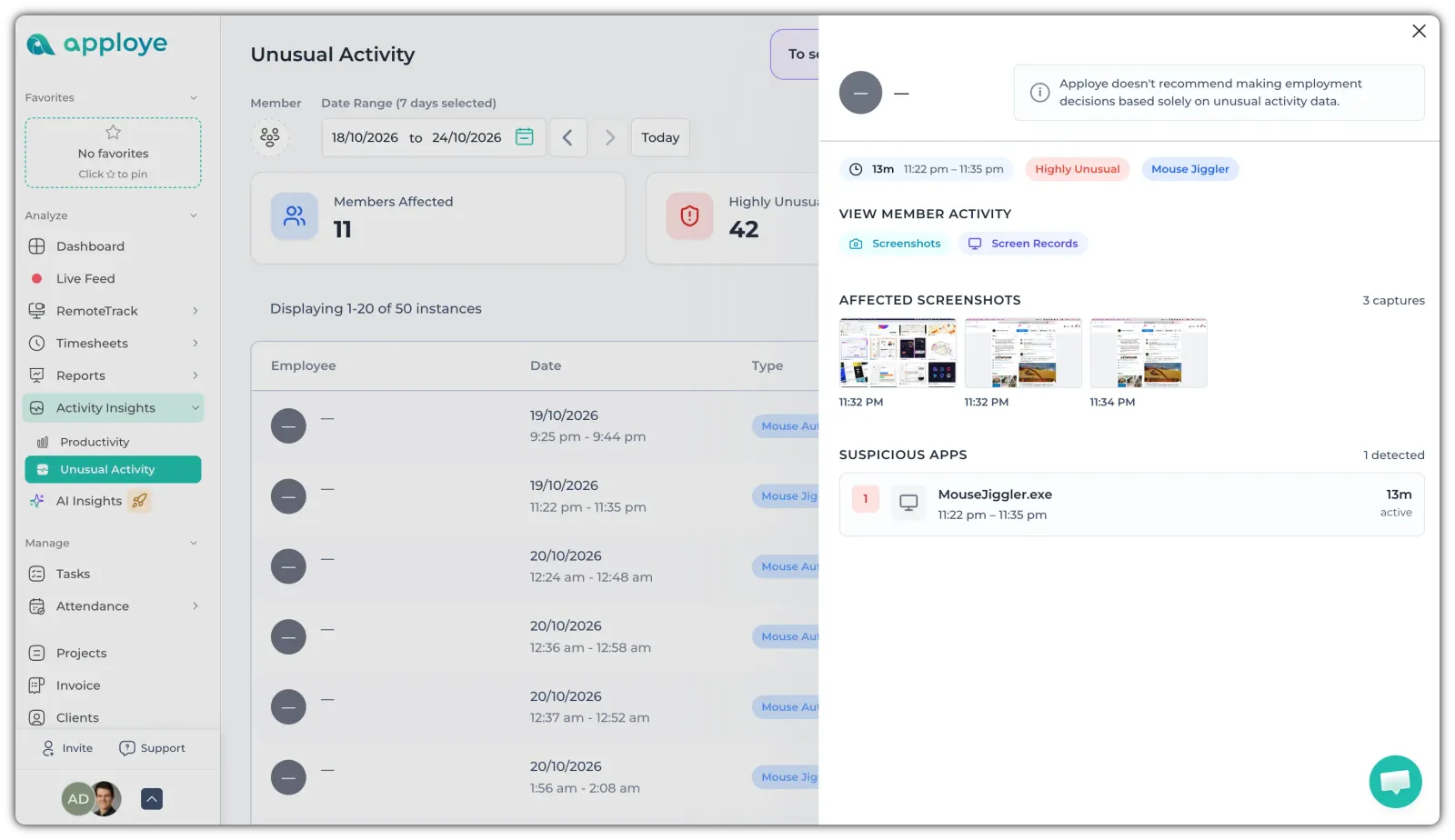
Note: Apploye doesn't recommend making employment decisions based solely on unusual activity data. Check the screenshots, then talk to the member.
How to Detect Suspicious Activity in Apploye covers the report in full.
Good to know
- Activity shows how much of the tracked time had keyboard or mouse input. Productivity is different. It tells you what the time was spent on.
- Changes aren't retroactive. A new level counts from the moment you set it.
- It needs the latest desktop app. Productivity needs desktop app version 4.6.0 or later, and Unusual Activity needs 4.4.0 or later.
Related Articles: