
Apploye stores every time off request your team submits, e.g. who asked, what type of leave, which policy it fell under, how long it lasted, and who approved or rejected it. The export pulls all of that out of the dashboard as a CSV file you can open in Excel or Google Sheets or use in your software.
Before you export
Set up your time off structure first. Apploye can only export requests that were submitted against a policy, so the pieces have to exist in this order:
- Leave period: the cycle your allowances reset on, usually your calendar year or fiscal year.
- Time off types: sick leave, casual leave, earned leave, or any custom category your company uses.
- Time off policy: how many days of each type members get, and any restrictions on how they're taken.
- Assigned members: a policy will be inactive until people are attached to it.
If any of these are missing, your export will come back empty or incomplete. Start with How to set a time off policy and How to set a time off type, or watch the Time Off Management feature overview video for the full picture in a few minutes.
Requests have to actually be in Apploye: Share How to apply for time off as an employee with them so the employees can request time off in Apploye.
You need admin or owner or team manager access. Time off data not available for normal employees. Employees can see their own requests but won't have the download option.
Exporting the data
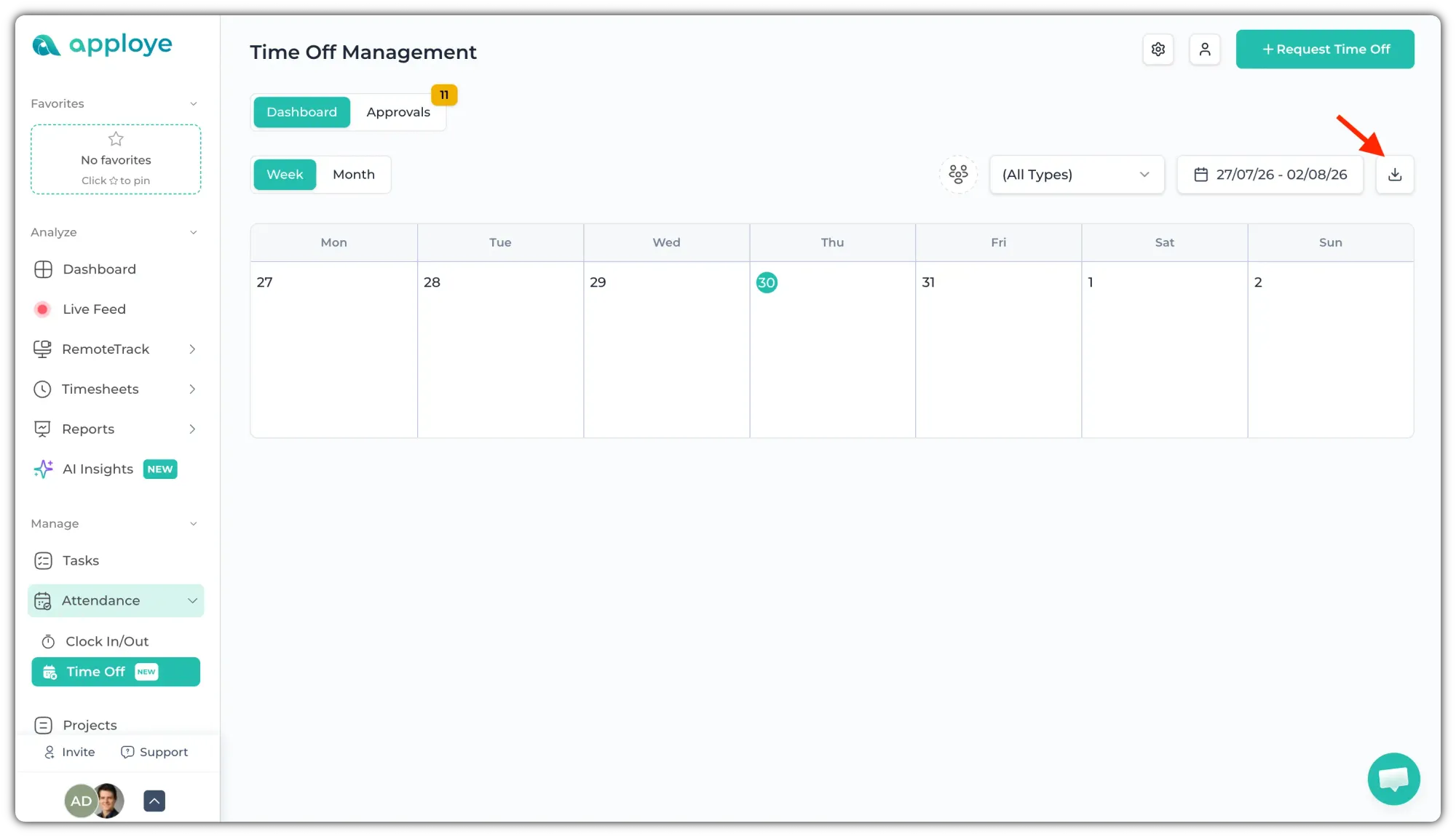
Firstly, From the left side panel, go to Attendance → Time Off. Then, Click the download icon in the top-right corner of the page.
Now, in the popup, choose the team members, time off type, and date range you want covered. Click Export.
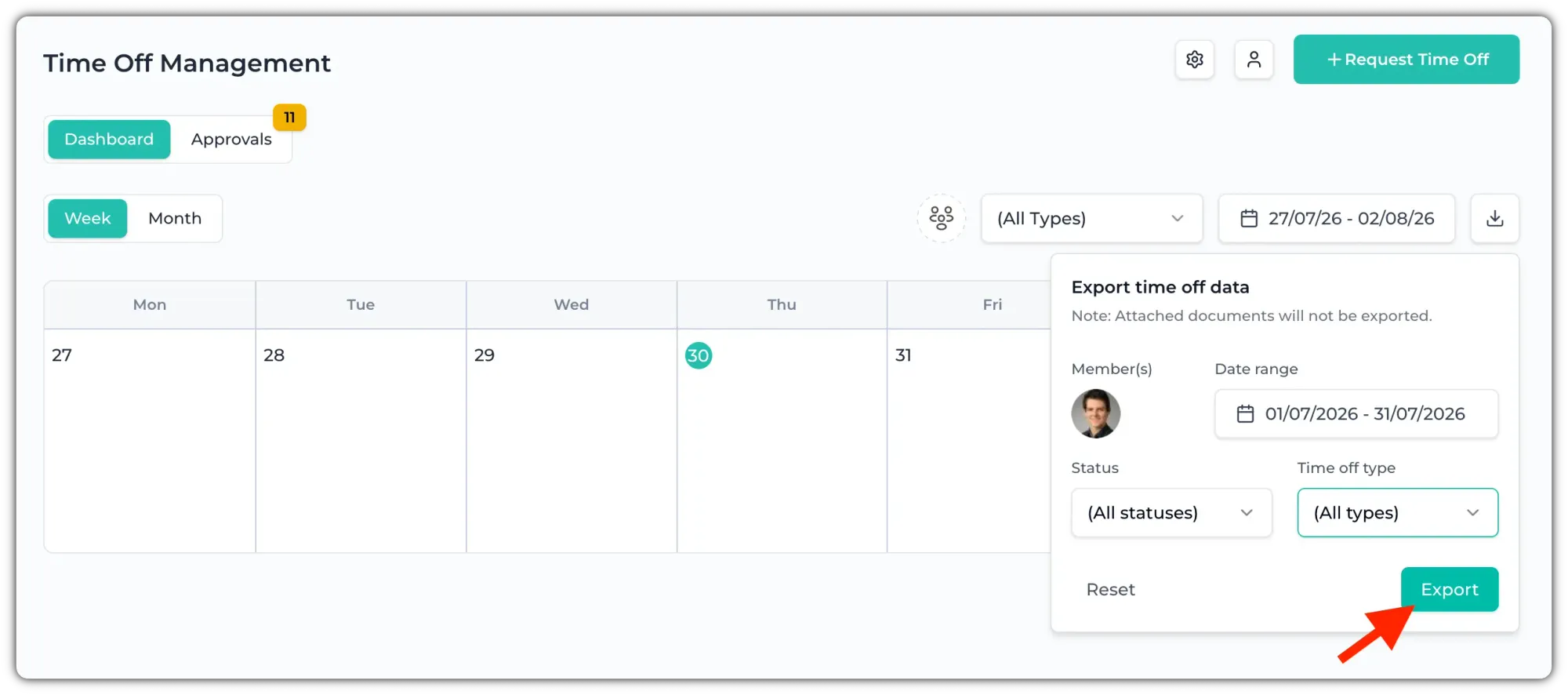
The CSV file will be downloaded.
What's inside the file
Each row is one time off request. There are 14 columns:
| Column | What it holds |
|---|---|
| Member Name | The employee the request belongs to |
| Member Email | Their Apploye login email |
| Leave Type | The type they requested, e.g. sick_leave_type |
| Leave Policy | The policy that type falls under, e.g. sick_leave_policy |
| Start Date | First day of leave |
| End Date | Last day of leave, same as Start Date for single-day or half day requests |
| Duration | Number of days, as a decimal (1.0, 0.5, 3.0) |
| Day Duration | full or half |
| Status | accepted, rejected, or pending |
| Message | The reason the employee wrote when submitting |
| Rejection Reason | The admin's explanation (only filled in on rejected rows) |
| Applied By | Who submitted the request |
| Status Changed By | The admin who approved or rejected it. Blank while a request is still pending |
| Created At | The date the request was submitted |
Note:
"Created At" is not the leave date. It's when the request was submitted, which can be well after the leave was taken if someone backfills a sick day.
For exporting the hours-worked, use the timesheet or attendance export: How to generate a custom report and the Attendance overview.