
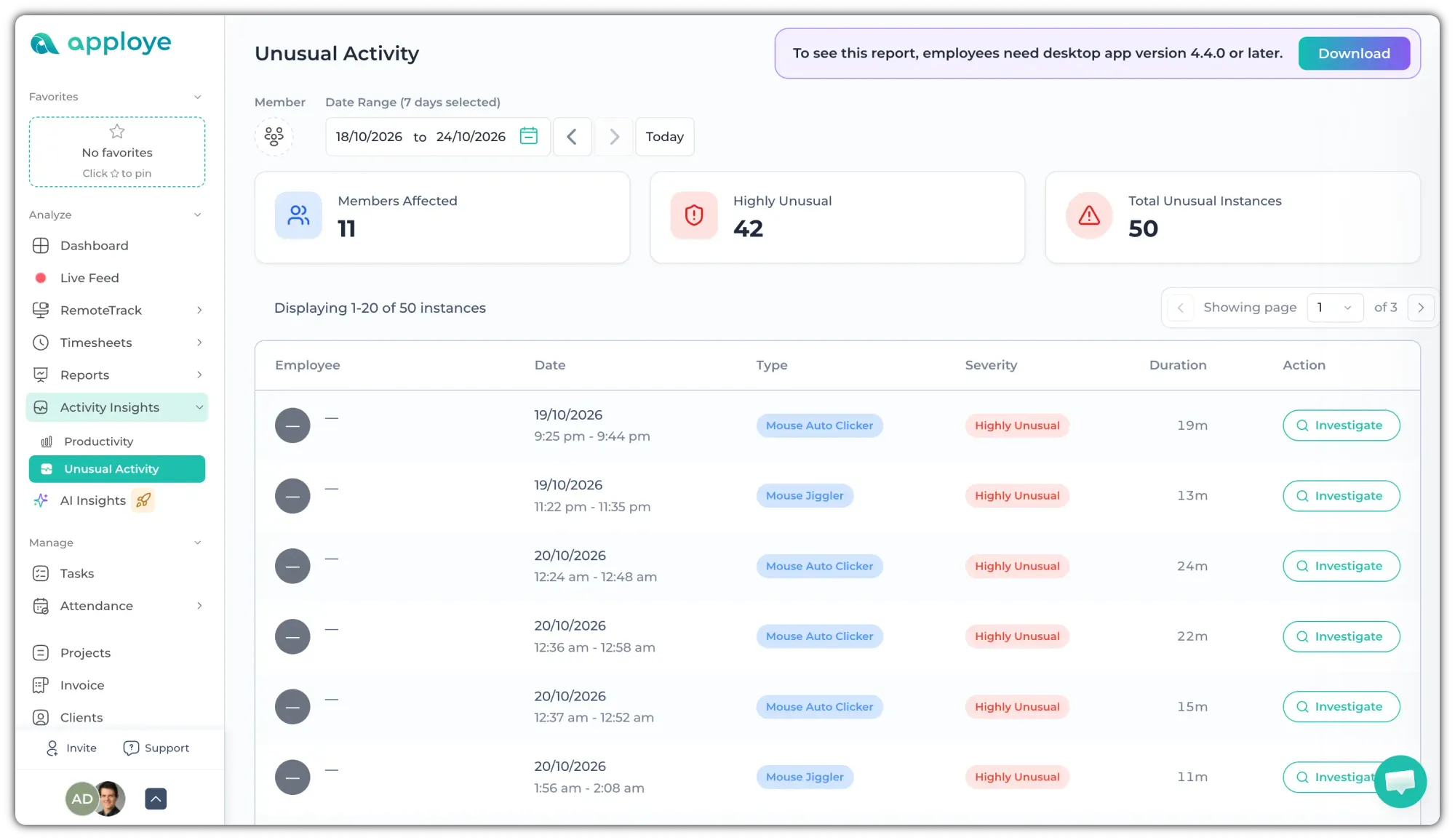
Apploye detects suspicious activity: tools and apps that make a computer look busy when nobody is working. You'll find every flag in the Unusual Activity report.
To open it, go to Activity Insights and then select "Unusual Activity". The Dashboard's "Productivity this week" section also shows how many unusual activities were flagged this week.
What Apploye flags
Unusual Activity looks for tools that fake keyboard and mouse activity or keep a computer from going idle. Each flag names the kind of tool in its Type column, for example:
- Mouse Jiggler: moves the mouse on its own so the computer never looks idle.
- Mouse Auto Clicker and Multi Functional Auto Clicker: click automatically, again and again.
- Sleep Preventer: keeps the computer awake and the session open.
- Macro App, Automation Software and Automation Tool: apps that click or type for someone, such as macro recorders.
These tools can push the activity percentage up while no one is at the computer. That's why Apploye flags them.
Unusual Activity Report
The report opens on the last 7 days. Use Date Range to change the period, the arrows to step back or forward, or Today. To see one person's flags, pick them under Member.
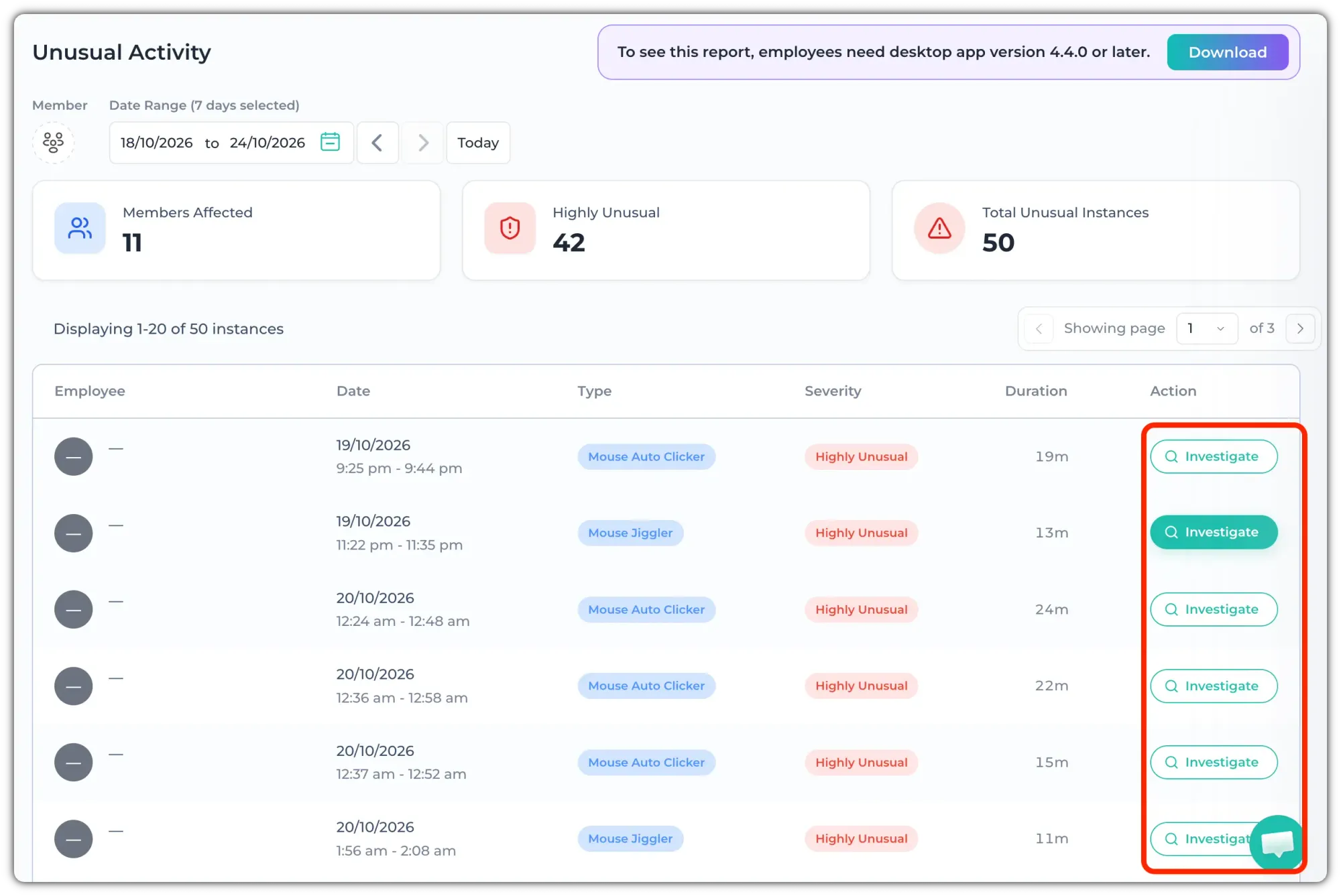
To view details, click Investigate on a row. A panel opens on the right and shows screenshots taken while it ran, with the count.
Suspicious apps show the app that was detected, for example MouseJiggler.exe, with its time range and how long it was active
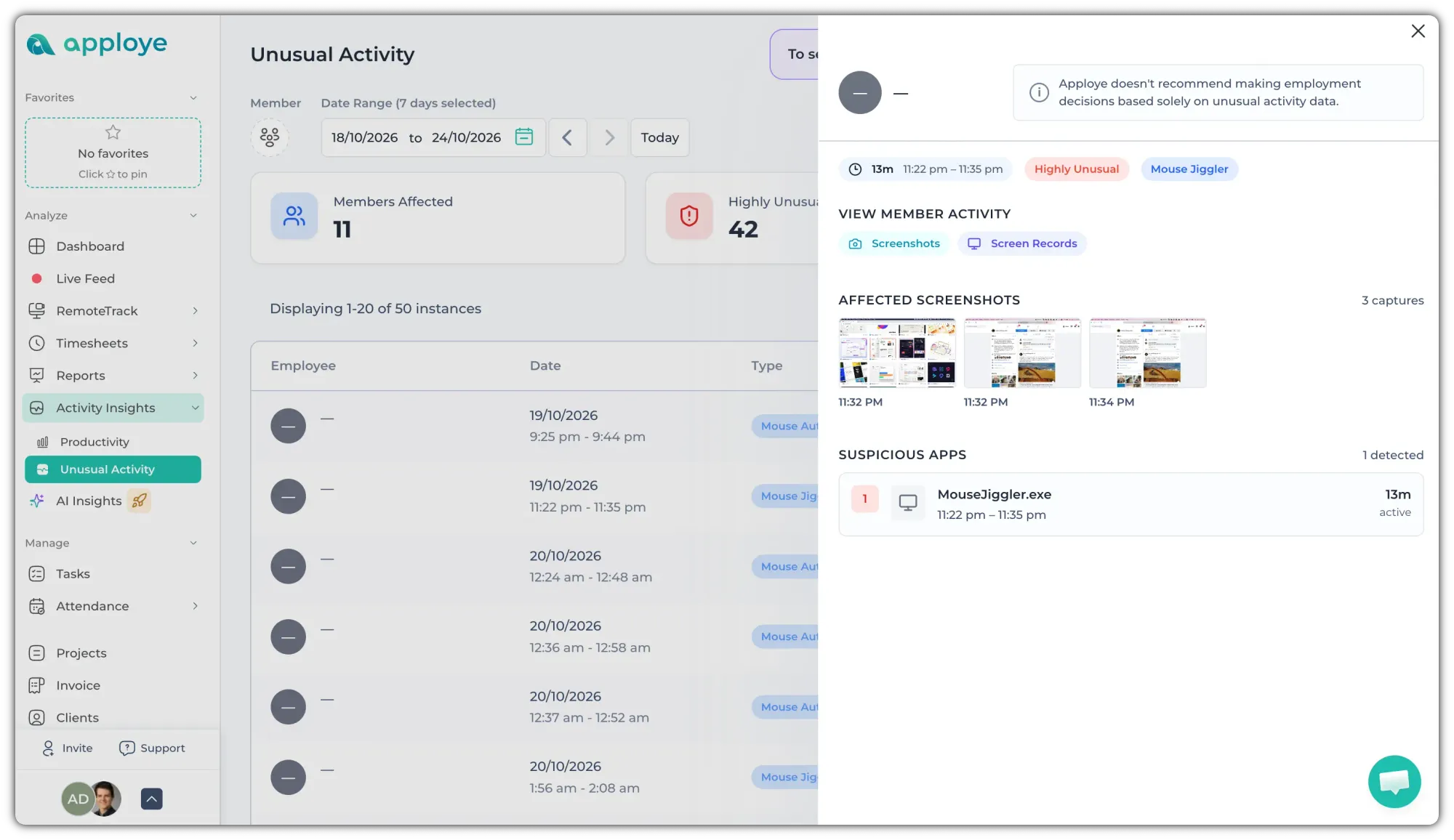
Screenshots taken during the flag are the quickest way to see what was really on screen. To see the whole stretch around it, open Screenshots or Screen Records.
Screen Records only has recordings if your organization has the Screen Recording add-on.
You may also see a suspicious badge on a timesheet or a screenshot. Click the badge to see what was flagged.
Note
Apploye doesn't recommend making employment decisions based solely on unusual activity data.
Treat a flag as a reason to look closer. Before you decide anything:
- Open the screenshots for that period, and screen records if you have them.
- Check what the member was working on that day, in their timesheet and the Productivity report.
- Talk to them. Ask whether they use any automation, macro or keep-awake tools, and what for.
Some people may run a keep-awake app for a plain reason, like a long download or a presentation. Others use macros as part of their job. A conversation usually clears it up faster than anything in a report.
Related Articles: