

Apploye allows organization owners/admins to enable blur effect on screenshots to protect private data (Apploye’s privacy policy). Once the feature is activated, the desktop app will automatically blur all captured screenshots to maintain data privacy.
Once a screenshot is blurred, the effect is permanent and cannot be reversed. You can enable the screenshot blur feature at the individual user level.
To enable blur, go to: Settings → Activity Settings → Tracking Individual Member. From there, you can enable or disable the blur option for each user.
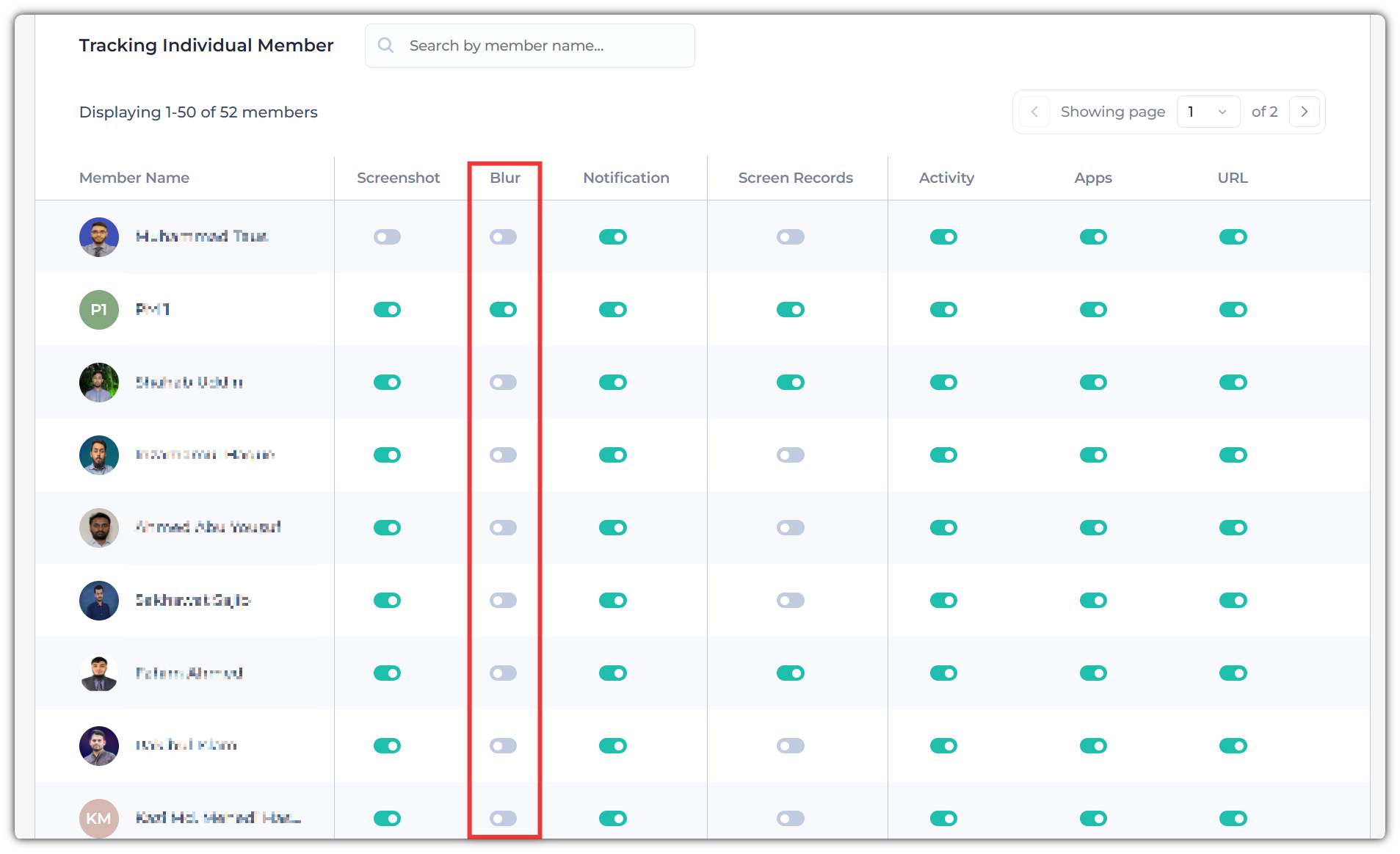
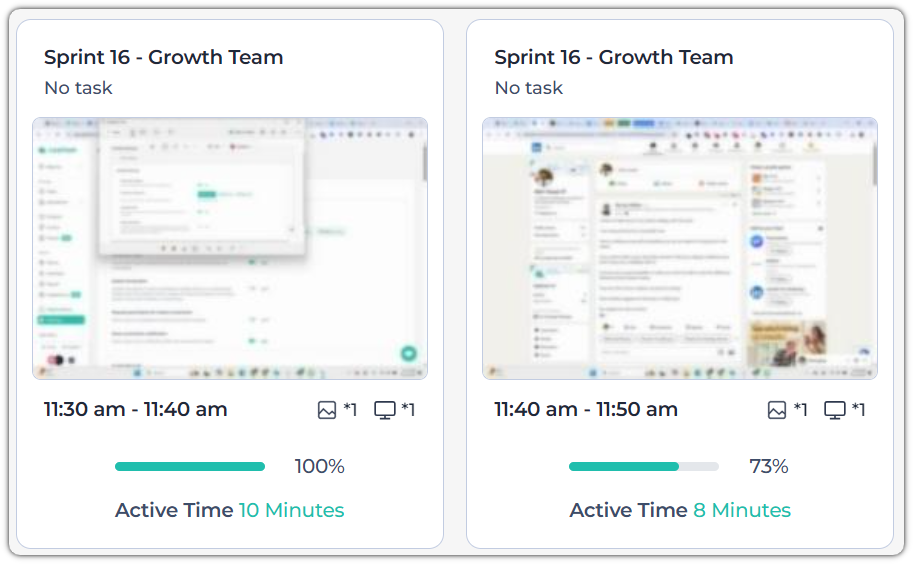
When the blur setting is enabled, the thumbnails on the screenshots page will appear as shown below:
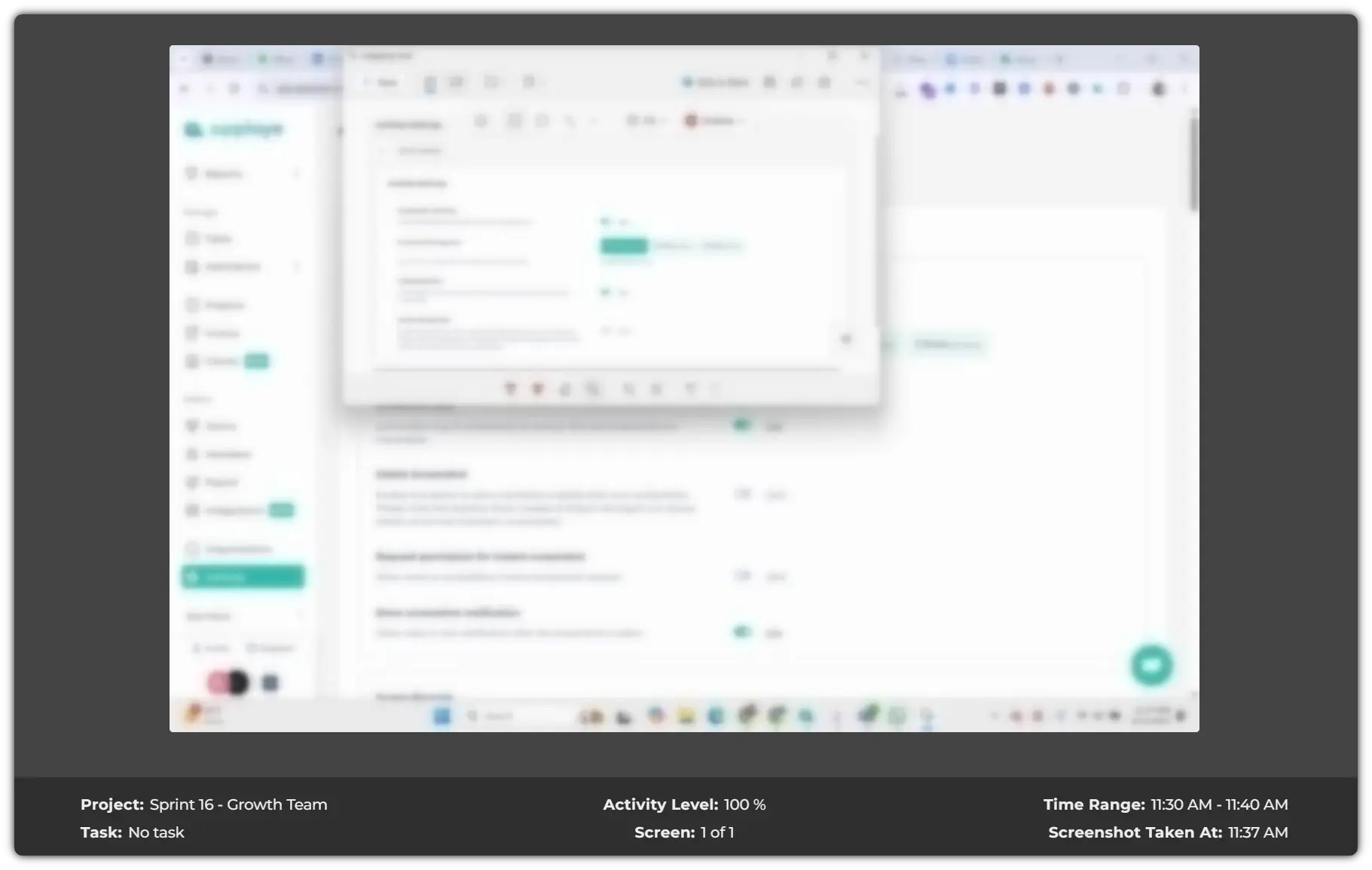
Here is how the blurred image will appear:
Related Articles: