
With the Manual Timesheet Approval feature, you can review employees' manually added time before it is counted as approved work time.
This can be helpful when employees forget to start the timer and add the time later.
How to turn on Manual Timesheet Approval
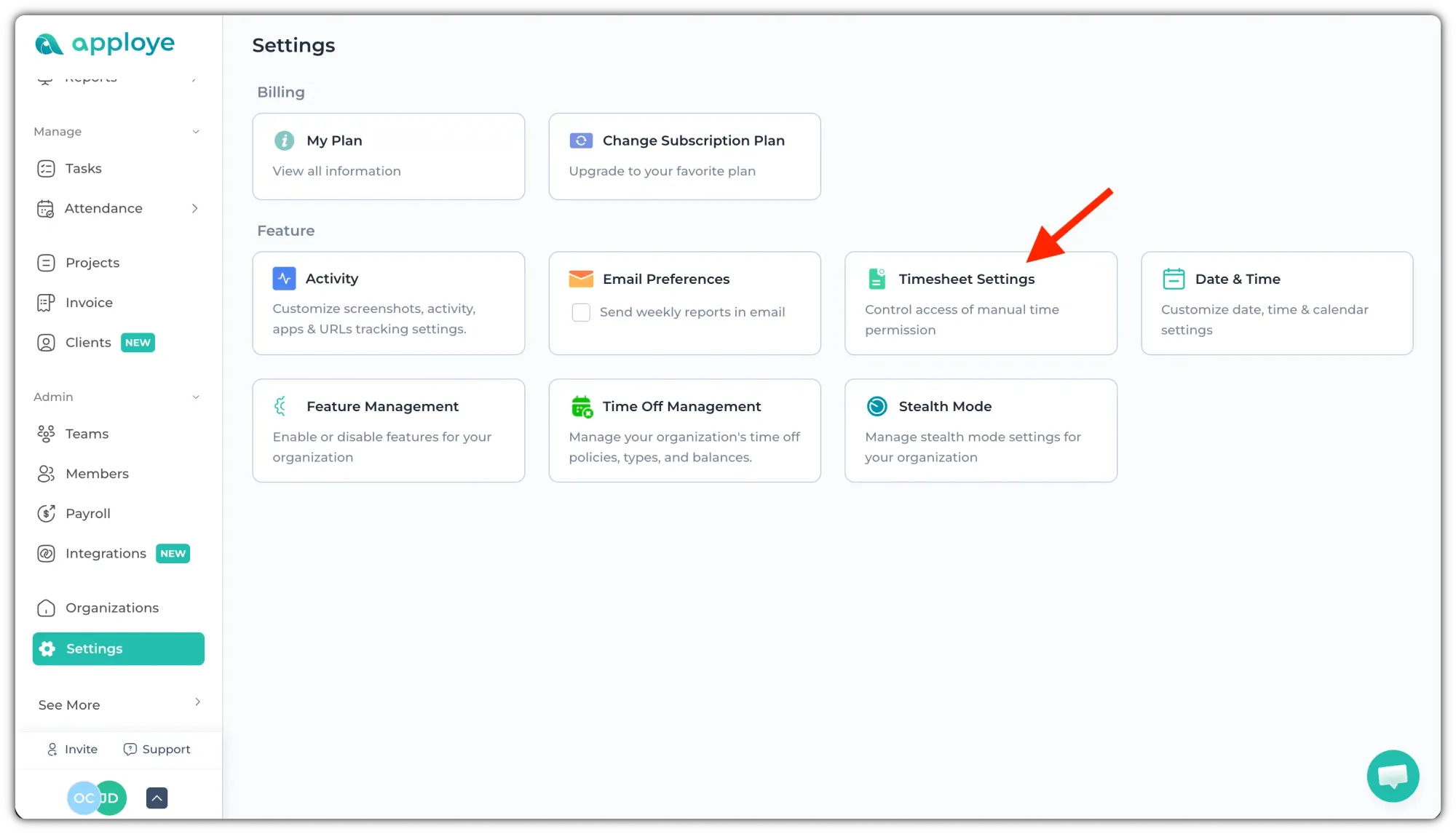
Go to Settings > Timesheet Settings.
From the Manual Time section, turn on the toggle for "Require approval for manual time".
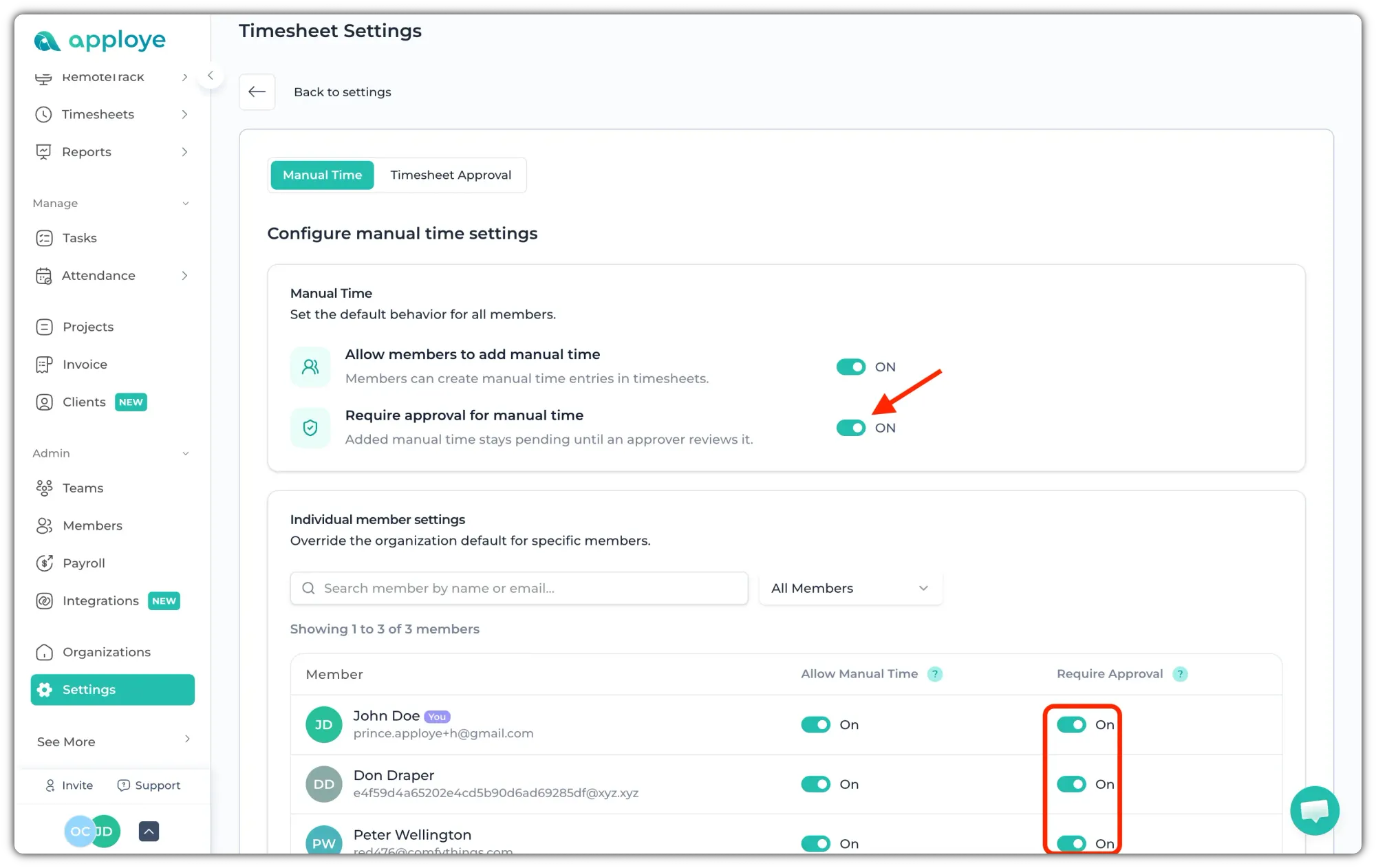
You can also turn on/off approval for specific members from the individual member toggles on the right.
Once it is enabled, any manual time added by those members will need approval before it is counted as regular time.
How to approve or reject manual time
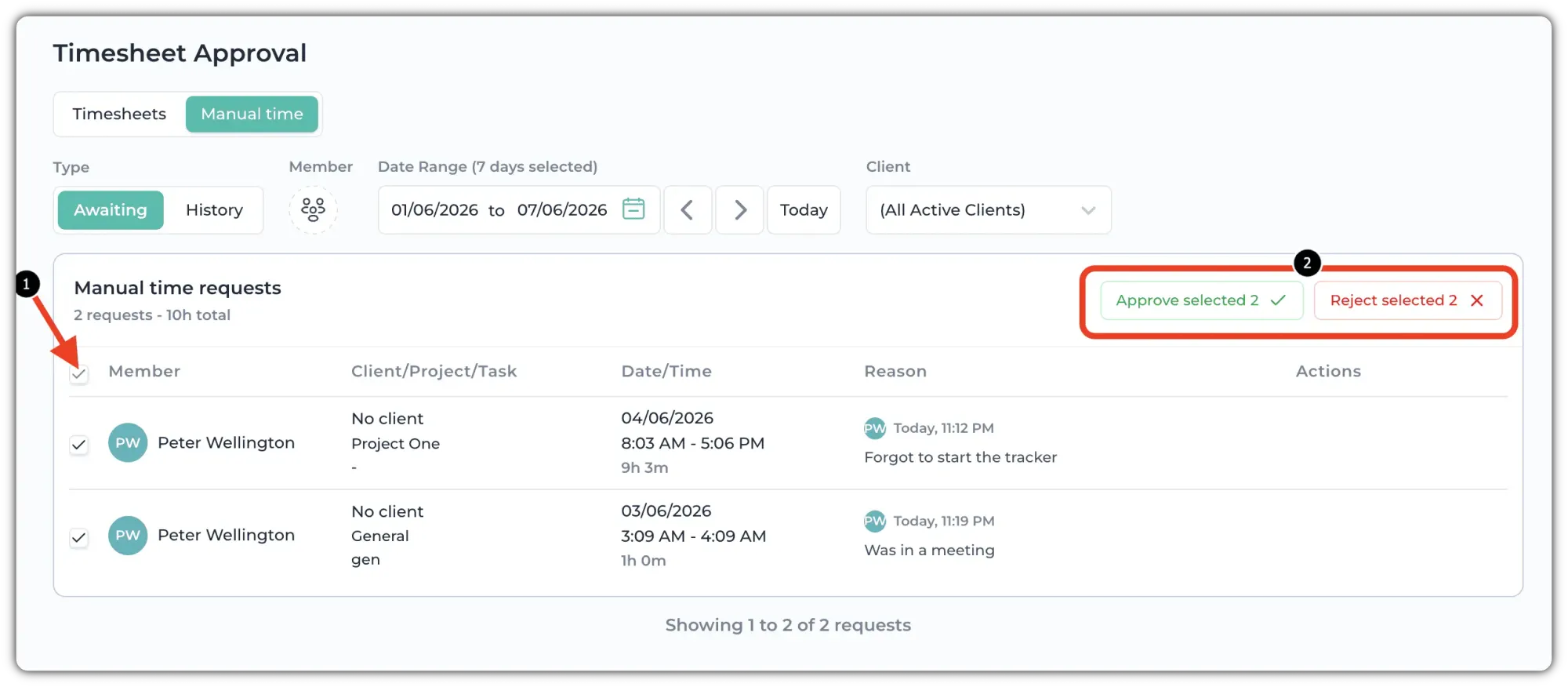
Go to Timesheets > Approval. Click on "Manual Time" to approve the manual timesheets. Feel free to select the date range and members you want to review.
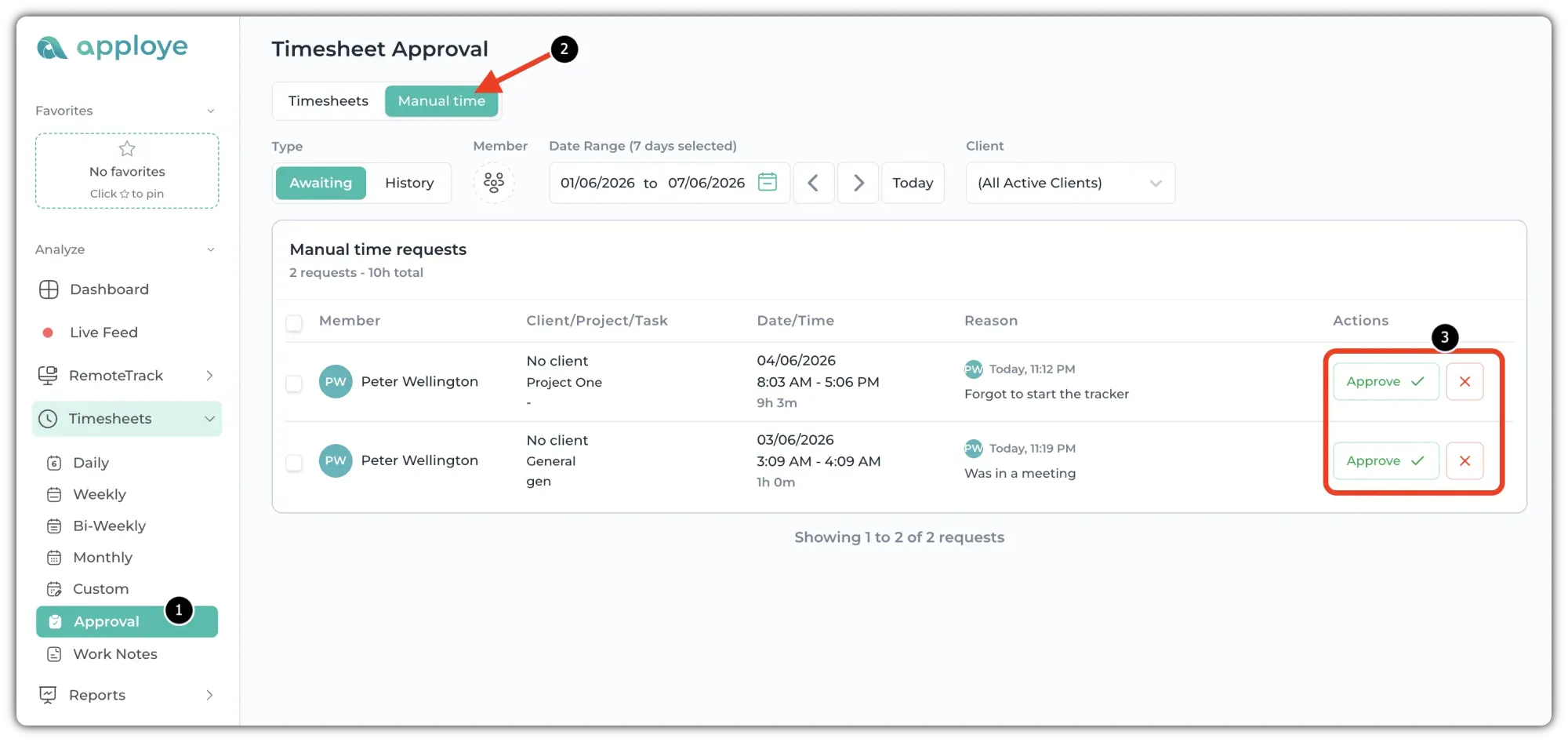
You will see the manual time entries that are waiting for approval. Check the details, such as: Project, task, Time range & Duration, and Reason for adding manual time.
If the manual time looks correct, click Approve. If the time should not be counted, click the X button.
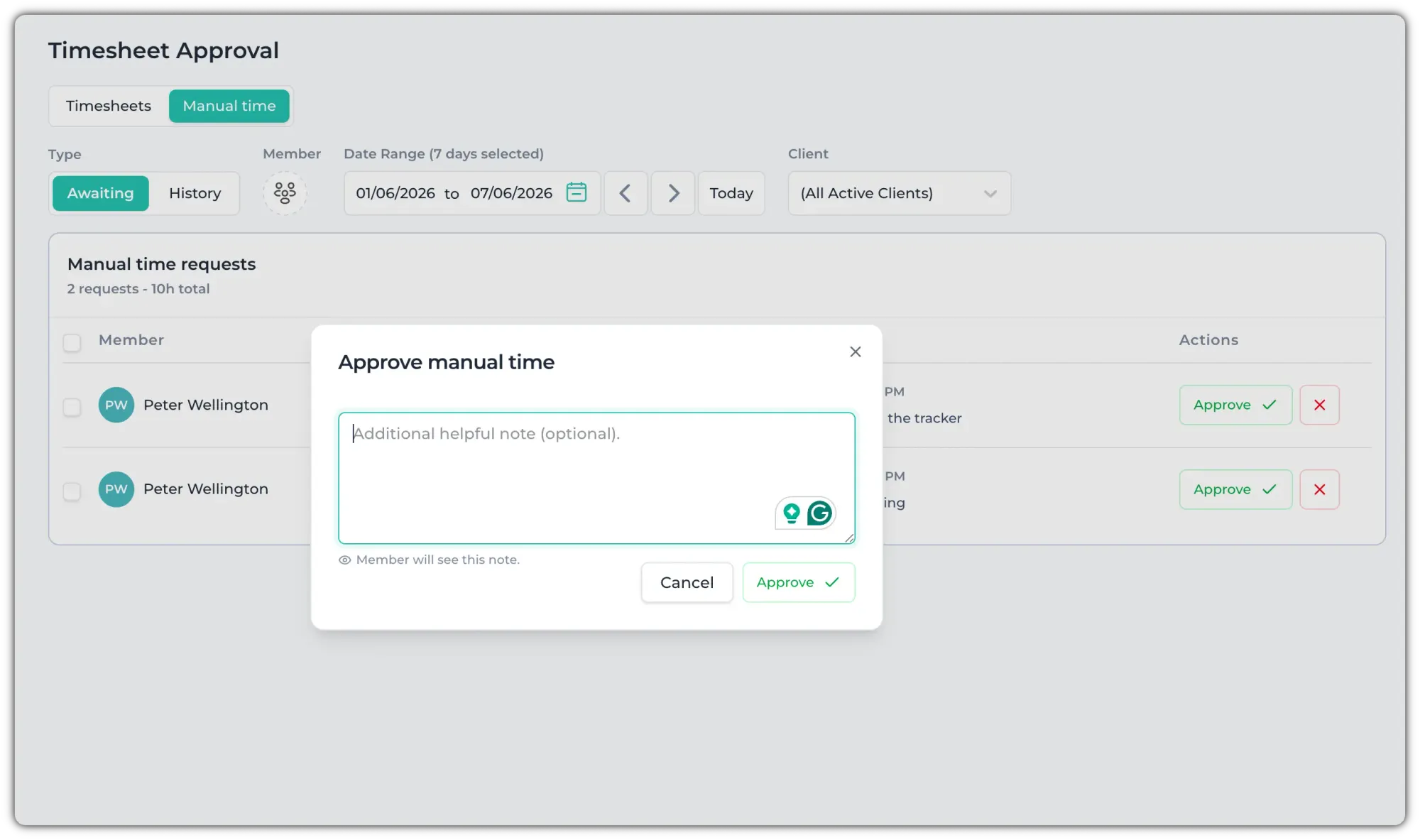
It will show a pop-up. You can write a helpful note, or just click on the Approve/Reject button.
You can also approve multiple or all at once. Click on the checkbox beside the "Member" and then click "Approve Selected" or "Reject Selected".
You can check the approved or rejected time from the "History" section.
Still have any queries? Reach out to us here: support@apploye.com or knock in the live chat.