
To let members take breaks in Apploye, create a break policy in Settings → Break time. A policy sets how long a break lasts, whether it's paid, who can take it and when. Members then start the break from the Apploye desktop app, and their breaks show up in timesheets, reports and payroll.
Create a break policy
- Go to Settings, then click Break time (in top right).
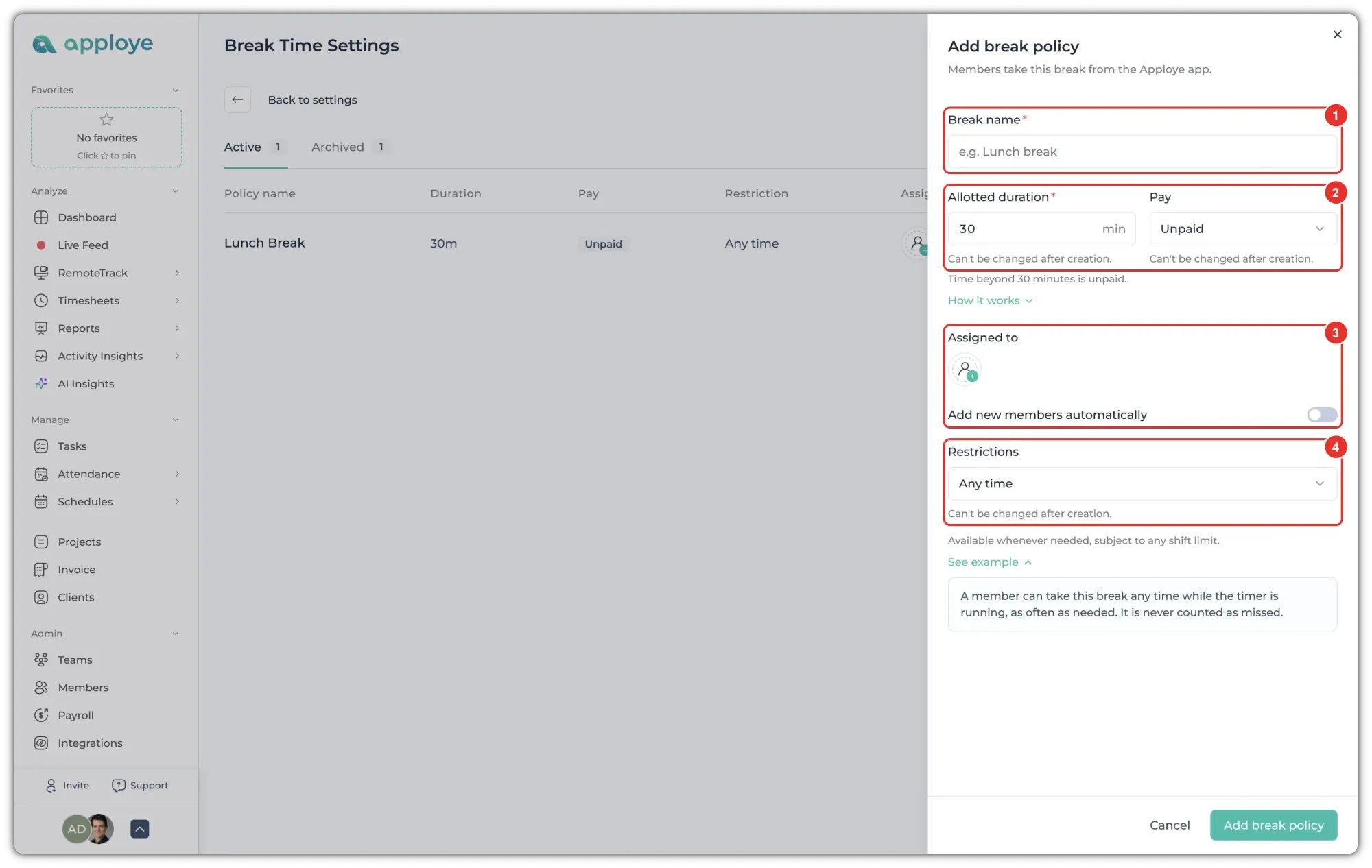
- In Break name (1), type a name members will recognise, for example "Lunch break".
- In Allotted duration (2), enter how many minutes each break can last.
- Under Pay (2), choose Paid or Unpaid.
- Under Assigned to (3), click the add icon and pick who can take this break: individual members, (All Members), or a team from the Teams tab.
- To add new members to this policy as they join, turn on Add new members automatically (3).
- Under Restrictions (4), choose when the break can be taken. The options are explained below.
- Click Add break policy at the bottom of the form.
Choose when the break can be taken
The Restrictions menu has four options. Click See example under the menu to see a sample day for the option you picked.
Only worked time counts toward any of these limits. Time spent on breaks or with the timer paused doesn't.
Any time
Members can take the break whenever their timer is running, as often as they need. It's never counted as missed.
Once per workday
Members can take the break once each workday. After they take it, it's available again the next workday. Pausing or restarting the timer doesn't reset it.
If the break isn't taken by midnight, it counts as missed.
One per work interval
Members get one break in each block of worked time. Set the block length in One break every, for example 2 hours.
Taking a break doesn't move the blocks. If a block ends without a break, that break counts as missed.
Wait between breaks
Members must work a set amount of time after each break before the next one opens. Set it in Work between breaks, for example 2 hours.
Each break stays open for that same amount of worked time. If it isn't taken in that time, it counts as missed and the next one opens.
Require work before the first break
Once per workday, One per work interval and Wait between breaks have a Require work before the first break switch. Turn it on, then set Available after to how long members must work before the first break opens, for example, 1 hour.
With Once per workday, a member who works less than that on a given day never gets the break, so it isn't counted as missed.
How members take a break
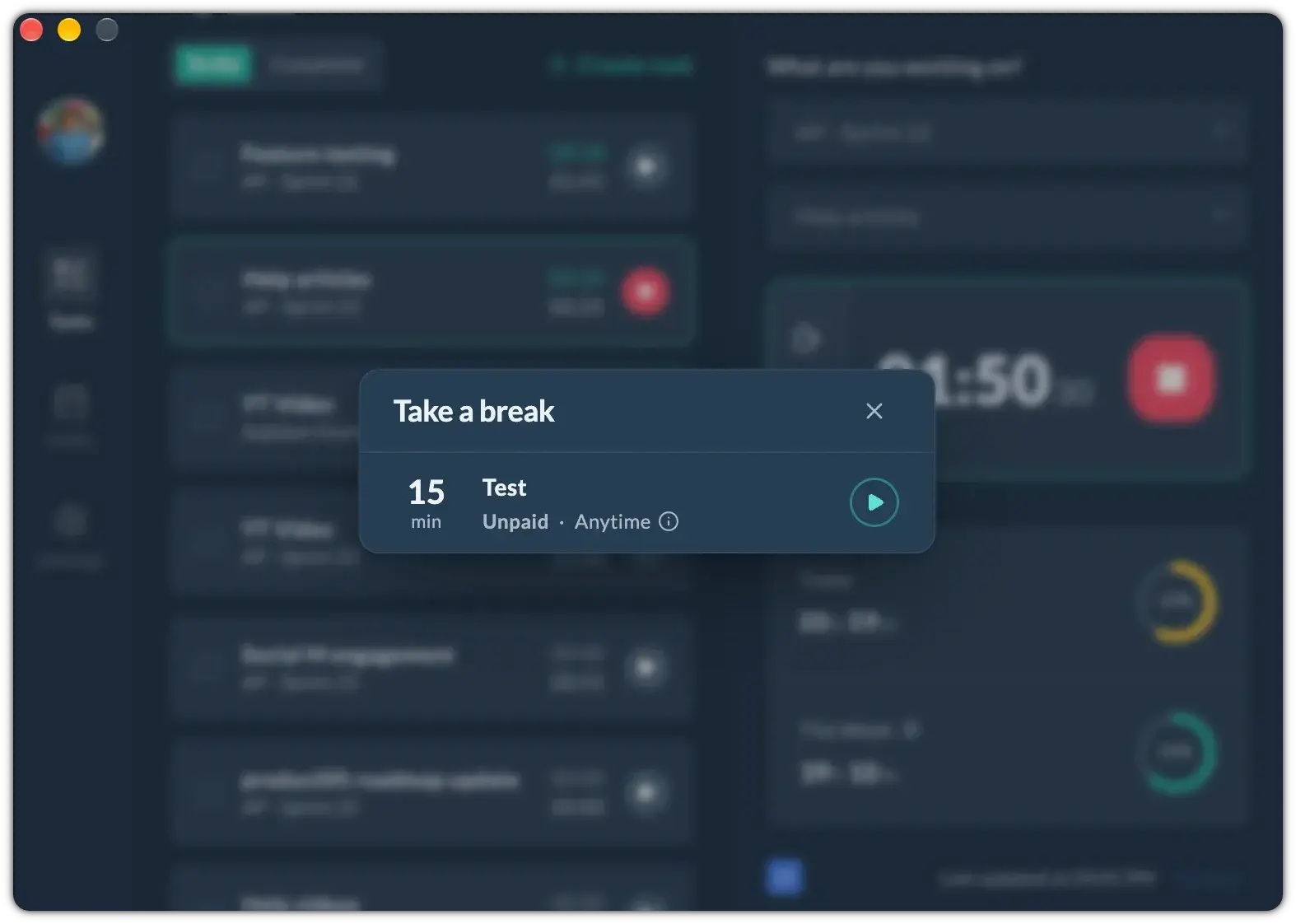
Members take breaks from the Apploye desktop app while they're tracking time:
- Click the Coffee Mug icon (beside the timer).
- The Take a break window lists each break assigned to the member, with its length, name, Paid or Unpaid, and when it can be taken. Click the play button beside the break to start it.
Change or archive a policy
Your policies are listed on the Active tab of Break Time Settings. Click the ⋮ menu (on the right side) on a policy's row:
- Edit: change the break name, who it's assigned to, and Add new members automatically. Click Save changes.
- Archive: stop members from taking this break. The policy moves to the Archived tab.
Archived policies keep their history and can be restored at any time. On the Archived tab, click ⋮, then Restore.
Where breaks show up
- Live Feed: who's on a break right now.
- Timesheets and Timesheet Approval: breaks appear on each member's daily timeline.
- Reports → Breaks: break totals, paid and unpaid time, and breaks that ran over or were missed. See below.
- Payroll: paid break time is included automatically.
Members see only their own breaks. Managers see their team's breaks, and admins see everyone's.
See the breaks your team took
Go to Reports → Breaks. You can filter by Policy, Member, Date and Pay (paid or unpaid), and choose the Timezone the times are shown in.
To download the report as a CSV file, click the export icon beside Timezone. To get back to your break policies, click the gear icon at the top right.