
You can manage your payment method for Apploye from the web app. This is where you add a new card, change an existing one, or update billing details when your card expires.
Add a new payment method during or after the Trial Period
During or after your trial, you'll see the Upgrade button in the Apploye web app.
Click Upgrade, and you'll be redirected to the pricing page, where you can choose the plan that best fits your team's needs. Once you've selected your preferred plan, simply follow the on-screen instructions to complete your subscription.
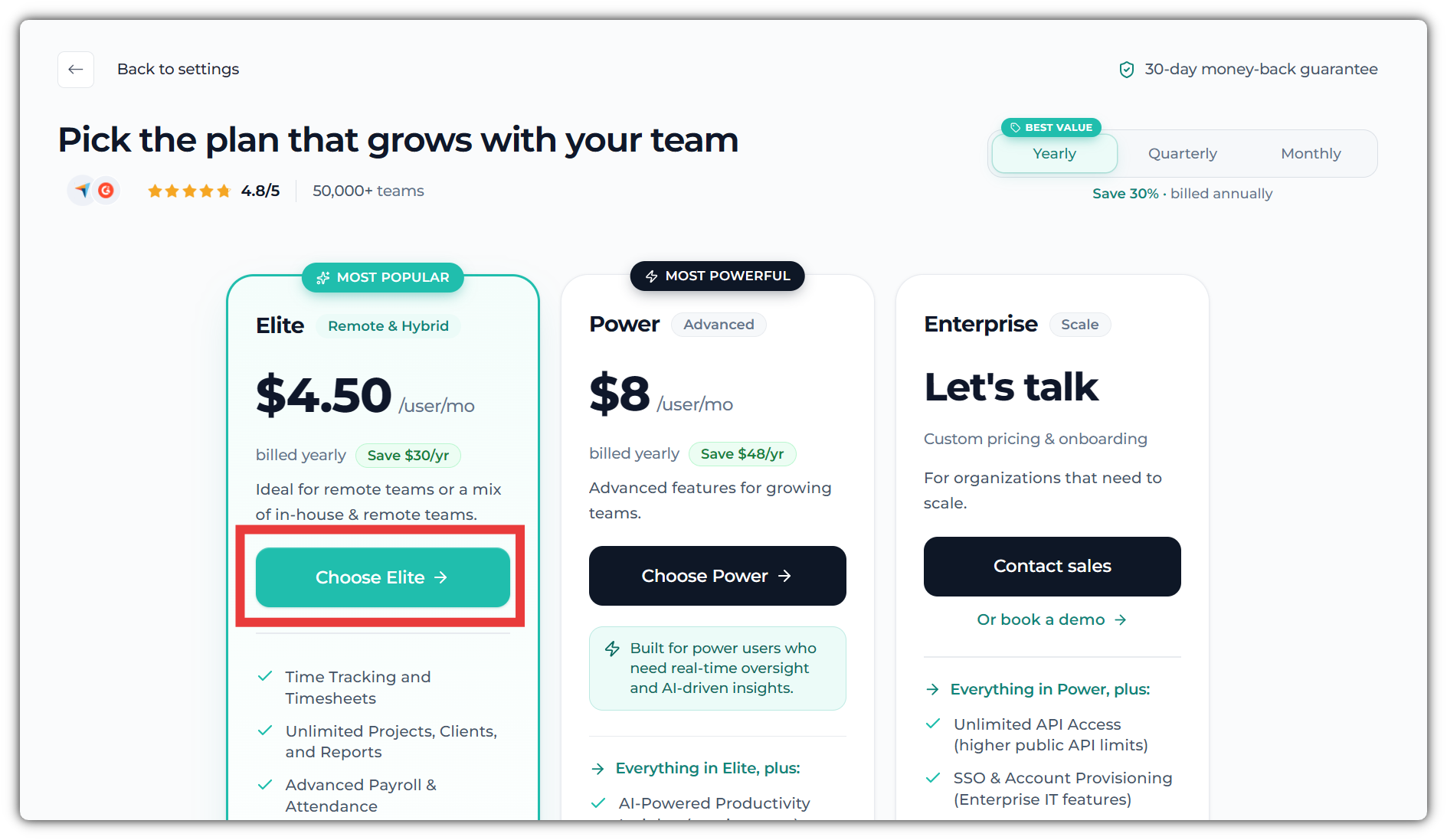
During the upgrade process, you will be asked to enter your payment details. After choosing the plan, you will see this checkout page. You will be able to add the payment method here.
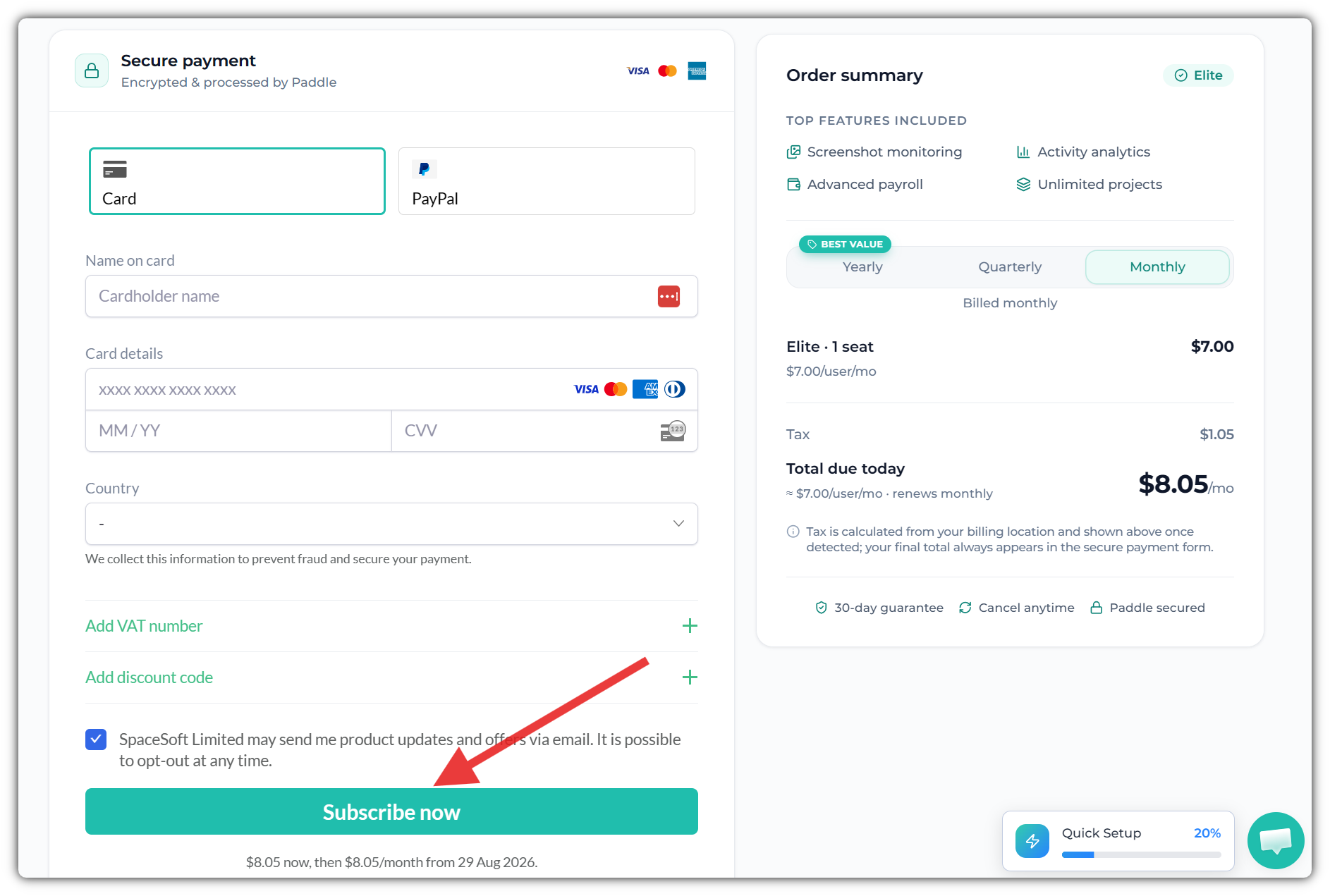
Enter the cardholder name, card number, expiry date, and CVC. Then, click on "Subscribe Now" to subscribe to the selected plan.
Update or replace your existing card
Use this when your card is expiring, has been replaced, or you want to charge a different card. Go to Settings <> My plan. You will see the "Update" button. Click on the update button.
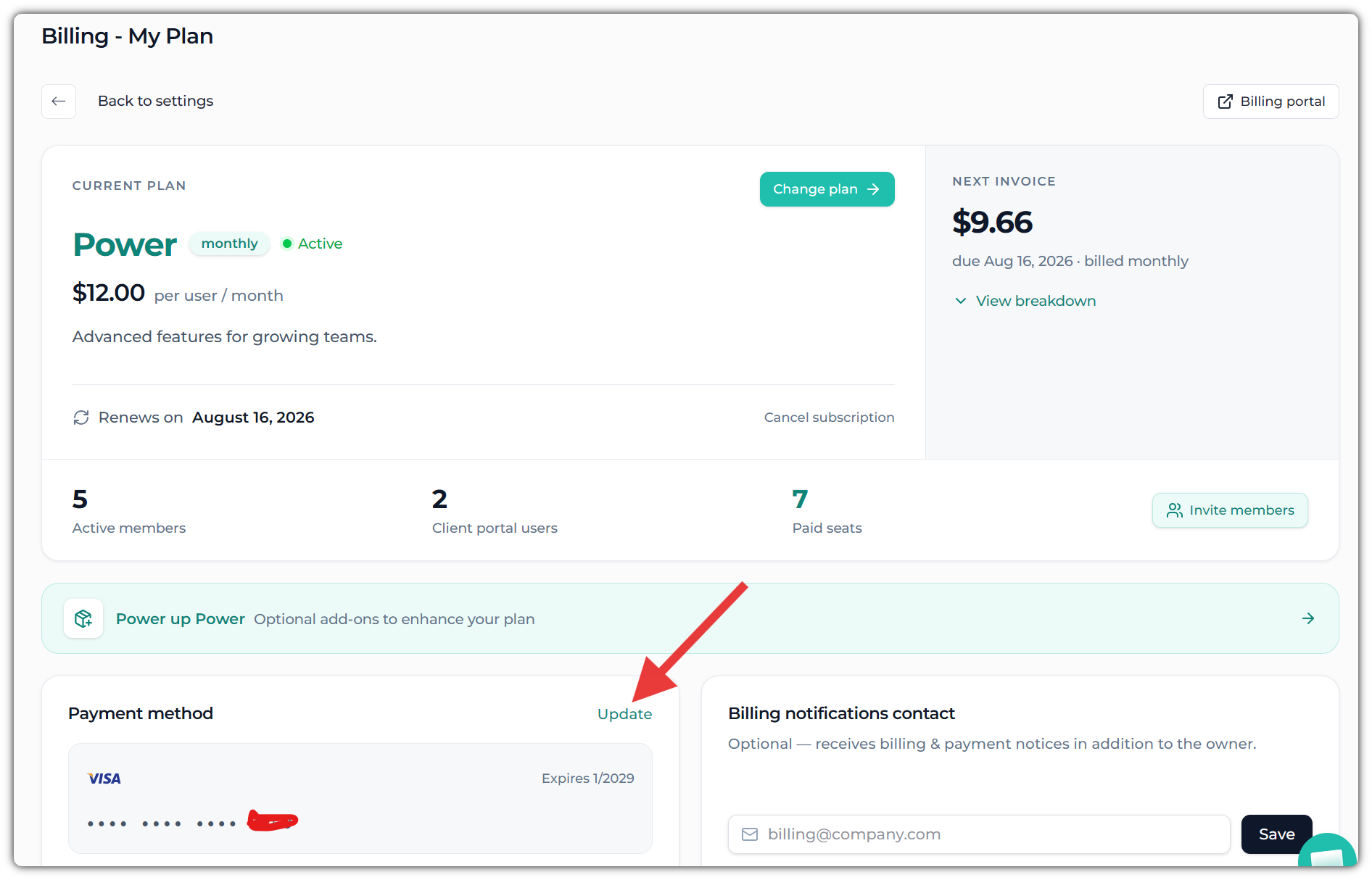
After clicking on the "Update" button, you will be directed to the Paddle customer portal, our payment gateway. You can update the card information in that portal.
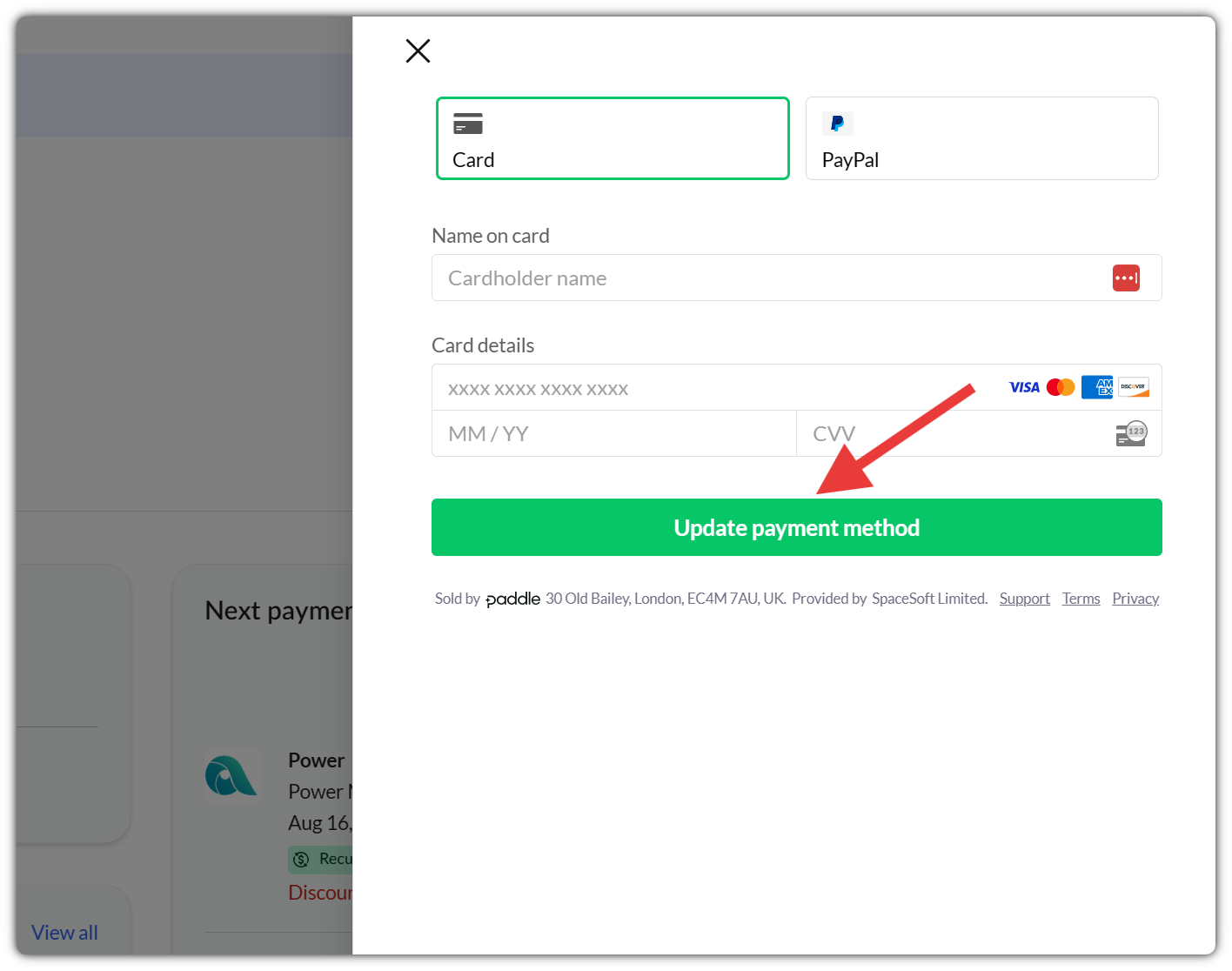
Enter the required billing details and click on "Update payment method" to update. After updating, this card will be used automatically for your upcoming subscription charges.
If you require assistance with payment, please contact Apploye Support via live chat or email at support@apploye.com.
Related Articles: