
Apploye allows you to control manual time entries and timesheet approval requirements at both the organization level and the individual member level.
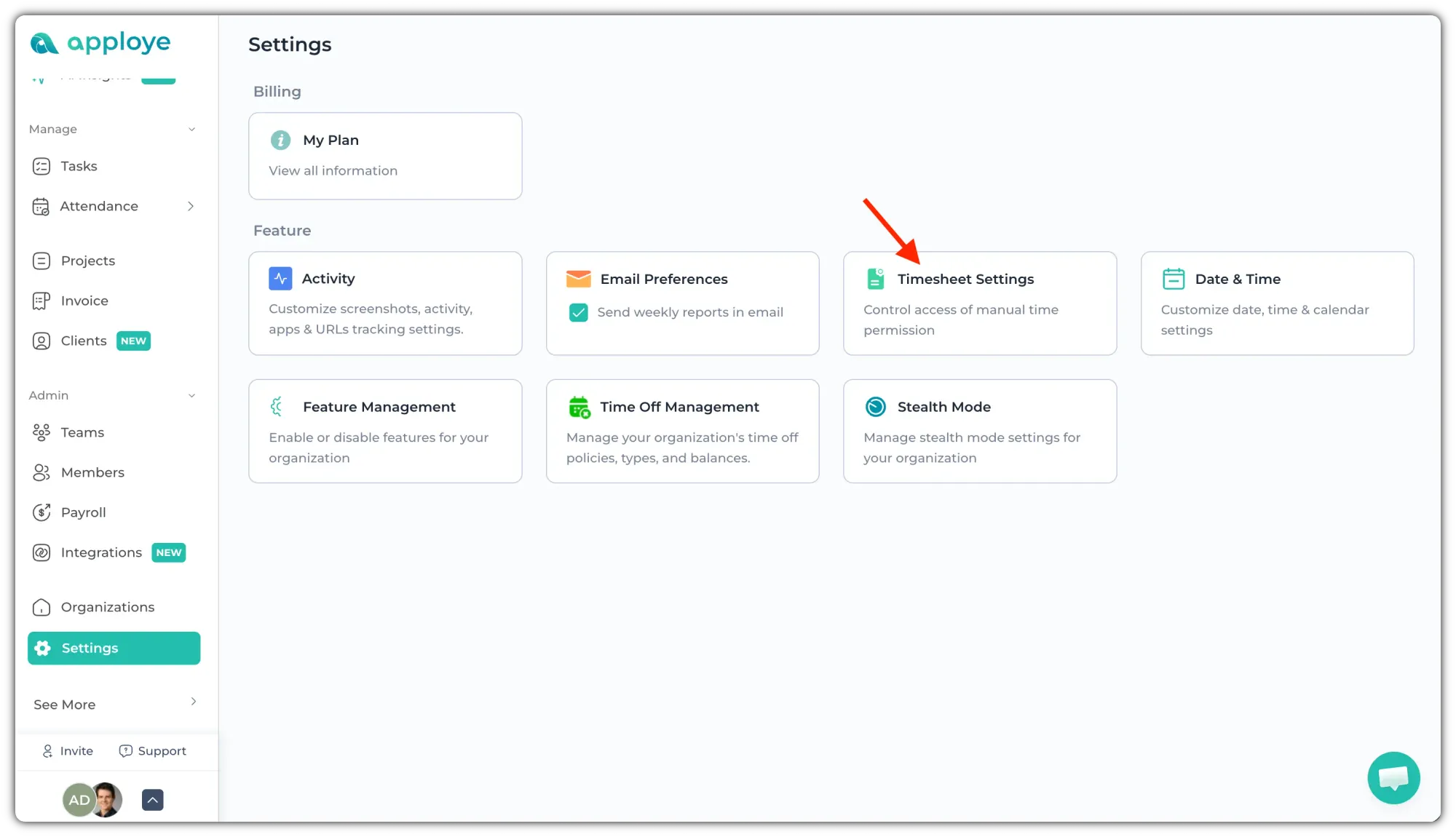
To access these settings, go to: Settings → Timesheet Settings
Manual Time Settings
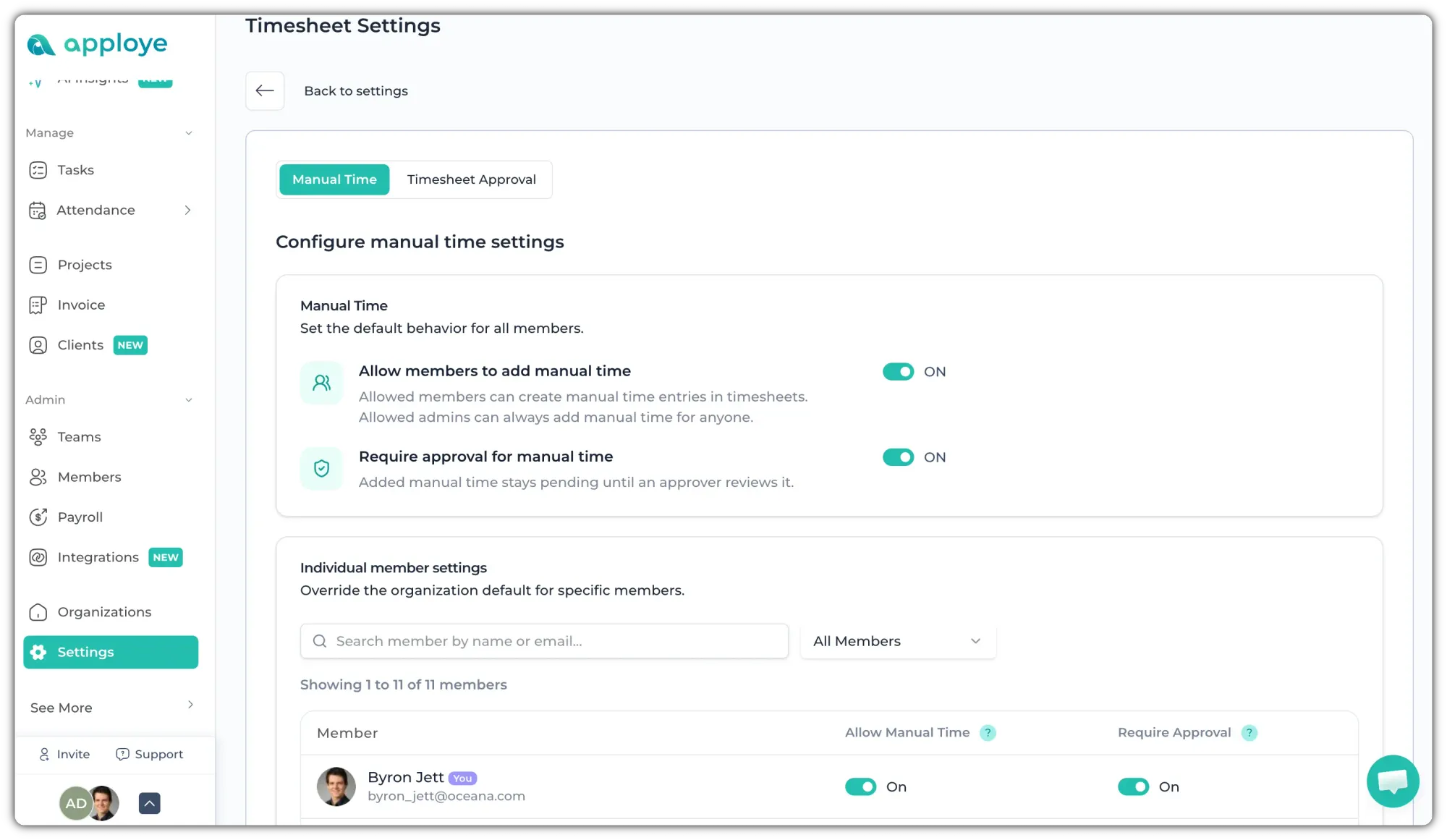
From the Timesheet Settings page, you can control whether members are allowed to add manual time, and if approval would be required (when adding manual time).
You can:
- Turn the Manual Time option on or off.
- Enable the "Require Approval for Manual Time" toggle if you want manual entries to be reviewed before they are counted.
Once enabled, any manual time added by affected members will remain pending until it is approved. Only approved manual time will be included in Timesheets and Payroll.
If Approval is off, manual time will be added directly (you can still check entries from Reports > Manual Time).
You can also customize these settings for individual members using the member-specific controls located below the organization-wide settings.
To learn more, check out this article: How does manual timesheet approval work
Timesheet Approval Settings
Go to the Timesheet Approval section to manage approval requirements for tracked timesheets.
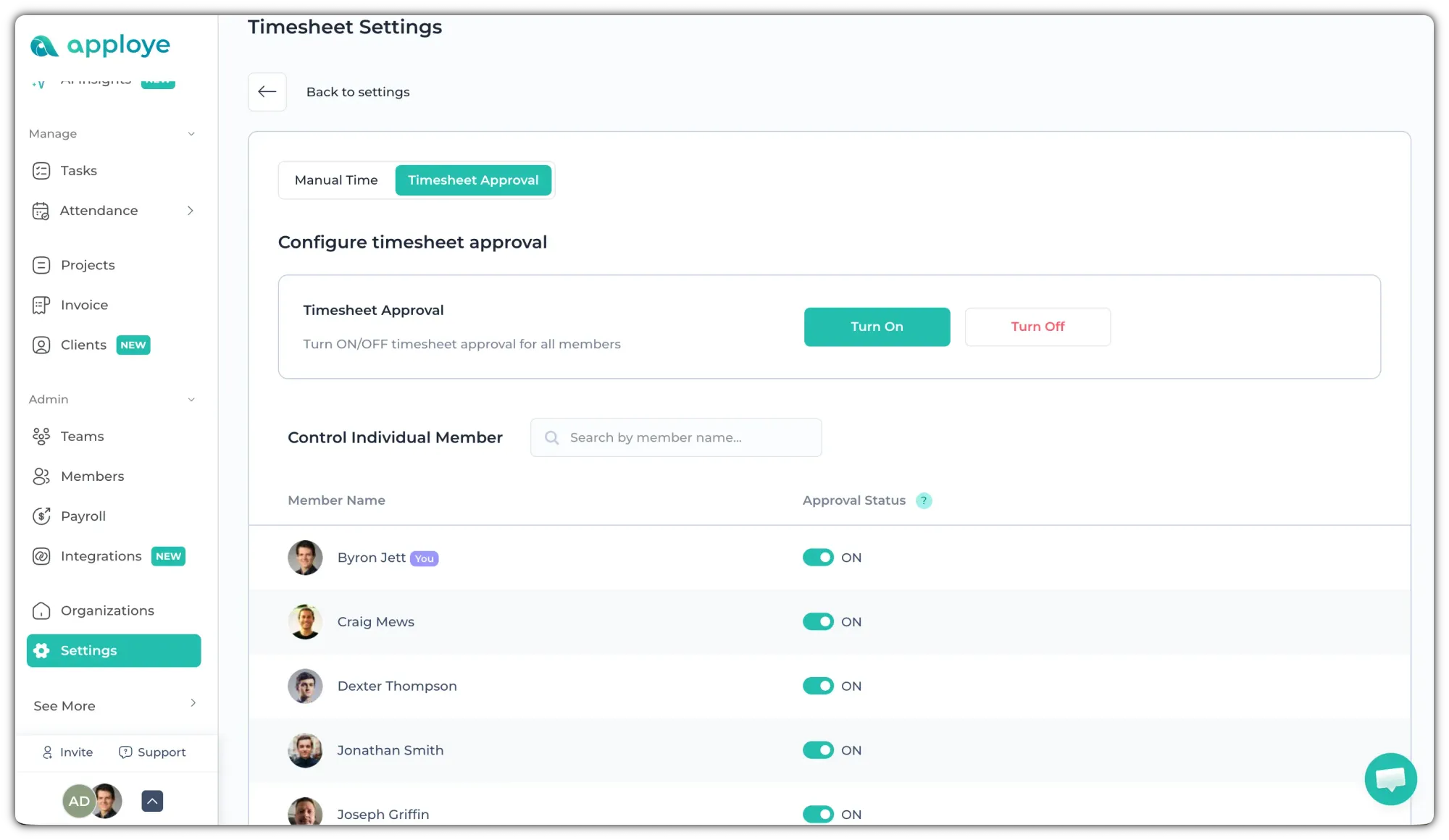
Use the "Turn On" or "Turn Off" button to apply the setting organization-wide with a single click. You can also Enable or disable Timesheet Approval for each member individually.
Check out this article to learn about Timesheet Approval steps.