Getting Started With the Calculator
Step 1. Add Scheduled Working Hours
Enter the total number of hours the employee or team was scheduled to work during the period you want to analyze.
Step 2. Record Unavailable Hours
Enter the hours that could not be used for the productive work included in your calculation.
Step 3. Enter Your Expected Rate
Add your target shrinkage percentage. For example, enter 15% if that is the benchmark you want to compare against.
Step 4. View the Results
Click Calculate Shrinkage to generate your results, including:
- Actual shrinkage rate
- Scheduled working hours
- Shrinkage hours
- Productive hours
- Target shrinkage
- Target variance
The Workforce Shrinkage Calculation
The basic formula compares unavailable hours with total scheduled hours:
Shrinkage Rate = (Shrinkage Hours ÷ Scheduled Hours) × 100
For example, imagine a team has 800 scheduled hours and 120 hours classified as shrinkage:
120 ÷ 800 × 100 = 15%
The resulting workforce shrinkage rate is 15%.
To determine the remaining productive hours, subtract shrinkage hours from scheduled hours:
Productive Hours = Scheduled Hours − Shrinkage Hours
Using the same example:
800 − 120 = 680 hours
That leaves 680 hours available for the productive work included in the calculation.
Because organizations classify shrinkage differently, define which activities belong in the calculation before comparing employees, teams, or reporting periods.
Which Hours Should Be Counted as Shrinkage?
Some common shrinkage categories are:
Planned Time Away
These are activities that can generally be anticipated when creating schedules:
- Approved leave
- Public holidays
- Scheduled training
- Planned meetings
Unexpected Time Loss
These events may reduce availability without being known in advance:
- Unplanned absences
- Unexpected meetings
- Personal emergencies
- Technical or operational disruptions
Some businesses also classify breaks, coaching sessions, administrative work, or similar activities as shrinkage.
There is no universal classification system. What matters is establishing a clear definition and using the same approach whenever you calculate the metric.
Common Shrinkage Tracking Errors
- Defining shrinkage differently each time
- Using mismatched periods
- Overlooking unexpected time loss
- Counting hours more than once
- Setting identical targets for different teams
- Relying on a single reporting period
- Trying to eliminate all shrinkage
How Shrinkage Data Supports Workforce Planning
Tracking shrinkage can help managers:
- Estimate usable capacity: Understand how many scheduled hours are actually available for productive work.
- Plan staffing requirements: Include expected unavailable time when determining workforce needs.
- Find repeated capacity losses: Identify activities that consistently reduce available working hours.
- Create realistic schedules: Build schedules around actual availability instead of scheduled hours alone.
- Assess workload capacity: Determine whether enough usable hours exist to handle expected demand.
- Strengthen forecasts: Use previous shrinkage patterns when planning future workforce requirements.
Go Beyond Manual Shrinkage Tracking With Apploye
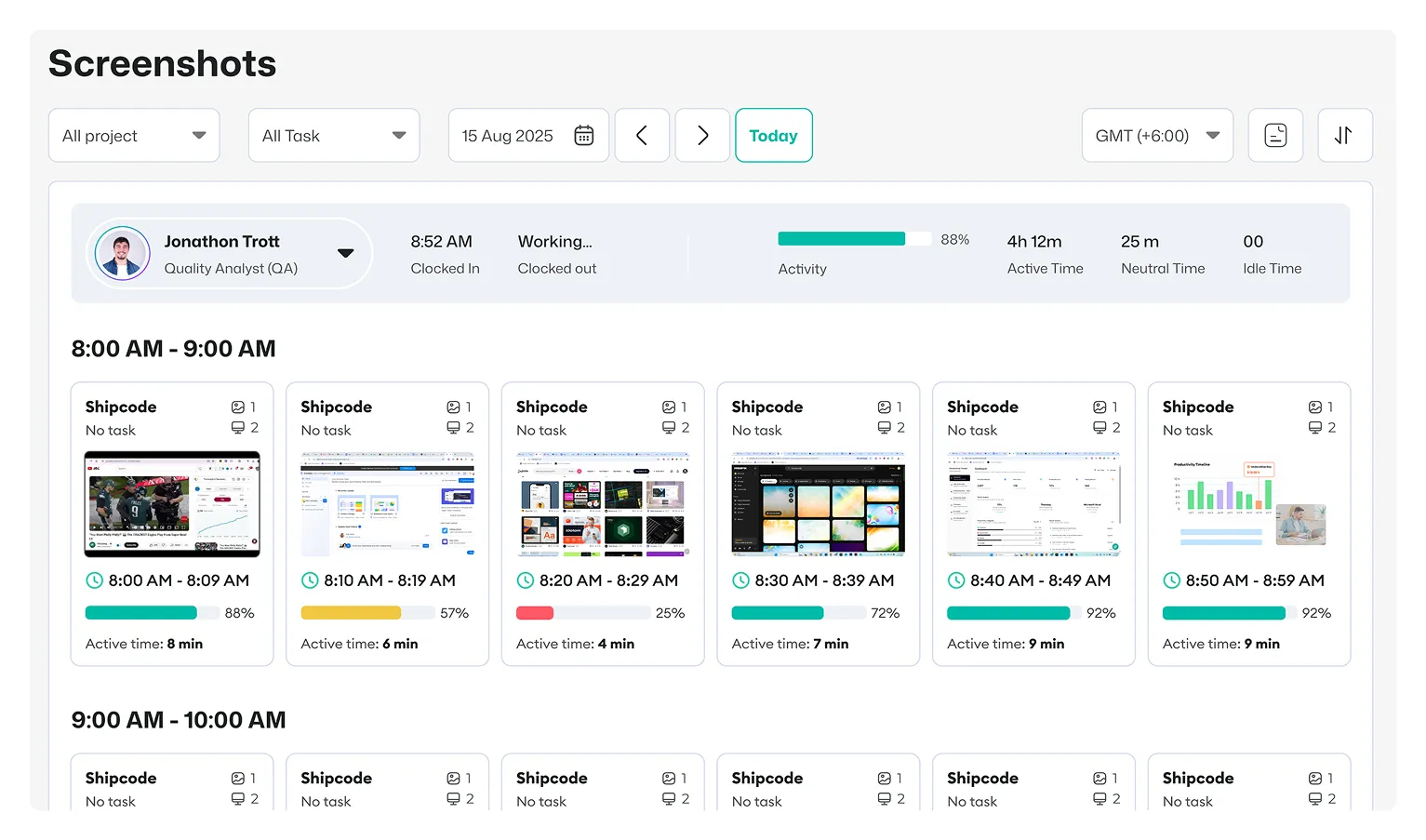
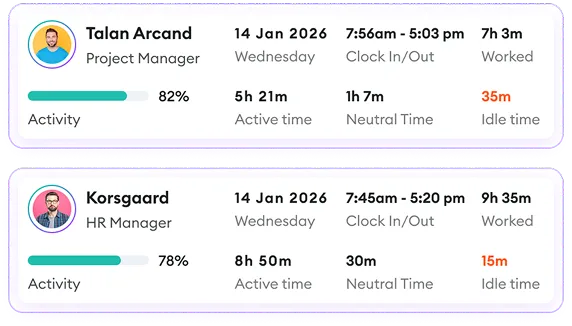
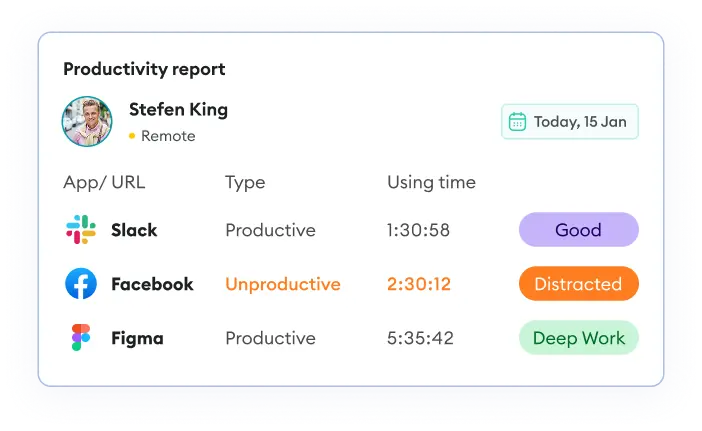
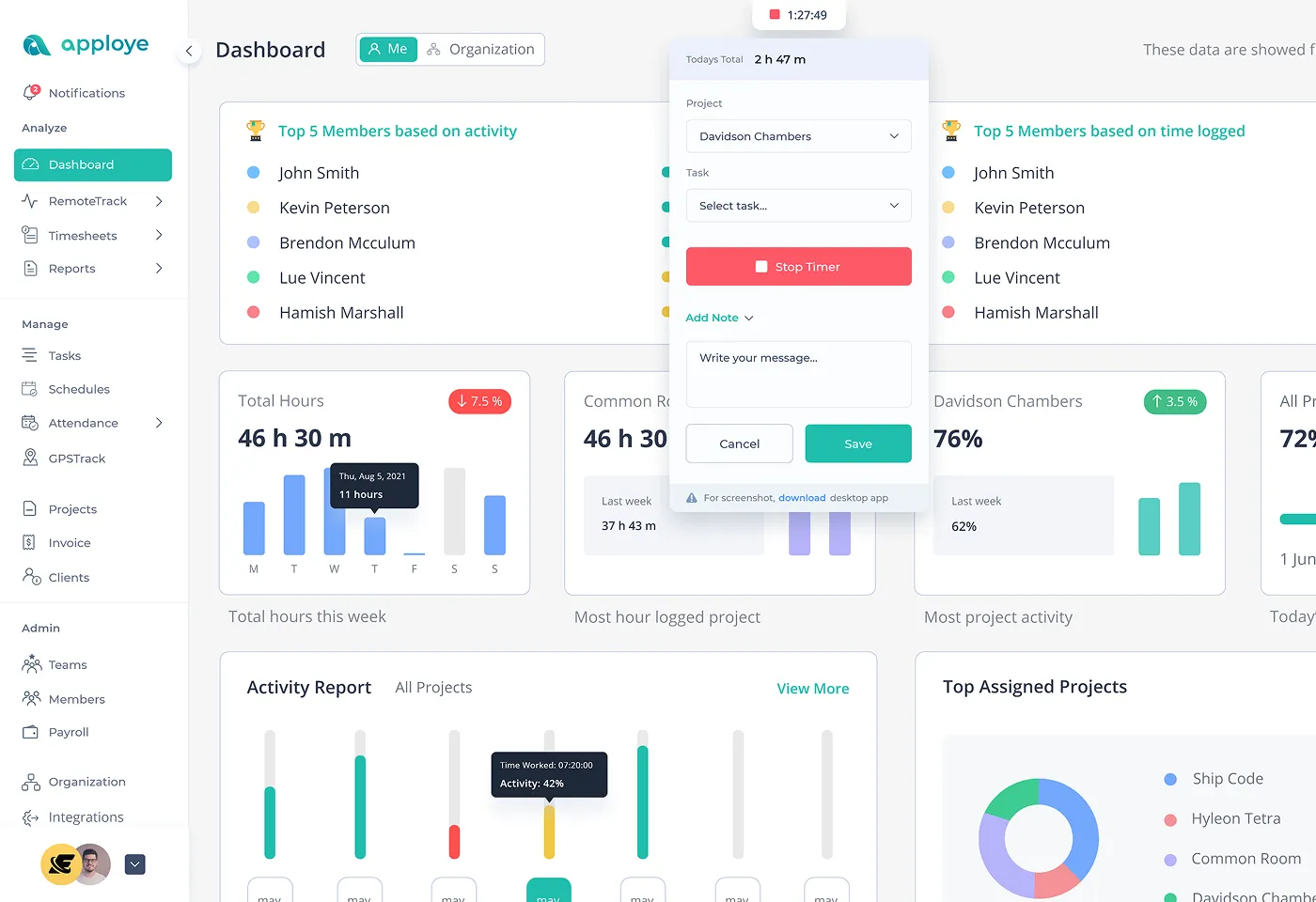
A manual shrinkage calculator gives you a quick result, but you still need to collect and update the hours yourself. Apploye automates the process by tracking employee work hours, attendance, projects, tasks, and timesheets in one place. This way, you can see how employees are spending their time and review workforce capacity over time.

 Productivity TrackingMeasure daily performance
 Workforce AnalyticsGet workforce intelligence
 Activity MonitoringCheck user behaviour
 Screenshot MonitoringMonitor screen activity
 Employee TimesheetTrack work hours
 Screen RecordingRecord work sessions
 Payroll & InvoiceOrganize projects efficiently
 Payroll & InvoiceAutomated payment processing
 ReportingGenerate insightful reports
 EnterpriseProductivity for larger organizations
 Computer MonitoringTrack computer usage
 Staff MonitoringOversee team performance
 Time RecordingCapture work hours
 Online TimesheetsDigital time logging
 Attendance TrackingMonitor employee presence
 Insightful ReportsInsightful time reports