How to Detect Employee Monitoring Software
Key Takeaways:
-
Detect monitoring software by checking your installed apps, startup programs, and browser extensions. Look for unfamiliar admin/device management settings, new security certificates, unusual network activity, or recently changed workplace policies.
If you’re unsure whether your company uses employee monitoring software or you simply want clarity about what’s running on your system, there are a few signs, tools, and methods that can help you identify it.
So, let’s begin—
6 Easy Steps on How to Detect Employee Monitoring Software
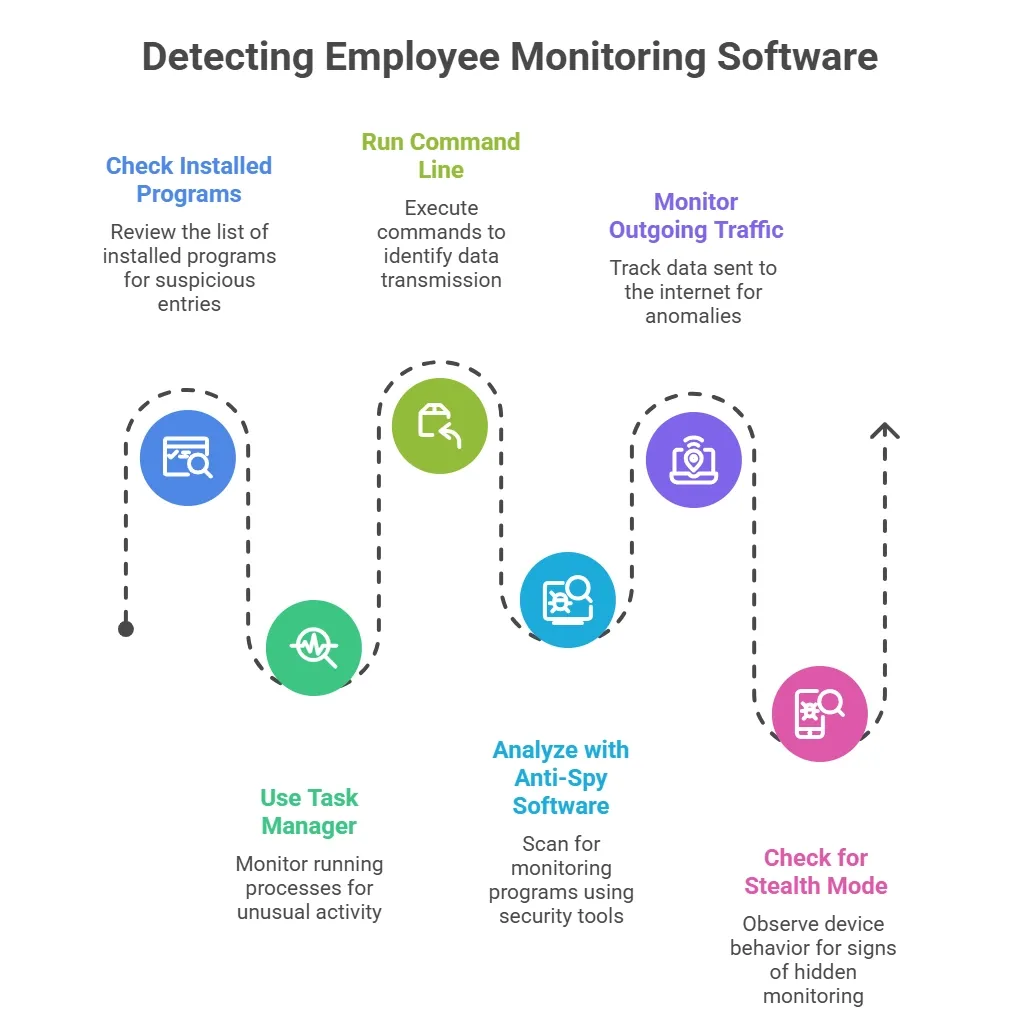
1. Check The Installed Program List
One of the easiest ways is to check the programs already installed on your computer. For that, you can just open your computer's installed program list and check if there are any solutions you don’t remember downloading.
If you are using Windows, simply go to Control Panel → Programs → Programs and Features. Scroll through everything carefully and check if anything looks suspicious or out of place.
But if you are using a Mac, Open Finder → Applications. Mac apps are usually easier to identify. So anything unusually named or hidden inside odd folders is worth inspecting.
2. Use Your Task Manager
You can detect employee monitoring software on your computer by checking your computer’s Task Manager (if you are using Windows) or Activity Monitor (Mac). This option shows you everything running on your system, including the apps quietly working in the background.
Here’s how you can check it from your Windows device–
- Press Ctrl+Shift+Esc to open the Task Manager.
- Click the Processes tab.
- Look through the list for:
- Apps using unusually high CPU or memory
- Programs with generic names like "Agent," "Tracker," and "Service Host."
- Tasks that run all the time, even when your computer is idle
On Mac, you will find the hidden monitoring tools often run under names like “Agent”, “Helper”, “Daemon”, “Background Service”. Here’s how you can check it–
- Press Command + Space, type Activity Monitor, and open it.
- Check the CPU, Memory, and Energy tabs.
- Look for: Unknown apps consuming a noticeable amount of resources, Programs with vague or suspicious names, Processes that stay active constantly
3. Run the Command Line
Though running a quick command line is not a foolproof test, it’s the simplest and go-to test to detect any hidden stealth monitoring tool in your system. It helps you spot any unusual apps sending data over the internet. However, it can’t fully give you access to detect any advanced monitoring tools.
So, you can think of this as a basic security check rather than a complete detection method.
- This approach works only on Windows. By opening Command Prompt as Administrator and running the command netstat -b -n, you can see which applications are actively transmitting data online.
- On macOS, the -b flag isn’t supported, so you won’t get the same level of detail. Mac users can try Terminal commands like sudo lsof -i or netstat with different flags, but these still won’t identify processes as clearly as Windows does.
4. Analyze with an Anti-Spy Software
Another effective way you can detect employee monitoring software on your device is by using anti-spy or anti-malware software. These tools are specially designed to scan your computer to find any monitoring programs.
They detect hidden background trackers, screen-capturing apps, keyloggers, and other suspicious programs.
You don’t even need to have any technical knowledge to use any of these tools. The scan finds hidden or disguised tools automatically, sends you alerts, and shows you reports on what the programs are doing on your computer.
So, you can understand and take an informed decision without spending extra time on detecting the apps. Some of the most popular anti-spy software are McAfee, AVG AntiVirus, Avira, etc.
Try a monitoring tool your team will trust
5. Monitor Your Device’s Outgoing Traffic
You can detect if your computer is under monitoring or not by monitoring its outgoing traffic as well. Monitoring outgoing traffic is often seen as one of the safest ways to check what is happening on a computer. It shows which apps are sending data to the internet. But it also comes with limitations.
You can use apps like Glasswires to see all your outgoing traffic and spot anything that’s unusual. But if you do not have admin access to your work computer, you might not be able to install and run any monitoring apps.
6. Check for Stealth Mode Monitoring
Some tracking tools use something called stealth mode monitoring, which is designed to stay hidden. It works quietly in the background, uses very little bandwidth, and avoids interrupting your work. Because of this, spotting it can feel almost impossible.
Still, stealth snooping leaves small clues. They are easy to miss, but worth paying attention to. You might notice things like:
- Your device is slowing down for no clear reason, especially when you are using work apps.
- Sudden spikes in network activity that do not match your browsing or app usage.
- Apps are glitching, freezing, or crashing even though they worked fine before.
- Strange files, folders, or background processes that you do not recognize.
These signs do not always confirm monitoring, but they can be early hints that something is happening behind the scenes.
See what ethical employee monitoring looks like
How to Introduce Monitoring Software in The Right Way?
So, when it’s legal to use employee productivity monitoring software, what’s the best way you introduce it? Which way will make it so that it doesn’t feel like surveillance to your employees?
Well,
Step-01: Introduce the New Hires First
The best way to introduce monitoring tools is to introduce them to the new hires at the very beginning of the hiring process.
When you hand them the job offer or during onboarding, clearly explain that your company uses an employee monitoring tool. Tell them what it tracks, why it’s used, and how it helps maintain productivity and fairness for everyone.
When new hires hear this upfront, it becomes a normal part of their work environment rather than a surprise later.
Step-02: Introduce to the Existing Employees
Now, what about your existing employees?
They already know how your company works. So adding new monitoring software can feel sudden if it’s not communicated well. And if you simply add this to their systems, it would violate the law.
So here, being transparent with them is the best way to introduce a new system to them. You may arrange a meeting, sit with them, explain the purpose, and show how it benefits them, too. For instance, reducing manual reporting, making workload distribution fairer, and giving them clear proof of their hard work.
When people understand the “why,” you will see the change between accepting a tool in their flow and understanding its purpose.
Conclusion
Use of employee monitoring software is not a crime. With due declaration to the employees, it is legal in all countries around the world.
In fact, it is a helpful solution for the employers and the employees, too. It allows you to work smart, get detailed data, and tailor your work pattern with proper information in your hand.
So, if you find that your employers are tracking your device without informing you, it’s better to talk to HR. Meanwhile, if your employers introduce one to you, you must welcome the opportunity. An employee monitoring tool is a great way to enhance your work patterns and improve your productivity.
Start transparent monitoring for free now
Frequently Asked Questions
Can monitoring software access my personal files?
Most workplace tools are designed to track productivity instead of personal data. But it depends on what the employer has installed.
Is it legal for my company to install monitoring software without telling me?
In most countries, employers must disclose monitoring activities. If you’re unsure, ask HR or review your employment contract to understand your rights.
Does monitoring software always record screens or take screenshots?
No, not always. Screenshot or screen recording features are optional. Many employers only use basic tracking, like time logs or app usage.
About Author