





Hubstaff Review: Features, Pros, Cons, and a Smarter Alternative!
Verdict:
Overall Score: 7.5/10
Key Features:
- Time Tracking: Track work hours via desktop, web, mobile app, or browser extension.
- Activity Monitoring: Record user activity levels with periodic screenshots, app and URL tracking, and keystroke logging during work hours.
- GPS & Geofencing: GPS location tracking with geofenced job sites to automatically clock teams in/out.
- Employee Scheduling: Create and assign employee shifts (schedules) and track attendance.
- Project Management: Built-in Hubstaff Tasks module for agile project management to organize and track tasks visually.
- Payroll & Invoicing: Integrations for payroll and the ability to generate invoices for clients, using tracked hours to streamline payments.
Hubstaff Pros and Cons as per User Reviews




Hubstaff Pricing
All Free features plus: Time tracking; Timesheets; Activity levels; Limited screenshots (500/user/mo.); Limited app & URL tracking; Limited payments; Email support (2+ days)
Grow
All Starter features plus: More screenshots & app/URL tracking (1500/user/mo.); 1 integration; Reports; Idle timeout; Project budgets; Work breaks; Expenses; 1× Tasks add-on; Faster email support
All Grow features plus: Unlimited screenshots & unlimited app/URL tracking; Auto-discard idle time; Teams & scheduling; Payments & payroll; Unlimited integrations; Overtime; Time off & holidays; Timesheet approvals; Daily & weekly limits; Chat support
All Team features plus: Higher API limits; Bank debit (ACH) payments; HIPAA support; SOC-2 Type II compliance; Enterprise deployment; Account provisioning; Single sign-on; Corporate app support
Add-Ons: Hubstaff offers several add-on packages for specific features at additional cost.
Productivity analytics and
insights add-on to enhance
reporting and metrics.
More screenshots
Adds task management features integrated with time tracking.
Extends how long Hubstaff retains
activity and time data.
Locations
One unique aspect is the free Project Viewer role. This allows clients or external managers to have read-only access to view project progress, reports, and screenshots without counting as a paid seat. This is useful if you want your clients to be able to log in and see timesheet data or activity reports for transparency.
Our Testing Methodology
This review is based on hands-on testing rather than marketing claims or documentation alone. I, along with my team, thoroughly looked at several aspects of the features to find whether each performed as it was supposed to.
Throughout the testing period, we remained fair, open-minded, and transparent. So, all observations reflect real usage and experience during the testing period.
User Interface (Web, Desktop & Mobile)
On the whole, Hubstaff’s user interface (UI) is clean and easy to navigate across its web, desktop, and mobile apps.
I tested the platform on all three and found the design intuitive. However, there are some inconsistencies which I’ll get into very shortly!
Web App
The Hubstaff web dashboard is well-organized and user-friendly. Upon logging in, I saw the 3-panel layout. The sidebar menus expand to reveal sub-features, which makes it quick to jump directly to specific functions.
.webp)
I chose sharable link (they also have email invites) to get my team on board. From there, I could do whatever I wanted for each member.
One downside on the usability front is the lack of accessibility features for users with disabilities. There are no specific accommodations for impaired vision or hearing.
Desktop App
Hubstaff’s Windows/Mac/Linux desktop app felt like just a copy of the web app. It runs in the background to track time and activity and is accessible from the system tray. It’s effective for what it needs to do and remains unobtrusive. The major benefit is that the core activity tracking (screenshots, app/URL tracking, keystrokes) works properly on the desktop apps.
Mobile App
Hubstaff’s mobile app (available for iOS and Android) offers a trimmed-down experience. The design is clean and modern – I think it’s a better version, design-wise. On mobile, employees can clock in/out, track time, change tasks, view their timesheets, check schedules, and see basic reports. The interface is sleek and functional.
That said, the mobile app is bare-bones in functionality. During my testing, I discovered several limitations: workers can log time and GPS location, but features like submitting time-off requests or generating invoices are not available on mobile at all.
Managers using the mobile app can’t perform admin actions either. For example, you cannot approve a timesheet or a leave request from your phone. For me, it wasn’t a great experience as I tend to be away from the keyboard a lot.
Time Tracking Features
Time tracking is the core feature of Hubstaff and a major reason teams choose it. I experimented with almost everything I could find! Let me share what I found - mostly good with a pinch of disappointments:
Employee Activity Monitoring
I’ve heard a lot about Hubstaff’s activity monitoring feature before using it. The desktop app, it gives insight into what employees are doing. In practice, I found three main components of Hubstaff’s activity monitoring:
- Keystrokes & Mouse Activity: Hubstaff tracks keyboard and mouse movements to compute an “activity level”. It worked as promised, and I could see the activity level of all of my employees. (Hubstaff does not log the actual keys pressed – just the count/frequency.)
- Screenshot Capture: The app monitors employee screens by taking periodic screenshots at a configurable interval. This feature is optional and can be turned on/off or set to capture with a blur effect to protect privacy. However, unlimited screenshots aren’t available on lower-tier plans.
- App and URL Tracking: Tracks all the apps and websites a member views/uses. In my test, the app tracking helped differentiate between productive time.
A standout element of Hubstaff’s activity monitoring is the “Insight” alerts and notifications. An automatic weekly email highlighting unusual activity patterns. I found this feature handy for flagging outliers without having to constantly watch the dashboard.
The only thing I felt was missing was biometric verification (e.g., an optional webcam photo or facial recognition). While many other competitors offer this feature, Hubstaff lacks any personalized verification, as of now.
Idle Time Tracking
I liked this feature a lot, and it’s directly tied to a person’s productivity. If the software detects no mouse or keyboard activity for a set period, it will consider the user “idle.” It also pauses the timer automatically.
I tested the idle timeout by not touching my mouse/keyboard for a while during a timing session. Sure enough, after the predefined limit (which was set to 15 mins), Hubstaff popped up a notification. Hubstaff gives the user the option to discard or keep idle time when they return. This is useful: if the user was, say, on a phone call (for work), they can choose to keep the idle interval.
One limitation: Idle detection only works on the desktop trackers. It does make sense, though. If an employee is logging in from the phone, he/she’s probably in a meeting/physical work. So, idle tracking is primarily for desk work scenarios.
Employee Timesheets
Every bit of time tracked in Hubstaff feeds into the Timesheets feature. Timesheets are the logbook of every attendance, working hours, approved by managers. I found Hubstaff’s timesheet management to be pretty straightforward and effective.
As a manager, I was able to manually adjust entries, though such edits can be set to require approval. There’s also a setting to require team members to submit their completed timesheets for approval at the end of each week. If enabled, managers get a notification and can approve or reject with comments. This helps maintain accuracy and accountability.
A notable feature is Timesheet approvals (available in higher-tier plans). I believe all companies would prefer this feature to be turned on. I tested a scenario by enabling approvals and having a team member submit their hours; the workflow was smooth. I could approve with a single click or send a note if anything was off.
Another aspect of Hubstaff’s timesheets is the ability to set daily and weekly hour limits. I set a daily limit for an employee (say 8 hours/day), and when an employee is close, they get a warning. This can be helpful to prevent overtime or over-allocation.
GPS Time Tracking
This is the most impressive feature of Hubstaff, and I was blown away by the precision.
Using the mobile app, when an employee clocks in, Hubstaff can record their GPS location in real time. I simulated a small field crew scenario: as each “employee” device clocked in, I could see their avatar on the map moving along as they traveled. The accuracy was what you’d expect from smartphone GPS – usually within a few meters. Hubstaff updates fairly frequently, so it’s close to real-time.
.webp)
The standout is Hubstaff’s geofencing feature. You can define job site perimeters (geofences) on a map through the web dashboard. If a mobile device (with geofencing on) enters the perimeter, everything works automatically.
In my test, the timer automatically started when the employee entered the predefined job site area. Similarly, leaving the area can clock them out. I loved the automation, and it even works for the jobs & work orders feature.
However, it’s not flawless. Geofencing in Hubstaff does not prevent someone from manually clocking in outside the allowed area. In other words, an employee can turn on the timer outside the set perimeter. While managers can verify it from the route map, it’s a hassle that Hubstaff allows such a thing in the first place.
Nevertheless, I appreciate how neatly I got the GPS data with reports. A full routes report can be generated with a few clicks. Also, using the GPS tracking doesn’t drain too much battery. The drain is very similar to traditional location tracking.
Productivity Tracking
Beyond just tracking hours, Hubstaff puts a lot of emphasis on tracking productivity. So, I had to test whether they can actually deliver on that part.
Productivity Insights
One of the modules in Hubstaff is literally called Insights, and it’s designed for productivity data. When I accessed Insights on the web app, I was presented with aggregated metrics like:
- average activity level (%) per team member
- total hours worked
- And a visual graph of activity over time
This dashboard is customizable to an extent; you can filter by date range or team. In practice, I saw that on days when I deliberately worked slowly, my activity bar was lower and highlighted as a concern. On days with normal work, it was green and high. For me, seeing that level of data at a glance is everything. I can quickly make a decision whether an employee needs guidance or not.
.webp)
Another feature I liked was the weekly summary email. Hubstaff sent me a recap email/week showing top performers in terms of hours and activity, and any notable changes. This was a nice prompt that kept me aligned with what everyone’s doing.
However, Hubstaff’s insights are not powered by AI or advanced analytics. They don’t give recommendations; they just compile the data into charts. Some modern tools are starting to provide more AI-driven coaching, which Hubstaff currently lacks. So, the Insights module is useful, but you’ll not get any suggestions based on the data.
Workforce Analytics
Hubstaff provides what I’d call basic workforce analytics. Let me explain why.
.webp)
The reports are helpful to analyse any timesheet/productivity data. I ran an Activity summary report, which gave me average activity levels/day/user. I also ran an app & URL usage report to test the findings.
However, compared to some competitors, it’s not the most advanced. Moreover, there’s no built-in benchmarking. Still, it’s good enough for a basic view of what the employees are doing.
Workforce Management Features
Now, it’s time to explore all the features that Hubstaff claims to have for workforce management!
Employee Scheduling
Hubstaff’s Scheduling seemed good right from the moment I opened the tab. I tried using it to set up a weekly schedule for a small team. The interface for scheduling is simple.
Go to the Calendar section > Pick day/time > Assign team members > Set shift parameters. It felt a lot like using a calendar application.
.webp)
Creating shifts was indeed “a breeze,” as Hubstaff advertises. One thing I immediately noticed, though, is that there’s no drag-and-drop functionality on the calendar. At least when I tested it, it wasn’t there. You have to use the dialogue box to input times. Not a big deal, but I expected it to have that.
I loved the color-coded theme and mobile alerts for upcoming shifts. This is great for reducing no-shows.
I also liked the calendar integration feature. Hubstaff allows you to sync the schedule with external calendars like Google Calendar or Outlook. I copied my schedule link into Google Calendar, and it overlaid the shifts onto my calendar app.
However, I encountered a few limitations with Hubstaff’s scheduling:
- You cannot attach a specific project or job code to a shift.
- Hubstaff doesn’t prevent overlapping shifts for the same person. I intentionally created an overlapping shift for an employee, and there’s no warning prompt or anything. So, it’s up to the manager to be careful about overlapping shifts.
Billing & Invoicing
After the GPS tracking, I think I’ll recommend using Hubstaff’s billing the most. First, adding clients in Hubstaff is super easy. It was just two clicks to add a new client and start tracking the billable hours.
After tracking some billable time for that client’s project, I went to the Invoices section. The invoice generation is fully automatic, and I can select the date range. It then pulls the billable hours and creates a line-item invoice. I was able to tweak it and then save it as a PDF or send it directly to the client via email. The best part is that I could add my company logo to the invoices.
I also noticed you can mark invoices as paid/unpaid within Hubstaff to keep a record. However, Hubstaff doesn’t process payments itself (it’s not an accounting tool in that sense). You’d still collect payment via your usual channels, like check, Stripe, etc.
Another financial aspect is Expenses. From receipts to mileage reports, I can store them all under the expenses. While it’s not related to time tracking, it’s a nice bonus to have.
Overtime Tracker
Handling overtime properly is critical, and Hubstaff knows that too. Hubstaff has an overtime tracking feature where you can set overtime policies.
.webp)
Within settings, I created an overtime policy: I set a 40-hour weekly threshold and marked anything beyond as OT. Hubstaff then automatically started labeling hours beyond 40 as overtime. It can also calculate different pay rates for overtime hours, which is adjustable from the admin side.
However, I uncovered a couple of significant limitations:
- Hubstaff’s overtime settings only allow a weekly threshold, not daily. So if you’re in California, which has daily overtime, Hubstaff alone can’t enforce that. So, that will create a compliance issue.
- You can assign either overtime or a double-time policy, but not both simultaneously. In some cases, you might need to track both (California has double-time for 12+ hour days). Hubstaff would make you choose only one method.
In my test region, we only care about weekly OT, so Hubstaff worked fine. It alerted me when someone crossed 40 hours, and the reports separated overtime hours nicely. But if I had employees with daily overtime rules, I’d likely have to do manual adjustments or use a workaround.
That aside, overtime is clearly displayed in Hubstaff’s reports. The Work Hours report shows OT hours in a separate column.
Project Management
Did you know that Hubstaff Tasks is now a part of this system? I didn’t know as well, and I was pleasantly surprised to get the project management features.
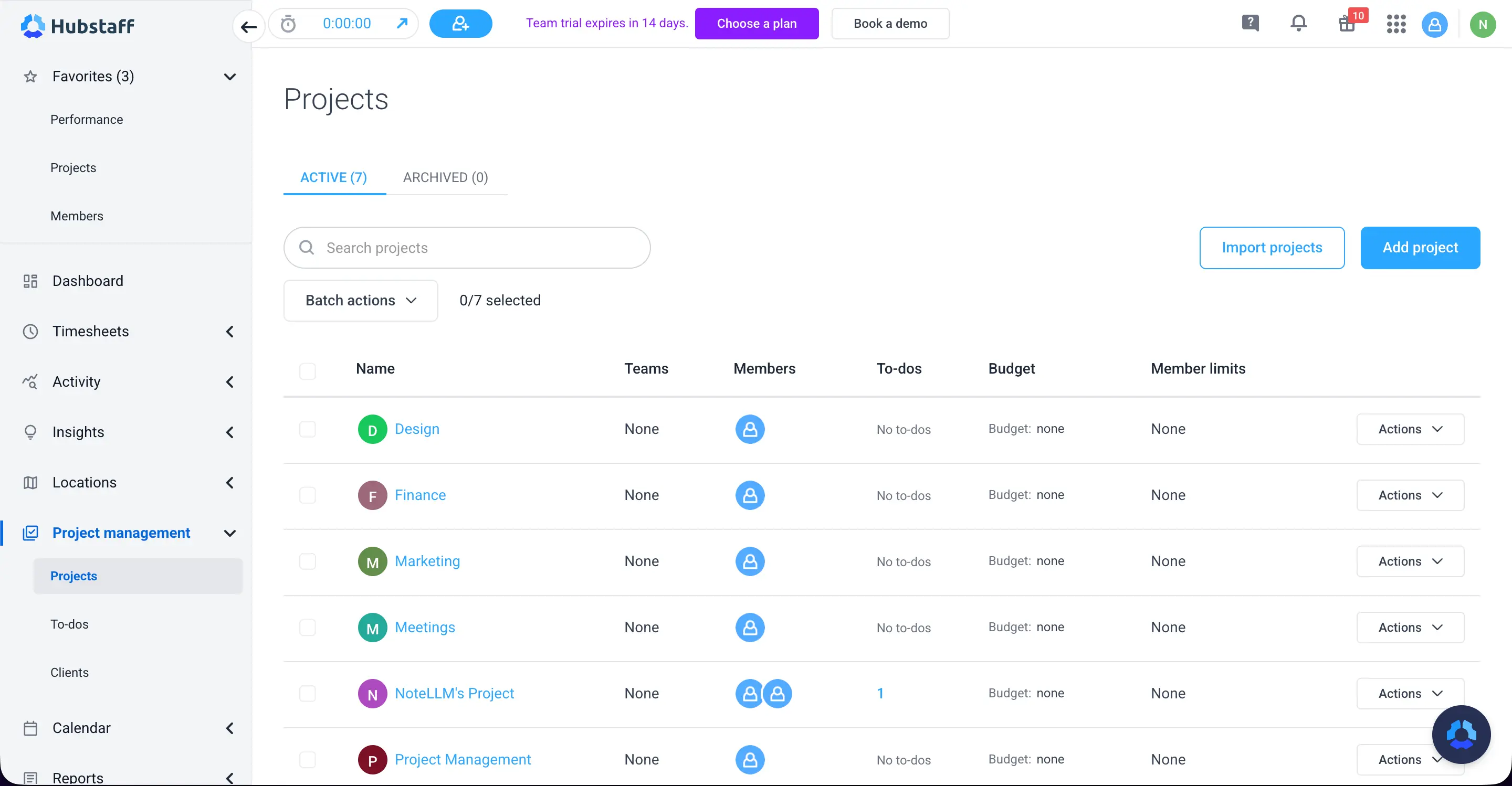
Hubstaff’s Projects/Tasks module is quite intuitive. I created a project and added a few tasks to it, each with an assignee, due date, and description. The interface offers three views for tasks: List view, Kanban board, and Timeline (Gantt-style).
I personally love Kanban boards, and Hubstaff’s implementation is solid. I was able to move tasks between columns with drag-and-drop just like Trello. This is great for teams that follow Agile or just want a visual workflow. They even have a Sprints feature. From tech teams, I think Sprints is a welcome feature.
I noticed I could link tasks with dependencies and add checklists - these are some great sub-tasks to keep the main task on track. File attachment, comments, and status changes worked as they should.
Hubstaff’s project management also ties into time tracking: when tracking time, you can select not just a project but a specific task to work on. Then the time logged will be associated with that task. Later, you can see how much time each task took, which is awesome for post-mortem analysis or client billing by task.
While using Hubstaff’s project management, I felt it was quite agile-friendly. However, this module is still basic compared to tools like Jira, Asana, or Monday.com. A few things I missed:
- No advanced prioritization like weighted prioritization or story points (you can mark priority high/low, but that’s it).
- No task time estimates vs actual (though you could manually do this).
The most significant limitation: the task management is an “add-on”. Only the higher tiers have it built in. For lower plans, you’ll need to pay extra.
Payroll Integration
When it comes to paying your team, Hubstaff doesn’t run payroll itself. While it offers seamless integration with multiple tools, I would’ve loved some built-in action.
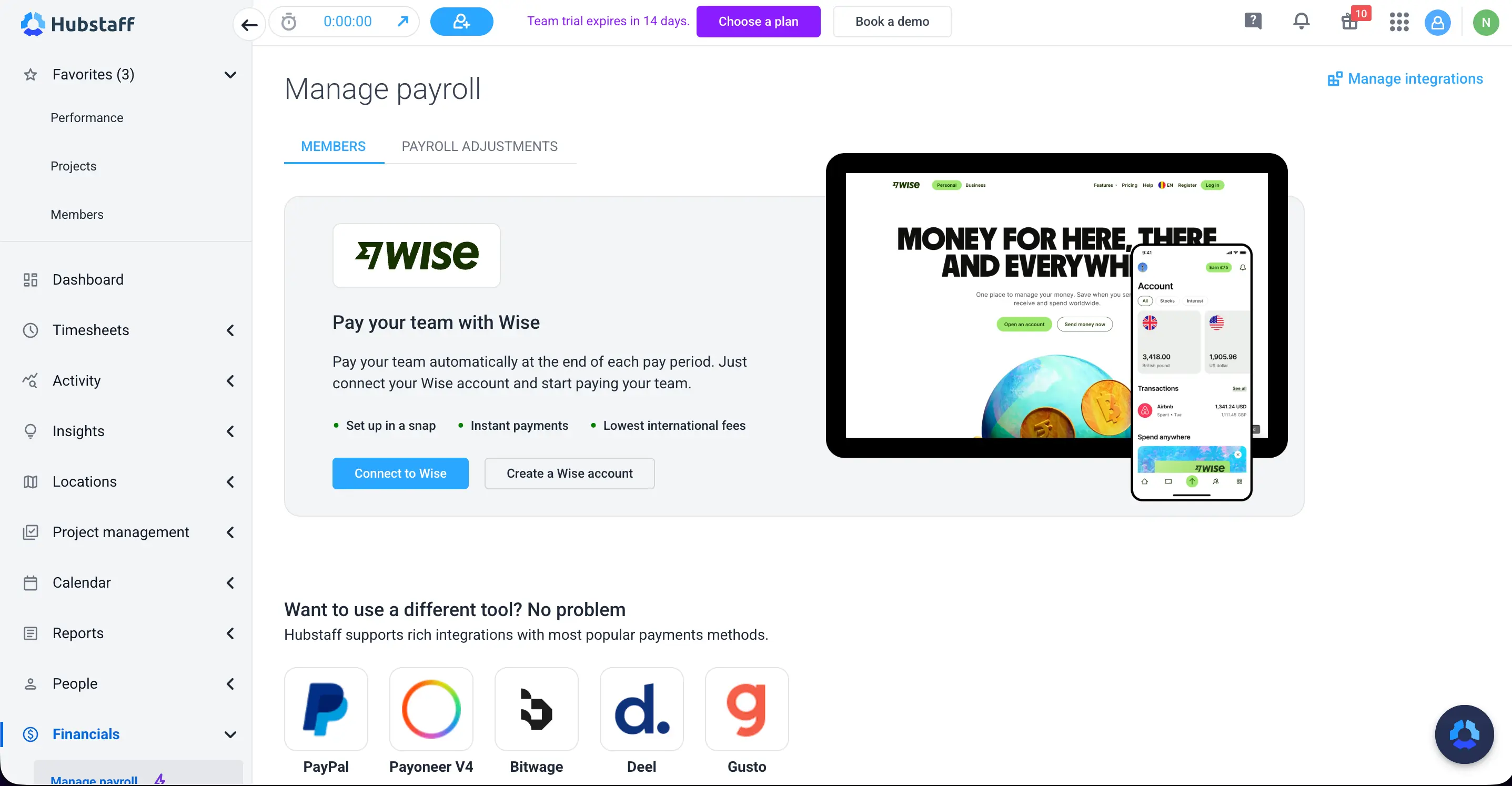
Hubstaff integrates with services like Gusto and Deel for payroll, and with payment platforms like PayPal, Wise, Payoneer, and Bitwage for payment. contractors.
One thing I liked is that you can have multiple pay rates (for different projects or roles) for one person, and Hubstaff accounts for that in the payroll export.
Also worth noting, Hubstaff supports payments in different currencies if you have international team members. It basically takes the hassle out of figuring out how much to pay each person.
Hubstaff also integrates with accounting tools like QuickBooks and FreshBooks. This is more on the financial record-keeping side, but it’s related – your time and expense data can sync to those for bookkeeping.
The only small gripe I have is that the list of payroll integrations, while decent, could be longer. And if you’re on the basic plan, payroll integration is not included.
Security Protocols
Employee monitoring without following security measures can be deadly. Let’s see if Hubstaff can fulfill on that part.
Hubstaff encrypts data both in transit and at rest. Also, Hubstaff meets several important compliance standards:
- It is GDPR compliant for data protection in the EU.
- Hubstaff is HIPAA compliant. Hubstaff doesn’t store PHI or any sensitive notes.
- They have a SOC 2 Type II certification. This is an auditing standard that assesses a company’s controls around security, availability, and confidentiality of data.
However, there’s no clear mention of CCPA compliance anywhere. They do mention CCPA in their privacy policy, but vaguely and indirectly.
Reporting & Analytics
One area where Hubstaff shines is in its Reporting capabilities. Hubstaff offers a variety of built-in report types, categorized broadly into General, Payments, Budgets, Time Off, Schedule, and Invoices.
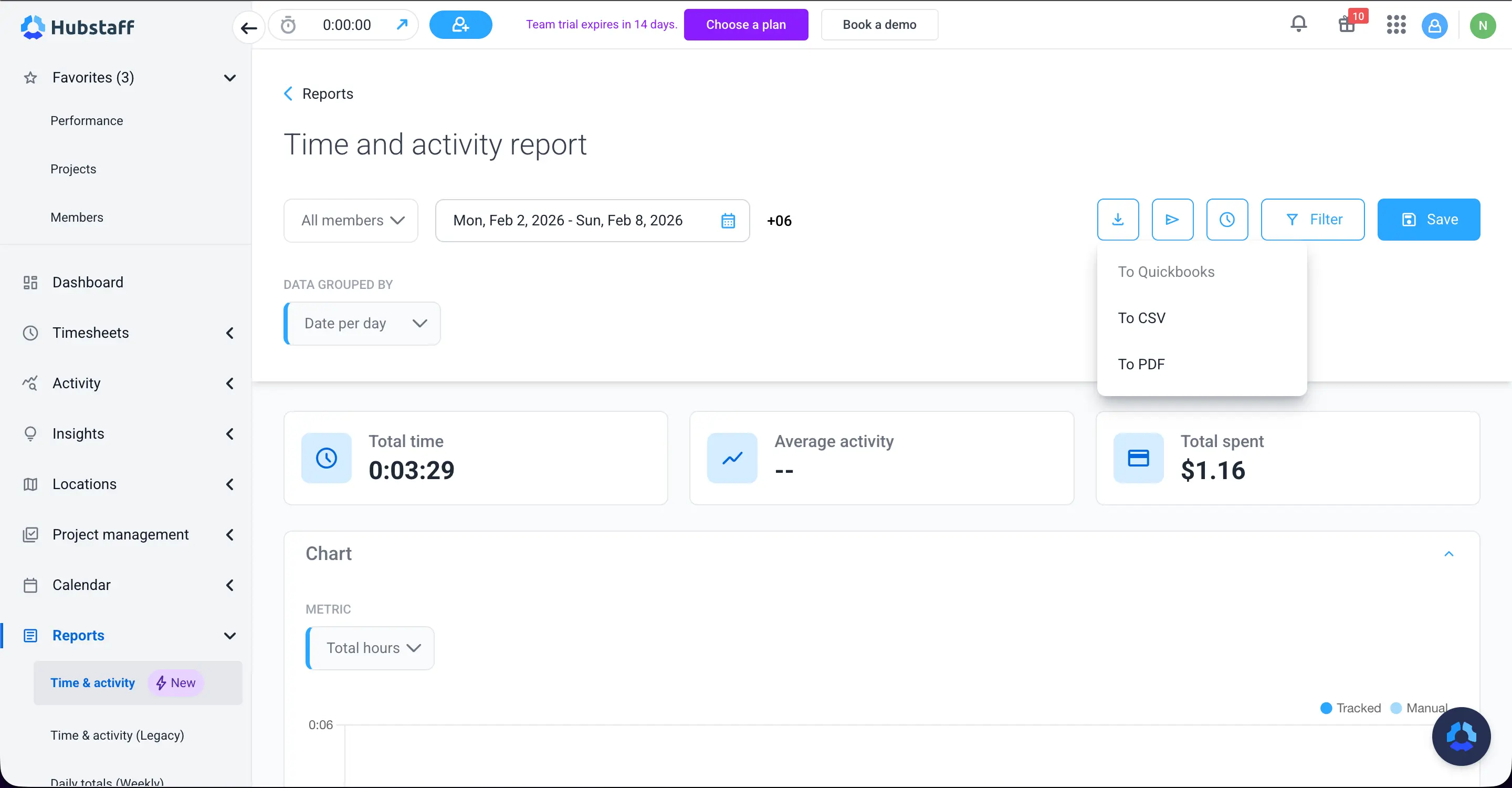
Here are some I found most useful:
- Time & Activity Report: This is the most used one for any company. Hours worked and average activity % for each user are clearly shown in reports.
- Daily Summary: This report breaks down each day’s total hours by user. Good for a quick overview of who did what each day.
- Timesheet Report: Lists every time entry (start/end times), often used for auditing.
- Manual Time Edits Report: I liked this one – it specifically shows any time entries that were manually added or edited.
- Budget & Limits Reports: If you set project budgets (hours/currency), Hubstaff can show the total budget used. It can also alert admins to keep the project budget on track.
- Time Off & Holidays Report: Summarizes how much time off each person took, remaining balances, etc.
- Payments & Payroll Reports: Classic payments and payroll reports for easy disbursement.
- Invoices Report: Lists invoices generated and their status (paid/unpaid), tying back to time tracked.
Playing with different reports was great. Select the report type, choose filters like date range, specific team members, or projects, and run it. The results come up quickly, and you can then export to CSV or PDF. I preferred CSV, and I’m glad that Hubstaff supports it.
One thing to be aware of: Hubstaff’s reports present the data, but they don’t interpret it. So, it’s up to the managers to find any anomalies or issues.
Customer Support
No software review is complete without examining the customer support experience. Hubstaff provides multiple support channels, but I found the quality of support to be a mixed bag.
Hubstaff offers support via live chat, email, phone, and a self-serve knowledge base. Their documentation (knowledge base) is extensive. I browsed through it and found detailed guides and FAQs on most features (with screenshots and step-by-step instructions). It’s well-categorized and easy to find with keywords.
They also have community forums and FAQs, which cover things like common troubleshooting.
Live Chat
For live chat, there’s a widget at the bottom of the web app. I sent a message during their stated support hours. Initially, I got an automated response saying, “We’ll be with you soon.” However, I did not receive an actual human reply for several hours. I didn’t expect that, as in urgent cases, I won’t be able to monitor my employees properly. So, they really need to work on their live chat.
For the email ticket, I used the support email to ask a question about integrating Hubstaff with Jira. I got a ticket confirmation immediately, but it took about 48 hours to get a response from a support agent. The answer I received was actually helpful and polite, and answered my query in detail. However, I wish the response were within a day.
Rating: 7/10
What’s the Difference Between Hubstaff and Apploye?
The main difference lies in how each of the two approaches employee monitoring. Hubstaff, while being extensive, can be quite invasive in its monitoring features. However, Apploye makes sure to keep the employee's privacy in mind.
Lower starting price -
Free or $4.5/user/mo
Free Plan Availability
(only limited viewer role)
Free plan available with real features,
not just viewer mode
complex for beginners
Very simple, clean interface
often praised by users
Easy setup, but many features can overwhelm new users
minimal learning curve
Comprehensive, including
idle detection
with clear logs
Strong activity tracking,
but sometimes seen as intrusive
reliable monitoring
Optional, with blur settings
notes for clarity
Advanced geofence and GPS options
Very robust reporting tools
(20+ reports)
and insight-driven
Built-in invoicing with customization
Advanced analytics with add-ons
Good documentation,
mixed response times
responses is reported
Excellent for large/enterprise teams
& remote work
Can feel heavy or surveillance-oriented
for some users
Large teams needing
deep analytics & compliance
In summary, Hubstaff is a powerhouse with a higher cost. On the other hand, Apploye is a simple and effective tracking tool that most employees will connect with.
Is Hubstaff Worth It?
It depends on what type of monitoring you want for your employees. Let me share my perspective from both the positive and negative ends.
When Hubstaff Makes Sense:
- You manage an office-based or hybrid team and want robust oversight.
- You have a field or remote workforce and need GPS tracking.
- You require strong reporting for clients or compliance: Hubstaff’s reports and its compliance with standards.
- Your team has an open mind for enhanced monitoring.
When Hubstaff Might Not Be Ideal:
- Mobile-First Workforces, as Hubstaff mobile lacks multiple admin and workflow features compared to the web version.
- Companies that follow strict overtime regulations and scheduling. You might require additional tools for that.
- Budget-Tight SMBs, as Hubstaff is on the expensive side.
- Employee that don’t prefer invasive monitoring
Conclusion
Hubstaff is powerful but complex and costly for many teams. While it can be useful, it can get very expensive in the blink of an eye. Compared to that, Apploye offers simpler tracking, better value, and a friendlier experience. For most small and remote teams, Apploye is the smarter choice over Hubstaff.
Frequently Asked Questions
Hubstaff is used for time tracking and employee monitoring. It tracks multiple productivity, activity, and time metrics of employees.
Yes, Hubstaff uses encryption and standard security practices. User data is protected during storage and transfer. It also has SOC 2 TYPE II certification for enhanced data protection.
Hubstaff does not offer a full free plan. Only a limited Project Viewer role is free. Apploye offers a usable free plan, making it better for small teams.
Yes, Hubstaff can track jigglers. Hubstaff tracks mouse and keyboard activity patterns. Simple jigglers may trigger unusual activity alerts.
Yes, Hubstaff is a legitimate and established company. It offers a variety of tools and services for small, medium, and enterprise businesses.
Yes, Hubstaff can record screen activity through screenshots. However, this feature works only on desktop apps. The mobile app doesn’t support any screenshots or screen recording.
Yes, Hubstaff takes screenshots at set intervals. Screenshot limits depend on the plan. The starter pack has only a 500 screenshots/seat/mo limit.
Yes, Hubstaff supports multiple languages such as English, Spanish, French, German, Italian, and Portuguese. This helps international teams use the platform.
Hubstaff can feel invasive with screenshots and activity monitoring enabled. Some employees feel closely monitored. Apploye is often seen as less intrusive and more employee-friendly.
Yes, Hubstaff supports flexible schedules and remote work. Time can be tracked manually or automatically. Additionally, the GPS tracking helps to flexibly track field workers.
Yes, Hubstaff allows role-based permissions. Admins can control access levels and set different access controls according to employee levels. It is completely customizable, and you can change the settings anytime.
Yes, Hubstaff supports offline time tracking. The data syncs when the internet reconnects, and you can do the same on the mobile apps.
Hubstaff can be useful, but it may feel expensive for small teams. Many features require higher plans or add-ons. Apploye is often a better value for small businesses.
Yes, Hubstaff can be a good choice for remote teams looking for employee monitoring. However, for small remote teams, it can be costly. You can consider less expensive Hubstaff alternatives like Apploye if you want.