Secure Your Remote Desktops: A Complete Monitoring Guide
Key Takeaways:
-
Secure remote desktops by monitoring activity: track logins and actions, spot unusual behavior, and keep a safe record. So you can catch issues early and investigate quickly.
With increasing remote work, the security concerns are extremely delicate. That’s why Remote Desktop Protocol (RDP) and Virtual Desktop Infrastructure (VDI) have become crucial.
Why? Because every year, thousands of businesses fall victim to cyberattacks due to cyberattacks. Attackers are always in search of ways to infiltrate internal networks.
By the end of this blog, you’ll know everything about remote employee monitoring. And how to set it up and control your privacy!
What is Considered a Remote Desktop?
Remote desktop monitoring means watching and recording user activity during remote sessions. It works like an overseer for all devices. This includes virtual machines, remote desktop software, or any RDP gateway-accessible devices.
Key components of remote desktop monitoring include:
- User Sessions Visibility
- Comprehensive Logging
- Audit Transparency
- Overarching Security Tools
Start monitoring remote sessions for free
Top Security Risks in Remote Desktop Environments
Working with remote desktops introduces a set of high-impact risks. Here are the most critical ones, and why you should always keep them in check.
Risk 1: Brute Force Attacks and Exposed RDP Ports
If you don’t know it already, Port 3389 is the default TCP port for RDP. You can obviously change it to another port for better security. If you don’t, attackers are not so dumb to miss this change!
Brute-force assaults are quite common via this port. Most cyber criminals search for open ports for easy extortion.
According to a Shodan investigation, port 3389 is exposed in 4.4 million cases worldwide. So, it should be quite obvious how serious this issue is!
Risk 2: Credential Compromise and Weak Authentication
The seriousness of insufficient authorization is often overlooked. Because compromised credentials are the top cause of incident-response events. But none of those situations had MFA enabled in 43 percent of them!
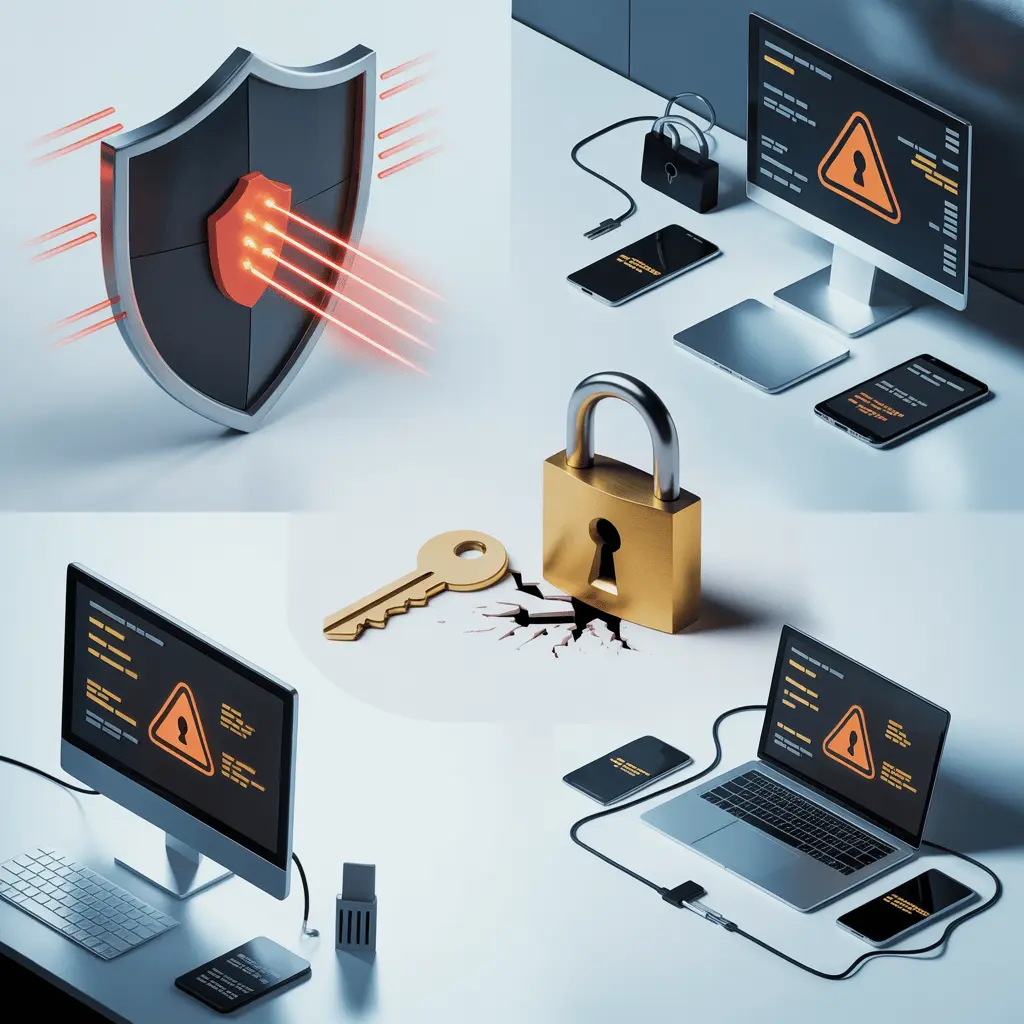
Because of this, a remote desktop setup requires more than just a username and password. Your access points are an open invitation to cybercriminals.
Risk 3: Vulnerable Remote Desktop Protocols & Unpatched Systems
An RDP or remote access solution without any security patches? Might as well send personal invitations to hackers to exploit your system!
"BlueKeep" in RDP is a common wormable vulnerability, spreadable over unpatched systems.
Risk 4: Personal Device Use & Complexity of BYOD
Using cloud tools (Microsoft 365) along with remote desktop connections increases risk. Each personal device adds to the potential vulnerabilities. Without strict controls on file sharing and device compliance, your attack surface grows.
These risks should not be ignored, especially as remote work becomes more common. Regular employee monitoring, clear BYOD policies, and security measures are essential for data safety.
Best Practices for Optimal Remote Desktop Security
Actions speak the loudest when done right. Here are our best practices for remote desktop security, summed up with 3 pillars in mind.
Secure Access & Authentication
- Enable Strong Authentication: Use Multi-factor authentication (MFA) or 2FA. It makes authentication stronger compared to regular logins.
- Avoid Default or Weak Credentials: Make sure to use complex passwords & strong credentials. Skip using common passwords like “123456”, “Password”, and “Welcome1”. These can be easily hacked.
- Disable default Port: Stop using the 3389 port for everything. Consider moving your services to non-standard ports.
- Use Network Level Authentication: Implement NLA and restrict remote access to authorised IPs.
- Restrict Privileged Access: Use role-based access control or privileged access management.
Monitoring and Audit Continuously
- Deploy Monitoring Software: Use Apploye to monitor everything in real-time. From activity tracking to employee management.
- Perform Regular Audits: Keep logs of user access patterns and session durations. Review them regularly. While doing that, set up alerts for large file transfers or after-hours access. These ensure better security.
- Use Analytics and Metrics: Use every dashboard, report, and analytics. It will help you find trends in remote access patterns, idle times, etc.
Governance, Policy & Employee Culture
- Draft a Clear Remote-access Policy: Policies are what bind everything together. Draft one with your employees in mind and regulate it properly.
- Conduct Cybersecurity Awareness Training: Training is key. Especially when you’re implementing a new monitoring policy. Make them aware of all the intricacies of remote monitoring.
- Establish Transparent Employee Communication: Convey why remote monitoring matters. And the reasons for employee compliance.
- Retain Monitoring Logs: Maintain the GDPR/ISO laws. Ensure logs are maintained according to the compliance standards.
- Encourage Feedback Culture: Maintain a culture of reports & feedback.
Implementing a Secure Remote Monitoring Framework
Here’s how you can structure your monitoring framework:
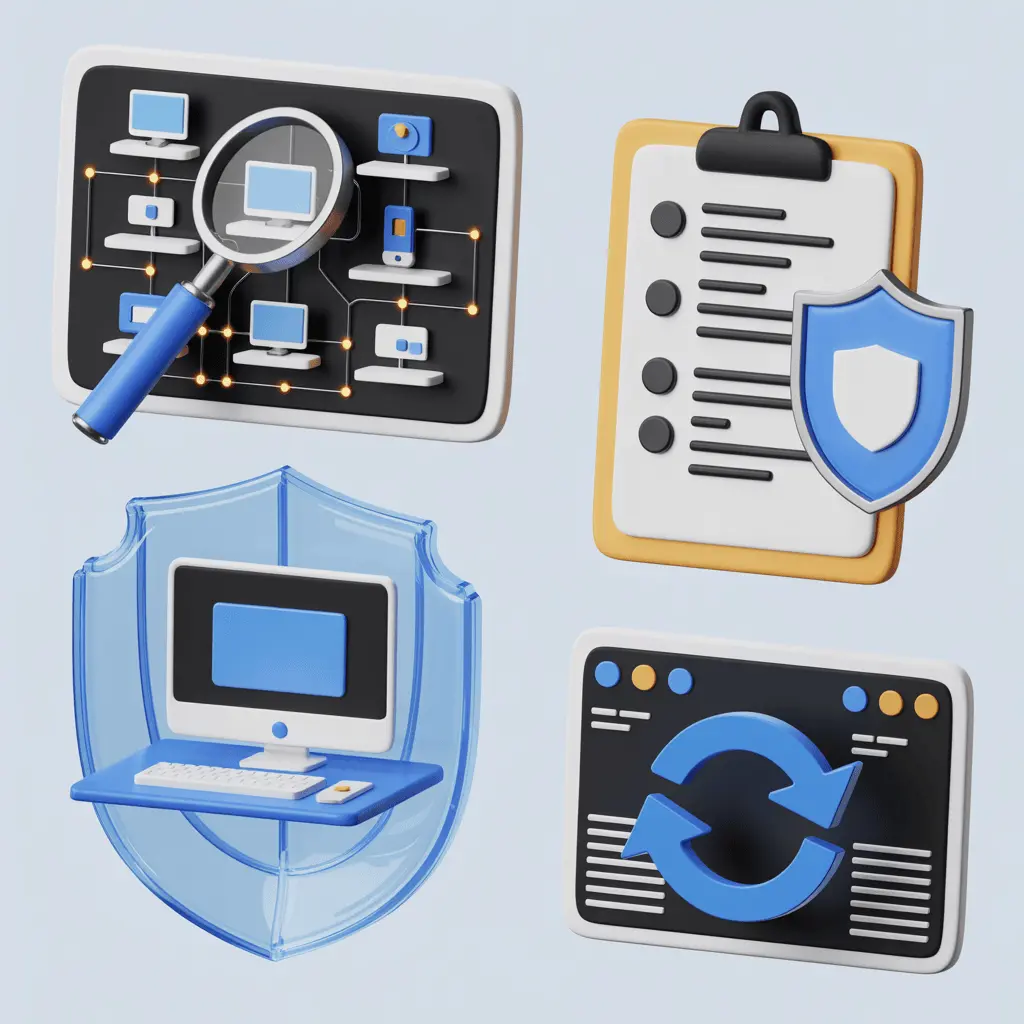
Step 1: Re-evaluate the Current System & Environment
First, reassess all systems supporting remote desktop access. That includes virtual machines, home PCs, BYOD devices, etc.
Then, map every remote access path. You should cover RDP, VDI, cloud desktops, and VPN-connected VLANs. Make sure no route is overlooked.
Next, identify how many remote sessions lack proper monitoring or logging. Track every active connection. It’s best to involve your IT team to complete this step smoothly. Cross-collaboration ensures proper reviews and fewer mistakes.
Finally, review your network settings for exposed public IPs and open ports. Especially Port 3389. Check for weak configs and patch them. Strengthening these areas reduces major attack risks.
Step 2: Streamline the Policies & Fix the Scope
In this phase, these are mostly strategic decisions to take. Review and update a remote access policy. It should cover all the points consisting of who, what, and how of the policies.
Then, you need to finalize the scope, conditions, and how it will all work together. Finally, complete this step by defining alert thresholds.
What should it cover? Failed login attempts, unusual login times, high bandwidth usage, mass file transfers, etc.
Step 3: Keep the Monitoring On and Secure the System
Now, it’s time to install an employee monitoring tool on every device used by the remote desktop software. Make sure the role-based access controls are well-structured and properly followed.
Find optimized ways to enforce MFA, enable NLA, and restrict inbound ports. For the final layer, make sure to restrict access via RDP Gateway or VPN. And review your firewall protection.
Build a secure monitoring framework with Apploye
Step 4: Review Regularly and Be Alert
Finally! All you need to do is review all the data. If you have a dashboard, then just reviewing the log and session data will suffice. Always keep the alerts and notifications on when an emergency arises.
You will be amazed to see how regular security audits help to secure endpoints. Check for missing security patches, misconfigured firewall rules, and out-of-compliance devices. Lastly, regular audits and analysis will provide the scope for expansion and optimization.
Key Metrics You Need to Actively Track
Metrics keep you aligned with what you actually want to achieve. Without any KPIs or metrics to study, you will see no significant changes.
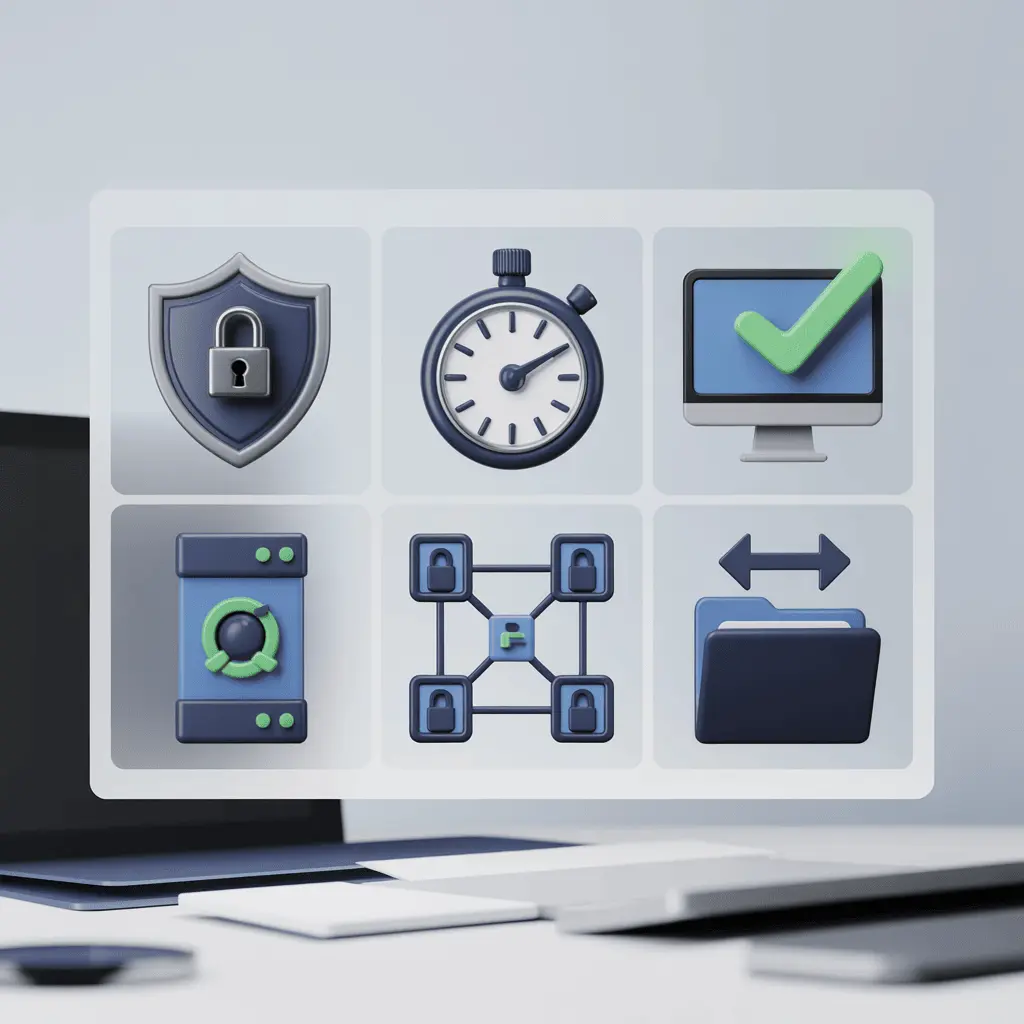
So, here are our best metrics that we think you should definitely monitor:
- Number of Blocked Unauthorized Access Attempts
- Average Time to Detect Suspicious Sessions (shorter is better)
- Patch Compliance Rate (% of remote devices with updated security patches)
- Remote Endpoints Monitoring (bigger is better)
- User Session Metrics
- Data Transfer Tracking
- Cybersecurity Awareness Participation (% of employees engaging in cybersecurity programs)
- Audit Pass Rate (% of sessions/systems passing the internal audits)
Tracking these metrics is key to your network security. Moreover, it demonstrates an additional value to stakeholders.
Track key productivity metrics that drive security wins
Conclusion
Remote desktop monitoring provides a foundation of flexibility and network security. Yet, many companies don’t think of investing in it.
It’s true that it can be tough to maintain a solid level of network monitoring. But with the right steps, you can steadily implement it.
Frequently Asked Questions
What are the biggest security risks in remote desktop access?
Weak passwords, exposed public IPs, missing patches, and bad firewall rules. These can lead to ransomware, DDoS, and unauthorized access.
Is remote desktop monitoring a privacy concern?
Modern tools focus on security, not spying. Solutions like Apploye log sessions and activity transparently to protect data.
What’s the difference between VPN and RDP?
A VPN encrypts the full network connection. RDP gives remote access to a computer. Use RDP through a VPN or ZTNA for safer access.
How does remote desktop monitoring prevent data loss?
It tracks file sharing, USB use, and cloud uploads in real time. With DLP and firewall rules, sensitive data stays protected.
Can personal devices be safely used for remote work?
Yes, if properly managed. Enforce endpoint security, Windows firewall rules, and security patches on every remote device. Restrict access through role-based access control (RBAC). And confirm all connections pass through a VPN or ZTNA framework.
How often should I perform security audits for remote desktops?
Regular security audits (at least quarterly) are essential. They verify firewall configurations, network settings, and user activity reports. It helps to identify vulnerabilities before attackers do.
About Author