





Time Doctor Review in 2026: Everything You Need to Know
Key Takeaways
Time Doctor isn’t just a time tracker. You’re getting a tool that shows how your team works, what they’re doing, when they’re doing it, and how long everything takes. It’s built for remote teams, agencies, and growing businesses that want more visibility.
But here’s the real question:
Will it actually help your team work better, or just make them feel watched?
In this review, you’ll get a clear breakdown of Time Doctor’s features, pricing, pros and cons, and integrations. So you can decide if it’s the right fit for your team.
What is Time Doctor?
Before I delve into the features and pricing, let me briefly explain what Time Doctor actually is.
Simply Time Doctor is a time tracking and employee monitoring software that shows exactly how your team spends their work hours.
It started as a simple tool to help teams stay accountable. Over the years, it grew into a full workforce analytics platform. What started as a time tracker is now a complete employee monitoring suite. It is well-suited for remote teams, agencies, and companies that require structured accountability.
Key Features
- Time Tracking: Automatic & manual tracking with idle detection and project-based logging.
- Employee Monitoring: Screenshot capture, activity tracking, and app/website usage.
- Productivity Insights: Real-time dashboard with detailed reports and performance analytics.
- Payroll Integration: Calculates payments and connects with payroll systems.
- Project Management: Track time across projects and assigned tasks.
- Attendance Tracking: Clock-in/out with shift and attendance monitoring.
Time Doctor’s Interface, Features, and Dashboard
I’ve used a lot of productivity tools over the years. Some look great, but others are way more confusing to use.
Time Doctor sits comfortably in the middle. It’s not the most beautiful software I’ve ever used. But it’s clean, logical, and once you know where everything lives.
Let me walk you through exactly what I experienced.
First Impressions When I Logged In
The first time I opened the web dashboard, my immediate reaction was, This is straightforward.
Within about ten minutes of exploring, I already knew where everything was. The layout is clean. That’s a good sign for any software tool.
If you’re spending hours figuring out basic navigation, that’s time your team will never get back.
The Web Dashboard
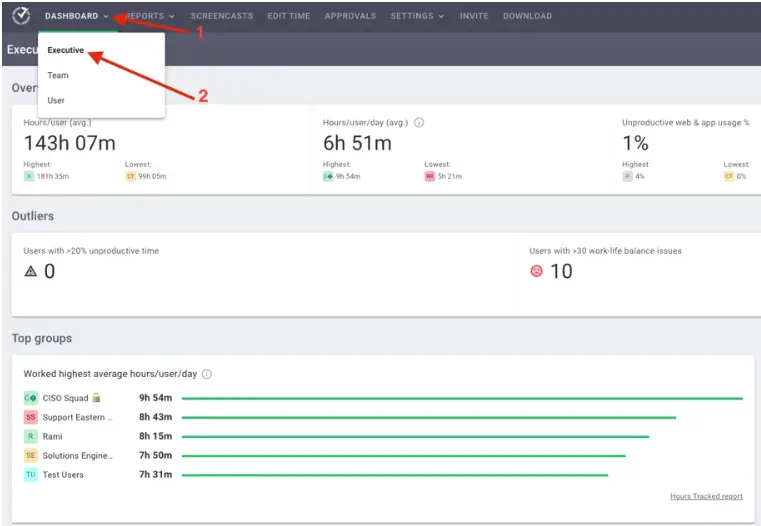
When I use Time Doctor, I notice that the dashboard experience is divided into three levels: Executive, Team, and User.
The Executive Dashboard gives me a high-level overview of the entire organization. But it’s only available in the premium plan and for companies having at least 20 users.
The Team Dashboard brings things a bit closer, letting me see how each team or department is performing. I can instantly spot who is active, who is idle, how time is distributed across projects, and where productivity might be dropping.
Then there’s the User Dashboard, which zooms in on individual performance, where I can check a specific employee’s tracked hours, activity levels, screenshots, and app or website usage. This is the most detailed level.
Overall, I find it powerful and insightful. But the interface feels a bit dense and less user-friendly, especially for beginners, and can come across as intrusive.
The Desktop App
There are two completely different desktop app versions. I assumed there was just one way to install it and one way to use it. There are not. And understanding the difference changed how I set it up for my team.
The Automatic App runs silently in the background the moment your computer turns on. There is no interface. No start button. No task selection. No way to pause it while the computer is running.
This is for a team working on company-owned devices, in a controlled environment, where the computer is only ever used for work.
The employee is in control of their own tracking through the interactive app. This has the dedicated tracking app we’re mostly used to.
The Mobile App
I tested the mobile app. It works, but it’s clearly not the main product.
What it doesn’t do well is give you the same depth of reporting you get on a desktop. The dashboard is simplified. You can’t access team-wide reports or manage settings from the app.
One thing that genuinely annoyed me was the battery drain. Running Time Doctor in the background on mobile chews through battery noticeably faster than I expected.
The Google Chrome Extension
It lives in your browser toolbar as a small icon. Click it, type your task name, and hit start. It tracks your time directly from the browser.
For people who do most of their work inside a browser, the Chrome extension is genuinely convenient. It also integrates directly with tools like Asana, Jira, Trello, and Gmail.
The downside is that it only tracks browser-based activity. If you switch to a desktop application outside of Chrome, like Photoshop, Excel, or a local coding environment, the extension doesn’t capture that. For a full picture of how someone’s day is spent, the desktop app is still the better option.
Time Tracking in Time Doctor
When I started using Time Doctor, the first thing I tested was its core time tracking system. Since everything depends on accurate tracking, I wanted to see how it performed in real-world conditions.
Starting and Stopping the Timer
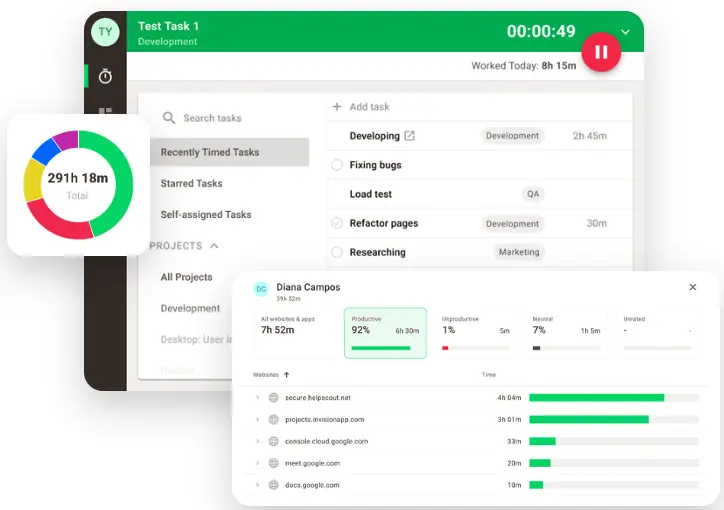
Time Doctor primarily works through its desktop app. Once installed, I selected a project and task, then clicked “Start.” From that point on, the timer began running in the background. It doesn’t just log time. It also begins collecting productivity data alongside it.
The system doesn’t feel complicated, but it does feel structured. You can’t really track time without assigning it somewhere, which forces better organization.
Manual Time Entries
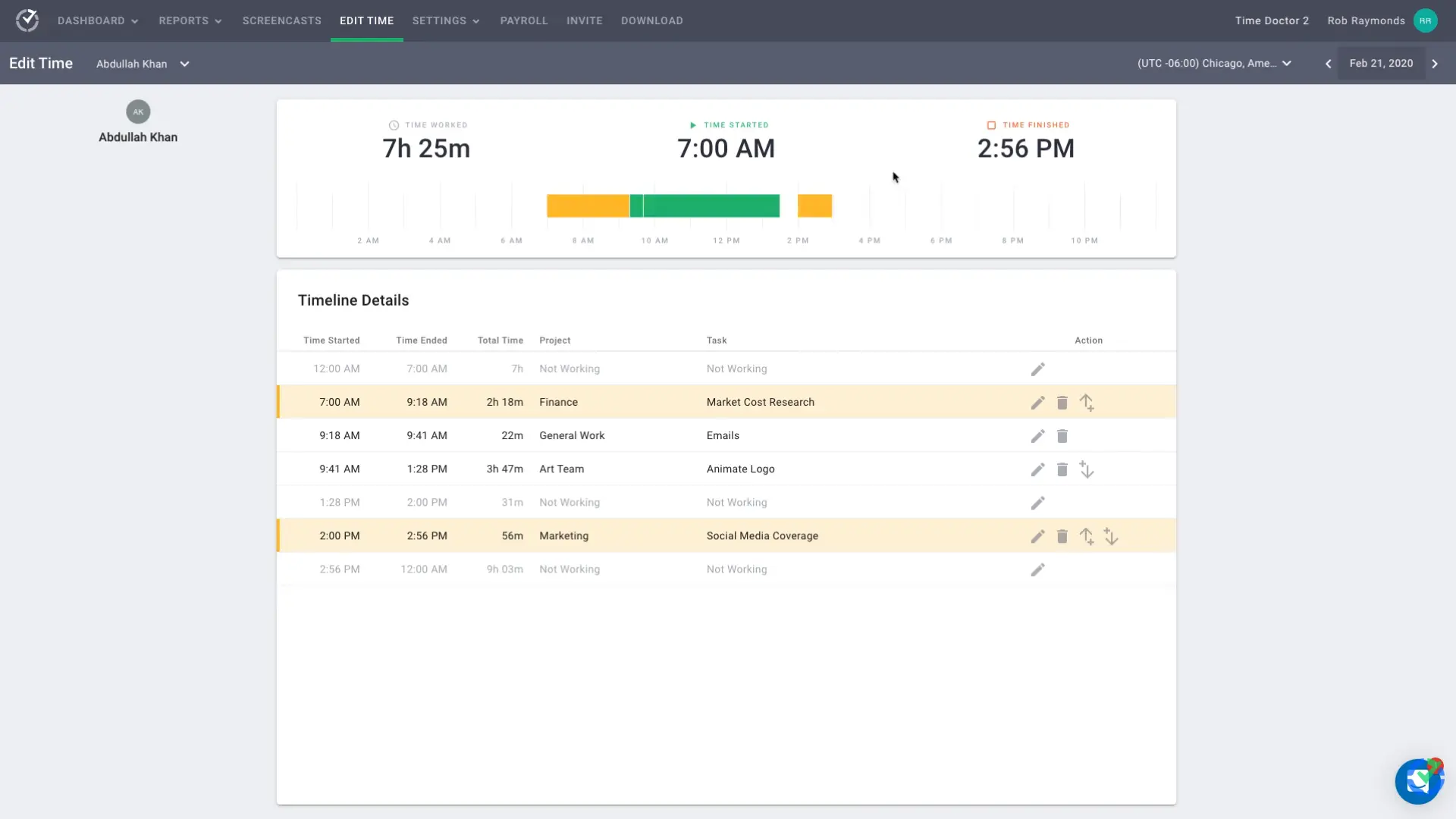
Like any real workflow, there were moments when I forgot to start the timer. Time Doctor allows manual entries. I could add past work hours, assign them to a project, and move on.
However, I noticed that manual entries are more controlled compared to some other time tracking software. Manual time entries are flagged differently in the reports.
Idle Time Detection
If I stepped away from my computer while the timer was running, Time Doctor detected inactivity and asked whether I wanted to keep or discard that idle time.
This was useful because it prevented inflated work hours. It made time logs more accurate without feeling overly intrusive.
Offline Tracking and Syncing
I also tested what happens when internet connectivity drops. Time Doctor continued tracking offline and synced data once I reconnected. That reliability matters, especially for remote teams in unstable network conditions.
Timesheet Management
Time Doctor builds timesheets automatically based on tracked work sessions. Every time I start and stop the timer, the system records that activity and places it into the daily timesheet.
Beyond the daily view, Time Doctor gives you a weekly timesheet that I found equally useful.
Another thing I appreciated is how clearly the timesheet connects time entries with projects and tasks.
One of the biggest practical uses of the timesheet feature is payroll and billing support. Since the system tracks exact work hours, the timesheets can be used to calculate employee payments or client billing.
Employee Monitoring in Time Doctor
The employee monitoring features were the part I noticed the most. They work quietly in the background while I’m doing my normal work. From my experience, it feels less like a system that tries to understand how I’m working throughout the day.
Screenshot Monitoring
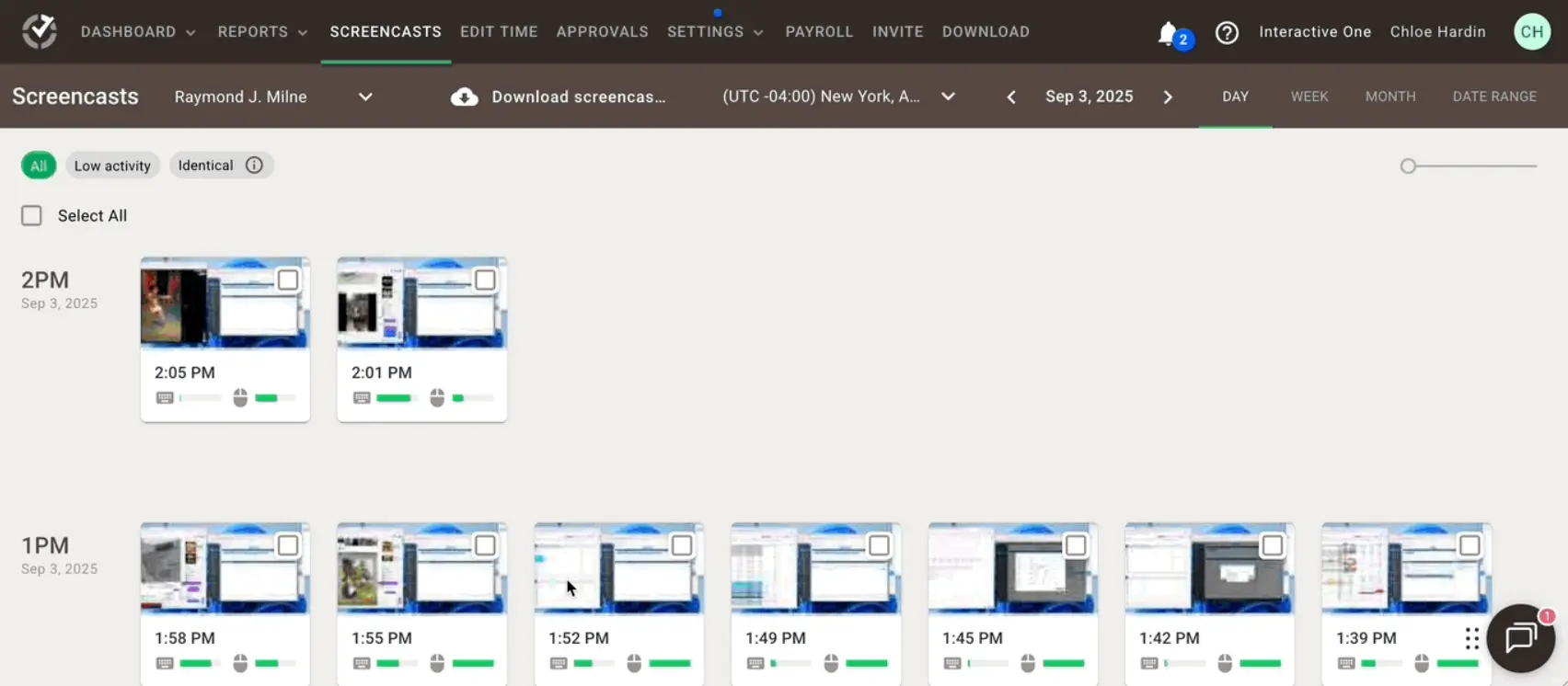
Depending on settings, Time Doctor monitors my screen periodically while I’m working. It takes still screenshots at set intervals. By default, it is every 3 minutes. As an admin, I could change that setting.
Each screenshot gets stored in the dashboard and tagged with the time, the employee name, and the task they were working on at that moment.
When I reviewed my team’s screenshots from the manager side, I could scroll through them like a photo album of their workday. Every image showed exactly what was on their screen at that moment, like open documents, websites, applications, everything.
As a manager, it gave me incredible visibility. The Time Doctor desktop app can take video recordings of the screen.
Keyboard and Mouse Activity Monitoring
It monitors keyboard strokes and mouse movements in real time to determine if you’re actively working.
I noticed this most clearly in my activity reports. Each hour of my day was broken into segments and given an activity percentage.
The screenshot taken during that period showed exactly what was on my screen.
The two data points together make it very hard to fake genuine productivity.
Web and App Usage Tracking
Time Doctor tracks every single website and app you use while the timer is running. Every tab you open. Every application you switch to. Every URL you visit.
For me, this means:
I can see exactly how long I used tools like Google Docs or Slack.
Non-work websites like YouTube show up clearly in reports.
So, if I spend too long on unrelated browsing, I know it’s being tracked. So I naturally reduce distractions.
As a manager reviewing this for a team member, I could instantly see not just how many hours someone worked but exactly how those hours were spent.
Productive vs. Unproductive Categories
Here’s something I found really useful as an admin.
Time Doctor lets you categorize every website and app as productive, unproductive, or neutral. YouTube is unproductive by default. Google Docs is productive. But I could customize these based on my team’s actual work.
Say, my social media manager needs Facebook and Instagram to do their job. By default, Time Doctor flags those as unproductive. I went in and changed them to productive for that specific employee.
That level of customization matters a lot. Without it, the data would be unfair to people whose jobs require tools that look like distractions on the surface.
Distraction Alerts
When an employee visits an unproductive website while the timer is running, Time Doctor sends them a gentle pop-up alert.
It simply shows a small message on their screen that says something like — “Looks like you got distracted. Time to get back to work.”
I tested this myself by opening a news site while tracking. The alert appeared within about 30 seconds. I closed the site and got back to work.
Time Doctor Reports
When I first saw the reports section in Time Doctor, I was a little overwhelmed. There were more report types than I expected. I didn’t know where to start or which ones actually mattered for my team.
Here’s everything I experienced.
Hours Tracked Report
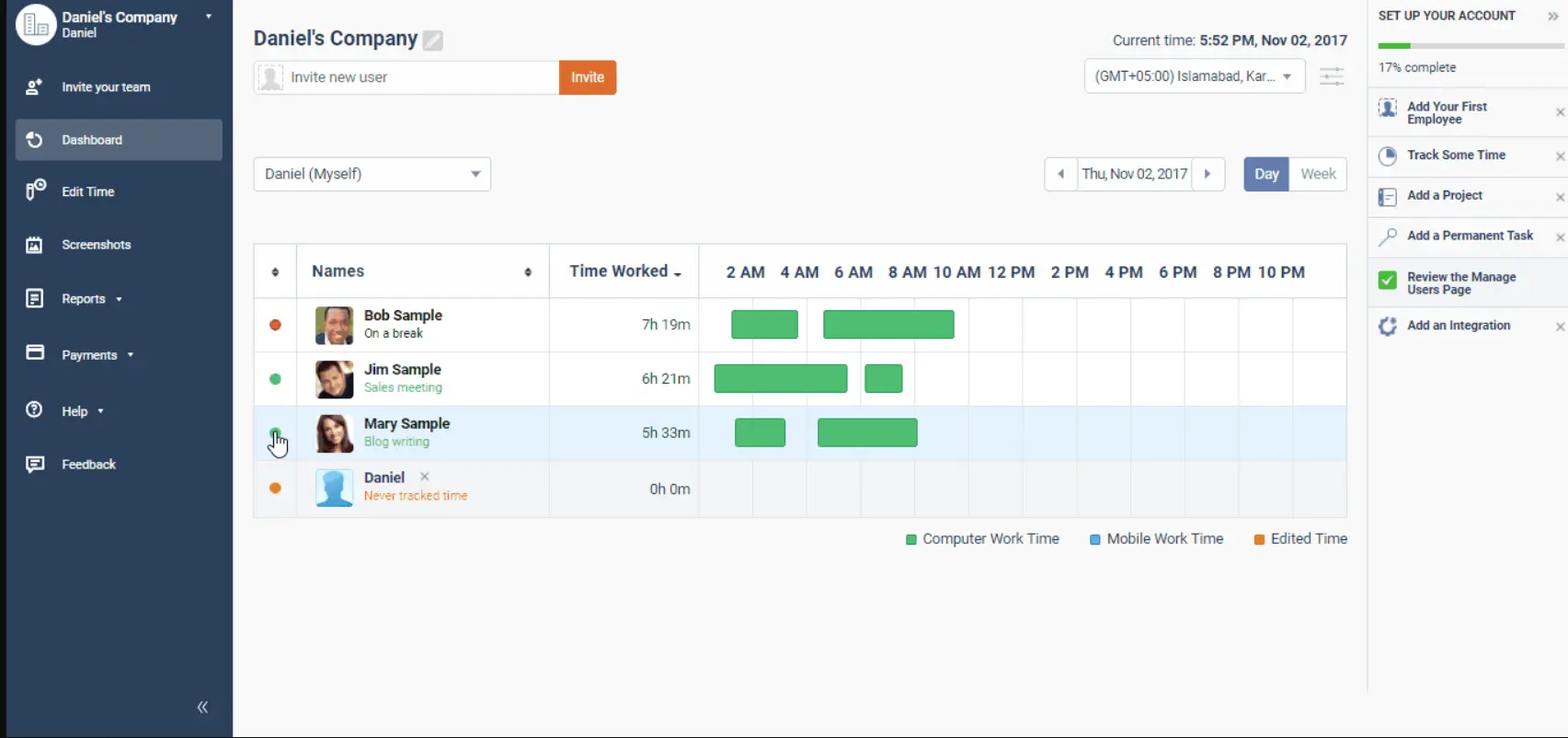
This was the first report I opened and the one I came back to most often. It shows a simple breakdown of how many hours each team member tracked over a selected date range.
You can view it by day, by week, or by month. You can filter it by individual employee, by team, or by project.
Activity Summary Report
This one became my favorite report after the first week. And it’s the one that changed how I managed my team the most.
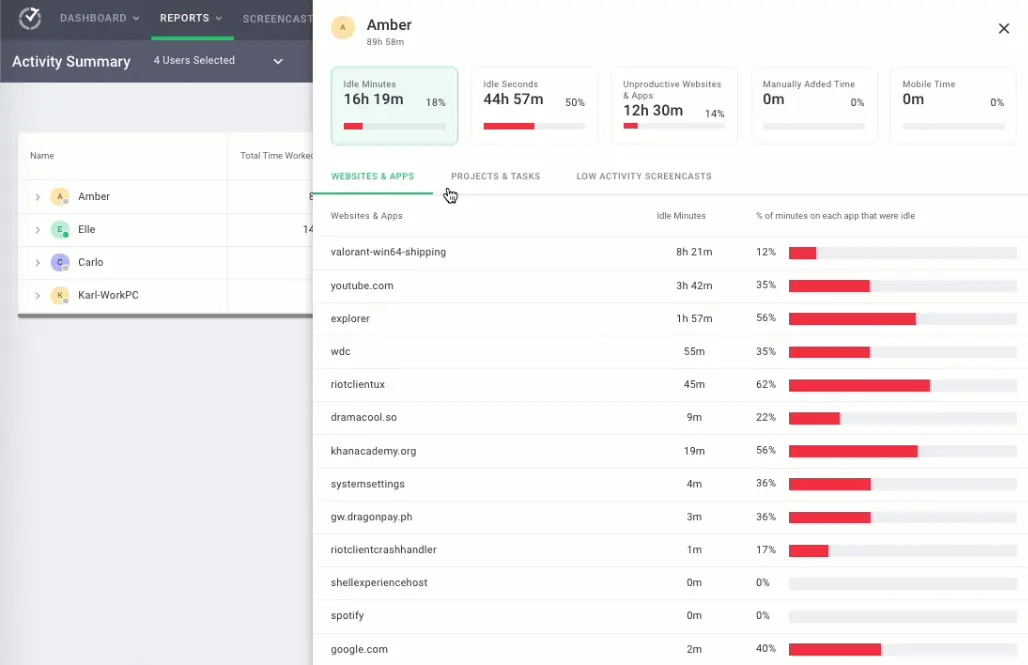
The activity summary breaks down each person’s tracked time into three categories:
- Active time — keyboard and mouse activity was detected
- Idle time — no activity was detected during tracked hours
- Unproductive time — time spent on flagged non-work websites and apps
That breakdown told me a completely different story than raw hours alone.
Web and App Usage Report
This report shows every website and application used during tracked hours. It is broken down by person, by time spent, and by productive or unproductive category.
The report is color-coded to make it easy to scan. Green means productive. Red means unproductive. Yellow means neutral. You can click into any website or app and see exactly how much time each team member spent on it over any date range.
Projects and Tasks Report
If you bill clients by the hour, this report is worth the entire subscription on its own. It shows exactly how many hours were logged against every project and every individual task within that project.
After one month with Time Doctor, the projects report changed everything. I could pull up any client project and see exactly how many hours were logged, by whom, on what tasks, down to the minute.
Attendance Report
The attendance report tracks when each team member clocks in and clocks out every day. It shows late arrivals, early departures, absences, and total hours worked against expected hours.
I found this report most useful for managing a team spread across multiple time zones. Everyone had different working hours. Keeping track of them would have been a full-time job on its own.
I also set up attendance alerts. If a team member didn’t clock in within 30 minutes of their scheduled start time, I received an automatic notification.
For remote teams managing flexible hours across time zones, this report alone is incredibly valuable.
Timeline Report
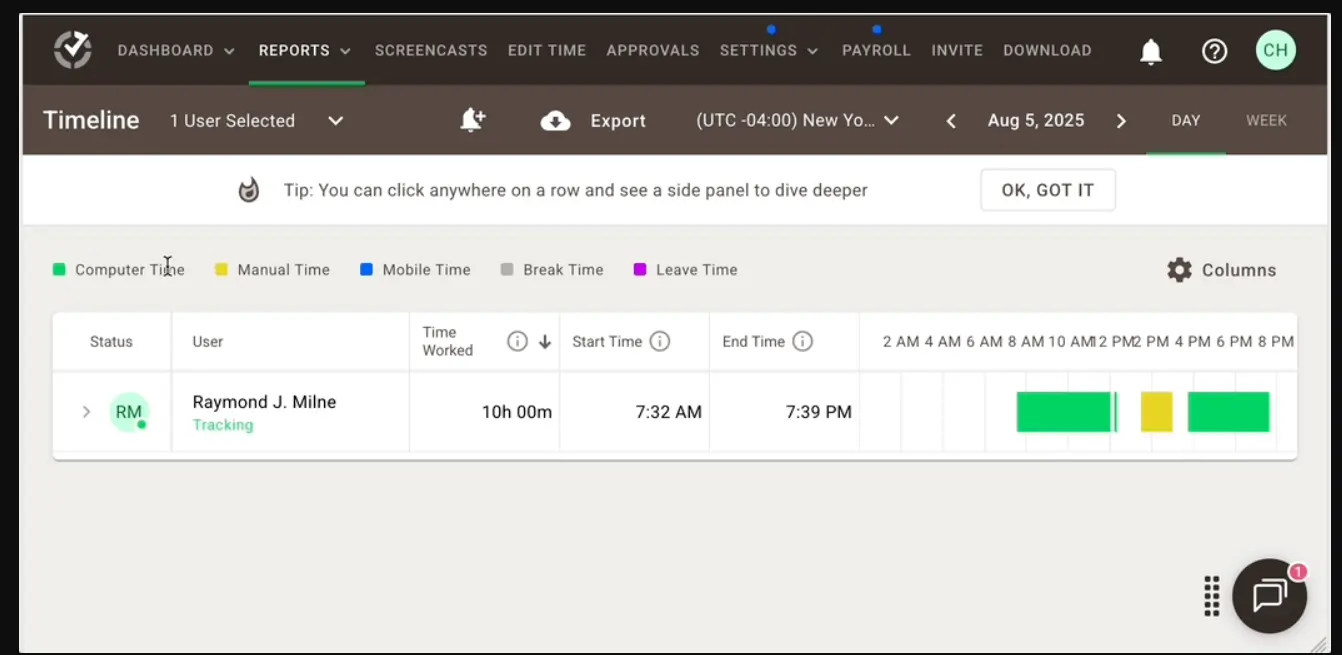
It shows a visual timeline of a single employee’s entire workday. Like a color-coded map of how their day actually unfolded hour by hour.
I used it when I wanted to understand a specific person’s working pattern in detail. Instead of just seeing totals and percentages, I could see the shape of their day.
Poor Time Use Report
The poor time use report flags team members who have high idle time, high unproductive time, or low activity percentages over a selected period. It essentially surfaces the data points that most need your attention.
Instead of reviewing every person’s reports every day, I set a weekly reminder to check this report. It immediately showed me who was having a rough week in terms of productivity. So I could reach out proactively rather than reactively.
Project Management in Time Doctor
When I first started using Time Doctor, I didn’t expect much from its project management features. Time Doctor is primarily known as a time tracking and employee monitoring tool, so I assumed project management would be very basic. After testing it with real tasks and projects, it provides enough structure to organize work and track time effectively.
How Projects Work in Time Doctor
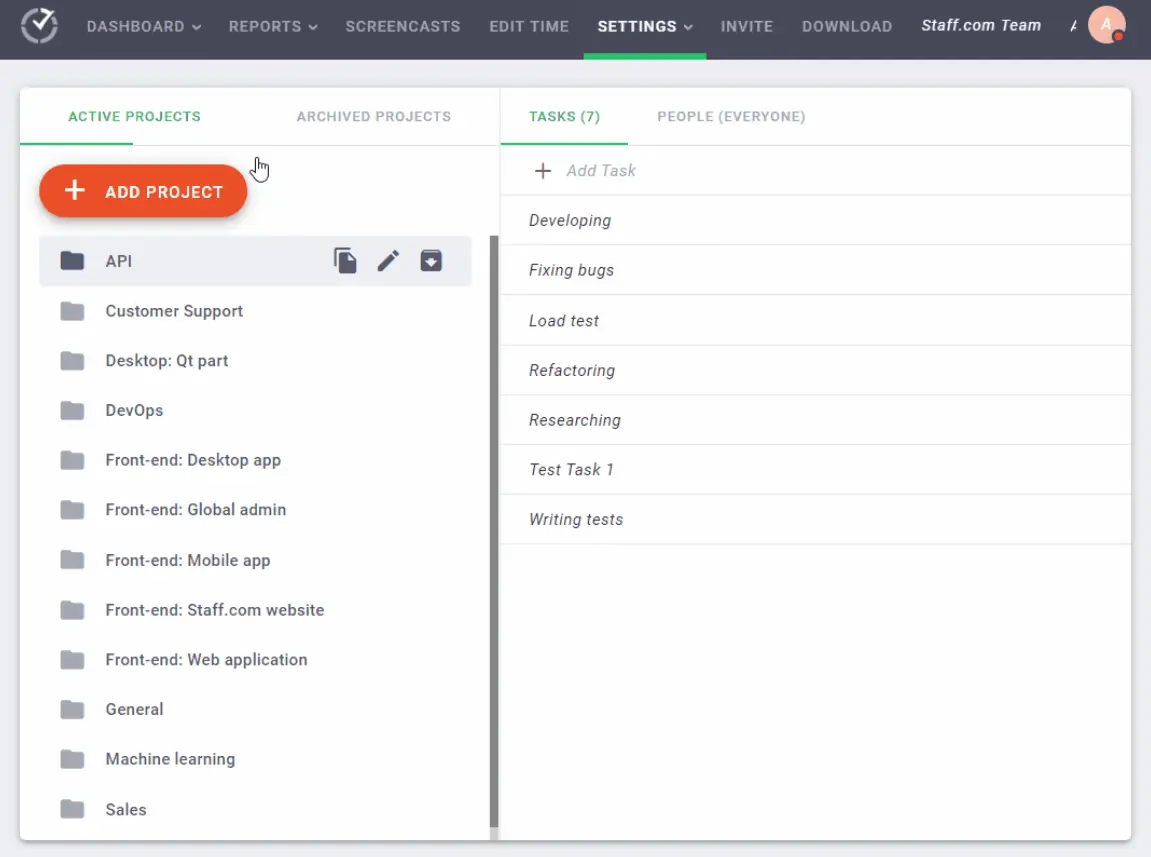
The first thing I did was set up my team’s active projects inside Time Doctor. Time Doctor lets you assign projects to specific people so their task lists stay clean and relevant.
Within about 20 minutes, I had all our active client projects set up with the right people assigned to each one. Once the projects were set up, I started adding tasks inside each one.
By the end of the first week, I could see not just how many hours had gone into a client project overall. That breakdown completely changed how I estimated project timelines going forward.
Setting Budgets for Projects
Time Doctor allows you to set hour budgets for individual projects. This feature is simple but extremely effective.
I set a budget for each active client project based on what was agreed upon in the scope of work. As the team logged hours against the project, Time Doctor tracked progress toward that budget automatically.
The Client View
Time Doctor lets you give clients limited access to their project data.
I set this up for two clients who had specifically asked for more transparency into how their hours were being used. Instead of sending manual weekly reports, I gave them a read-only login that showed only their project’s logged hours, task breakdown, and team activity summary.
Attendance Tracking and Scheduling in Time Doctor
Attendance Tracking
Time Doctor happens naturally through work sessions. When I start the timer at the beginning of my workday, the system records the start time. When I stop the timer, it records the end time.
When I checked the attendance reports, I could easily see patterns such as late logins, early logouts, or inconsistent work hours. This was particularly useful for understanding how work schedules actually play out in remote teams.
Work Session Monitoring
Another aspect I noticed is how work sessions contribute to attendance accuracy. Each time I started the timer for a project, Time Doctor recorded that session as part of my working day.
This prevents inflated attendance hours and helps keep records accurate.
Scheduling and Work Hours
Time Doctor also allows managers to define work schedules for employees. During my testing, I could set expected working hours for team members.
This feature is useful for teams that follow structured shifts or specific working hours. Managers can quickly see whether employees are working within the planned schedule or outside it.
Time Doctor Benchmarks AI
Benchmarks AI analyses how each person on your team works and compares their patterns against two things:
- Their own historical performance over time.
- The average performance of people in similar roles across the Time Doctor platform.
By analyzing these patterns, Benchmark AI helps highlight whether someone’s productivity is above or below the expected range. Benchmark AI helps reveal productivity trends.
Time Doctor Pricing
After testing the platform’s features, the next thing I looked closely at was Time Doctor’s pricing structure. Like many productivity tracking tools, the pricing depends on how advanced the monitoring and reporting features you need are.
Time Doctor offers four plans. Each one is built for a different stage of business growth. It has 14-days of free trial. It’s great to have 14 days to test a software's ins and outs. But it has no free plan.
The Basic plan is the entry-level option and focuses on core time tracking and productivity monitoring. It offers primary tools to track work hours and monitor activity.
The Standard plan is where Time Doctor starts to feel more like a full remote workforce management tool.
The Premium plan unlocks most of Time Doctor’s advanced capabilities. This plan provides the deepest level of insight into employee activity and productivity.
For larger organizations, Time Doctor also offers an Enterprise plan. This plan is usually customized based on the company’s requirements and team size.
Time Doctor Customer Support
For any kind of problem you face in running the app, you can access its support via different channels. Time Doctor provides.
- Live Chat — Available directly from the web dashboard and the Time Doctor website.
- Email Support — For less urgent issues or anything requiring detailed documentation.
- Help Center — A comprehensive self-service knowledge base covering setup guides, feature walkthroughs, troubleshooting articles, and video tutorials.
- Video Tutorials — Time Doctor maintains a library of walkthrough videos covering everything from initial setup to advanced reporting.
- Onboarding Support — Available on higher pricing tiers. Dedicated onboarding assistance to help new teams get set up correctly from day one.
- Community Forum — A user community where teams share tips, ask questions, and discuss best practices.
- Dedicated Account Manager — Available on the Enterprise plan only. For large organisations needing a single point of contact for setup, troubleshooting, and ongoing support.
Time Doctor Pros and Cons
After spending time using Time Doctor, a few strengths became very clear. At the same time, there are some limitations that teams should consider before adopting it.




The Best Alternative to Time Doctor- Apploye
From my experience, the core time tracking in both tools feels pretty similar. But Apploye’s interface feels a bit more modern and faster to move around.
Time Doctor reporting is deeper, the approval workflow is more structured, and the audit trail feels more complete. It also connects more tightly with analytics and payroll systems.
When it comes to monitoring, I found Apploye stronger in raw tracking depth. The features like stealth mode are something Time Doctor doesn’t really match.
Both tools handle project tracking quite well for agencies or service-based teams. But I felt Apploye has a slight edge when it comes to milestone tracking.
One thing that stood out to me is Apploye’s built-in invoicing. Getting that at a lower price point is a real advantage.
On the other hand, Time Doctor offers a much wider range of integrations, which can be important if you’re already using a complex stack of tools.
The Full Head-to-Head Scorecard
Tie
⭐⭐⭐⭐⭐
⭐⭐⭐⭐
How the Pricing Feels in Real Use
- Free plan: Fully usable long-term for reliable time tracking, with no user cap and no credit card required.
- Basic: Adds tighter data control, but I skipped it since approvals and invoicing mattered more for my workflow.
- Standard: Clockify starts to feel like a team tool, especially once billing, approvals, and payroll workflows enter the picture.
- Pro: Adds scheduling, expenses, and cost visibility, which makes coordination and capacity planning easier for teams.
- Enterprise: Designed for organizations with stricter security, compliance, and management requirements.
Annual billing is discounted compared to monthly plans. Clockify also offers a 7-day Pro trial without requiring a credit card. Refunds aren’t guaranteed, so it’s worth confirming plan details before upgrading.
Frequently Asked Questions
No, Time Doctor does not have a free forever plan. However, you can get a free two-week trial of the pricing tier of your choice.
Very accurate for digital work. Time Doctor tracks active time based on keyboard and mouse activity, application usage, and task assignments. These keep the data honest rather than inflating hours.
No, not through the standard Time Doctor setup. Employees receive a notification when Time Doctor is running and tracking is active.
The desktop app continues tracking locally when the internet connection drops. The data syncs automatically to the web dashboard when the connection is restored.