










Activity Insights
See activity levels from keyboard and mouse signals, not typed content.

Key Features


Use Cases


Explore

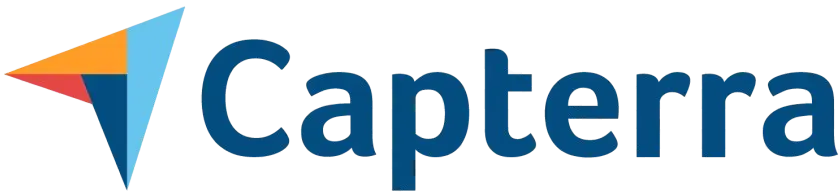


See what employees are doing without letting them know. Apploye’s stealth mode runs quietly in the background of company-owned devices. Check productivity levels, apps, and website usage in real time.

No Credit Card Required

Instant Access

Easy Upgrade

GDPR Compliant

HIPAA Compliant
GDPR Compliant
HIPAA Compliant
Trusted by the best




As seen on





Built to Show Total Employee Activity Data
Stealth monitoring software reveals genuine productivity by tracking computer usage. It’s ideal for teams of every size that value discreet employee monitoring without interruption.

Midas K.
Onboarding Program Manager
Computer Software
“Apploye silent mode enables an uninterrupted workflow. Now, employees do not have to manually track their work. Plus, since there is no sign of the software in the company-owned devices, they felt more comfortable, and the obnoxious feeling of being watched is gone.”
Start for FreeVisible monitoring often triggers 'performance acting,' where employees focus on looking busy. Stealth mode eliminates this by running invisibly. It captures actual activity data of the daily workflow. As a result, you can identify genuine productivity bottlenecks and act accordingly.
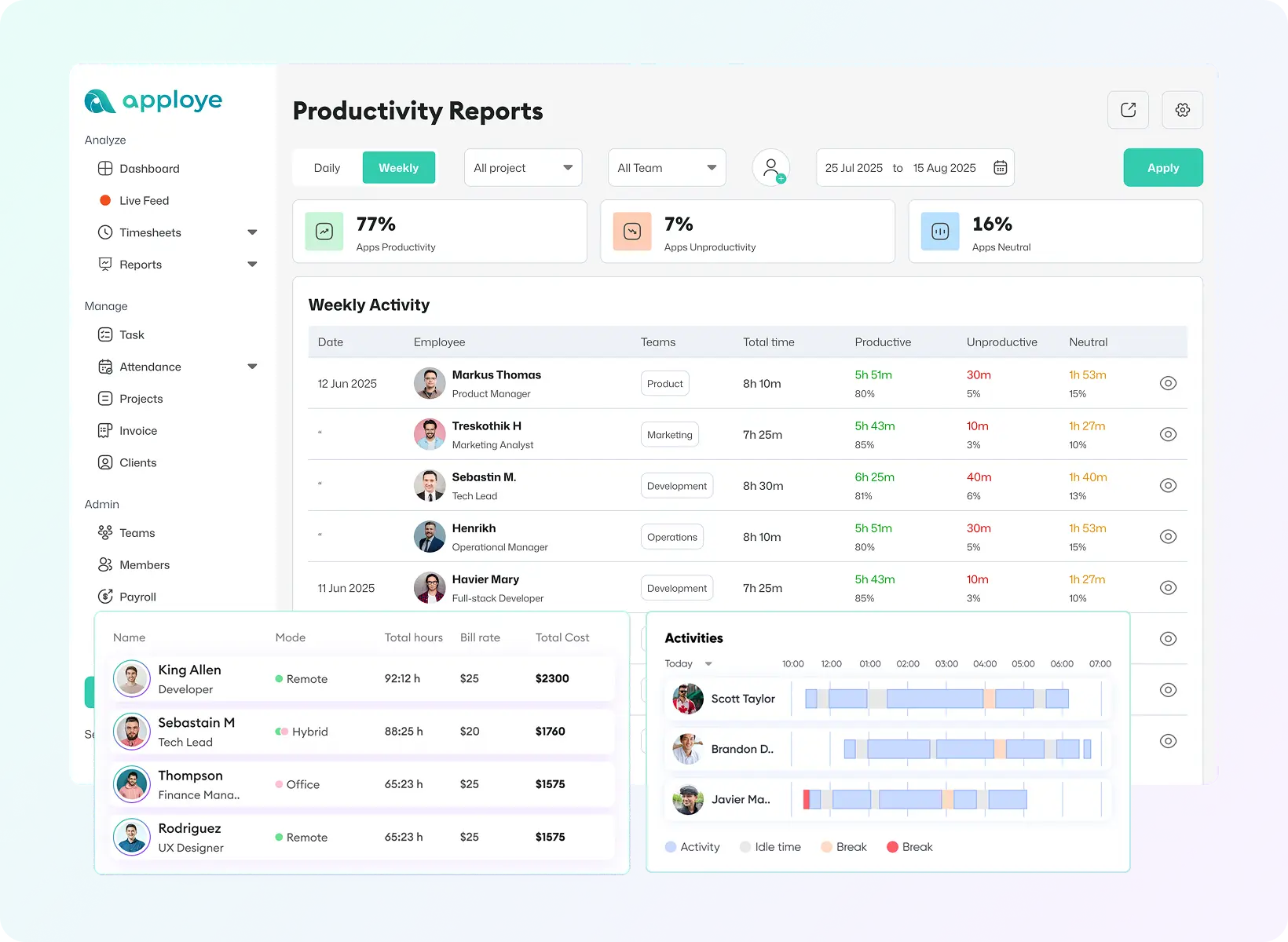
Stay informed without constant check-ins. Apploye captures screenshots, records the screen, and sends a live feed in the background. Even with a multi-monitor setup, your team’s activity cannot slip your radar.
See Live Feed
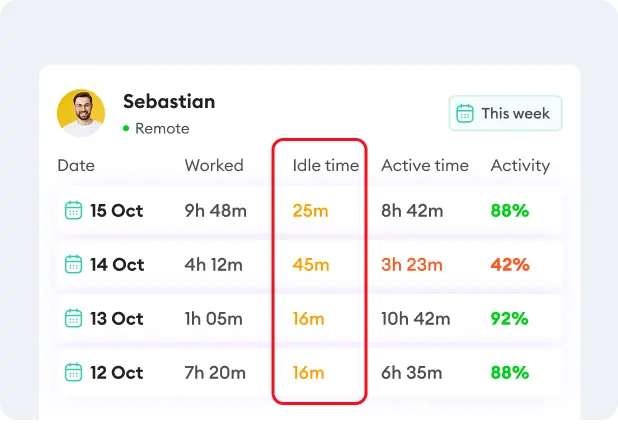
Get clear signals of employee productivity as Apploye analyzes keypress and mouse movements. Instantly detect low-effort periods or suspicious patterns.
See Activity Insights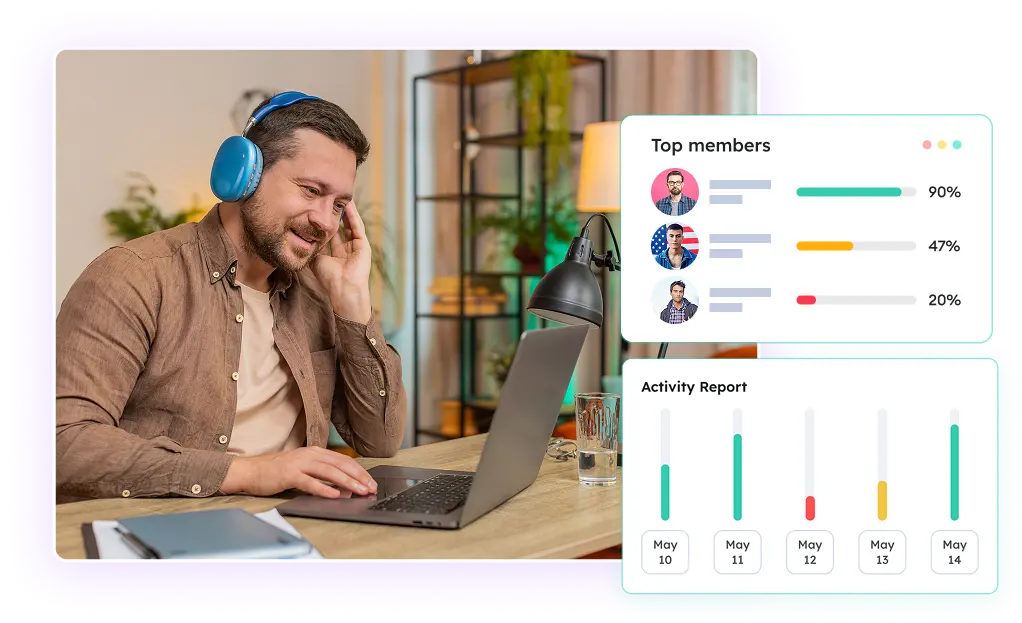
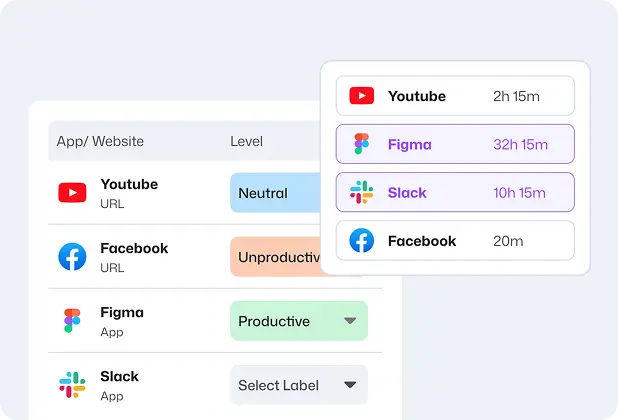
Track time with 100% accuracy on apps and URLs during work hours . Silently spot distractions and improve focus with workflow changes.
Try App & URL Tracking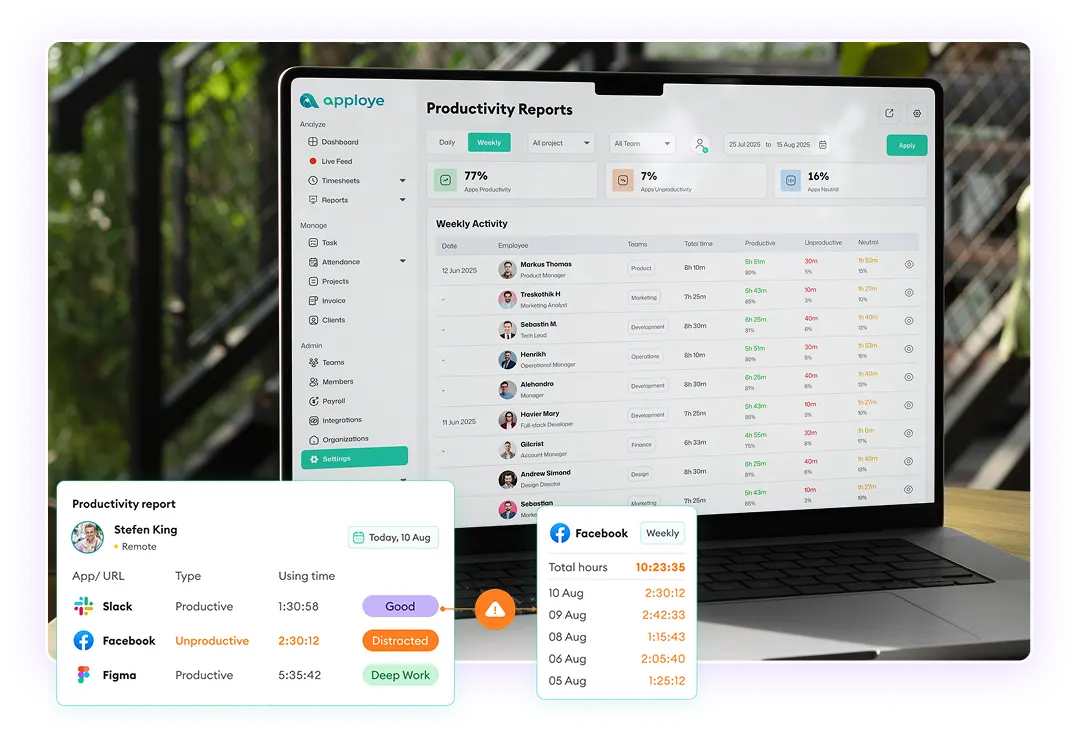
Set a start and stop time for workdays to activate the invisible agent automatically. As employees work, it will perform productivity analysis all by itself.
Schedule Auto-Monitoring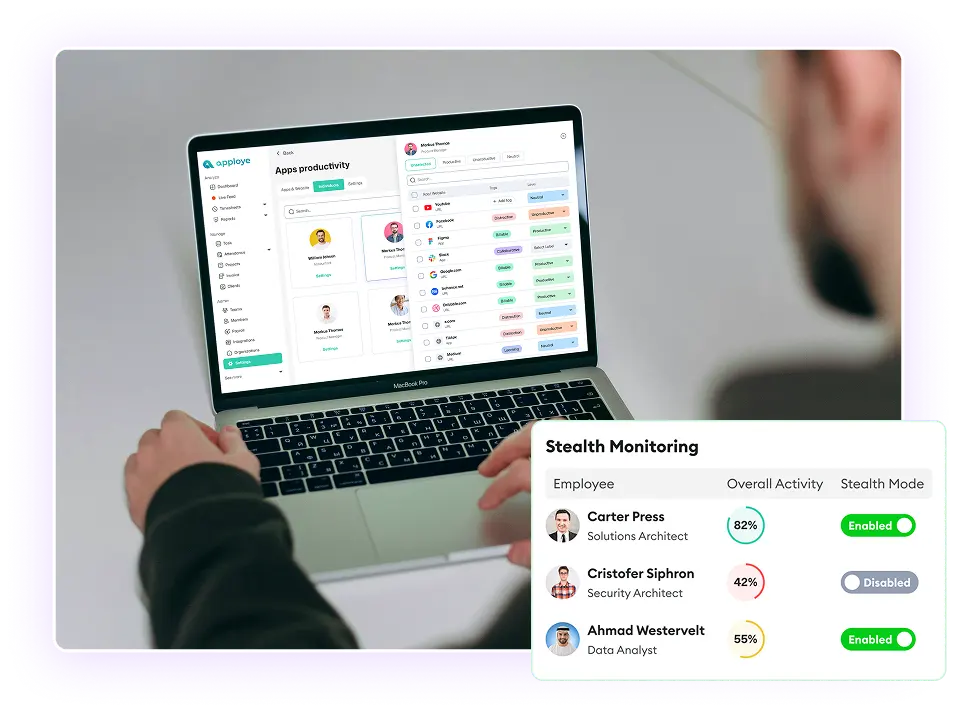
Apploye’s hidden mode uses CPU and memory as minimum as possible. So say goodbye to performance lag on devices.
Have a Smooth Experience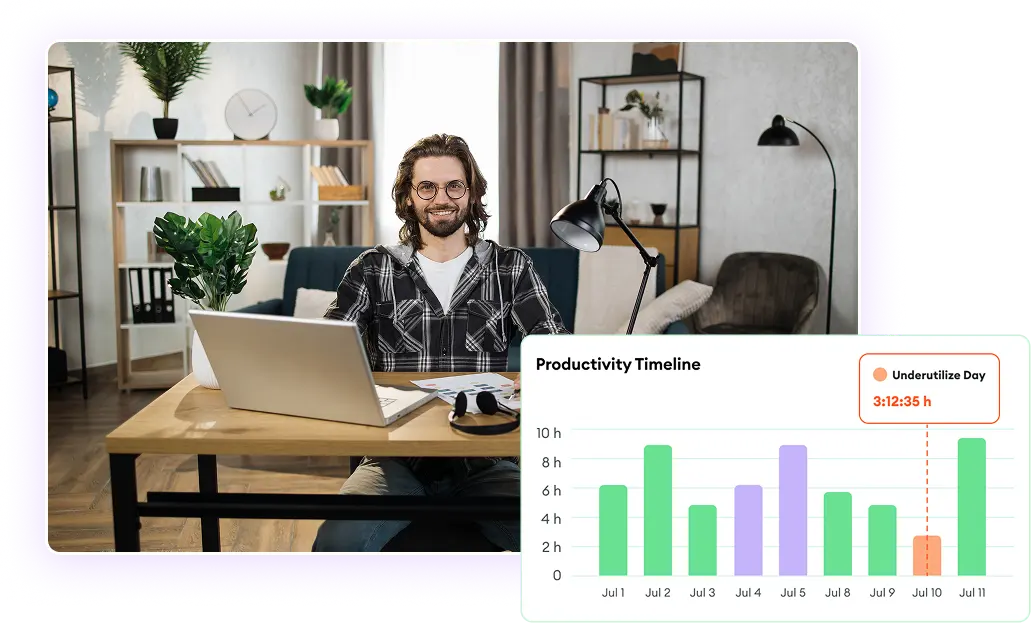

"Apploye has proven to be more than a tool - it's a key partner in managing our remote, global team."
“Apploye improved our time tracking accuracy by 40%, and reduced payroll error by 30%”

“Apploye is our complete solution for tracking time & activity with screenshots and detailed reports”


What's stopping you if you can start for FREE?
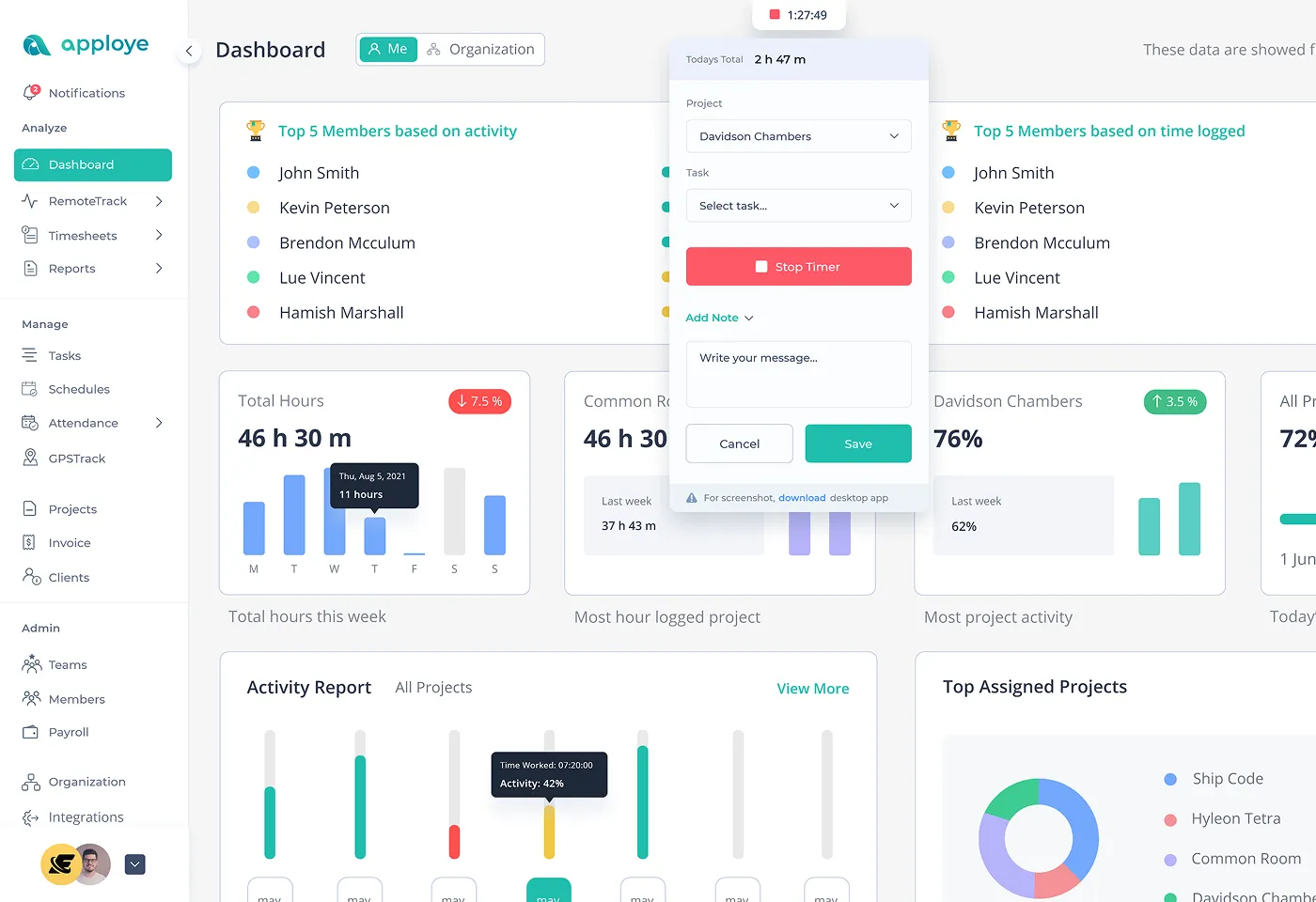
See activity levels from keyboard and mouse signals, not typed content.
See activity levels from keyboard and mouse signals, not typed content.
Enable silent monitoring only for the teams that need it.
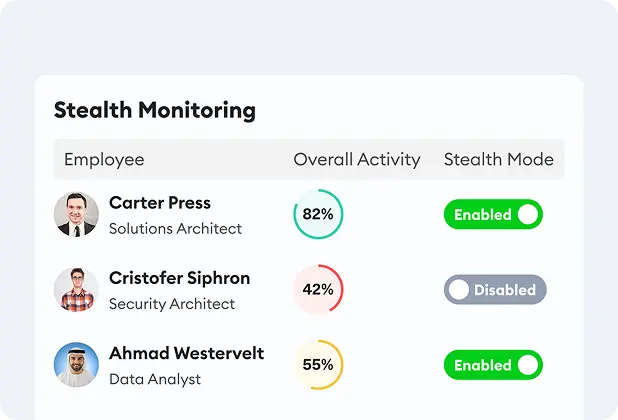
Quietly watch how often employees get off tasks.
Use scheduled screen capture and recording with multi-monitor support.
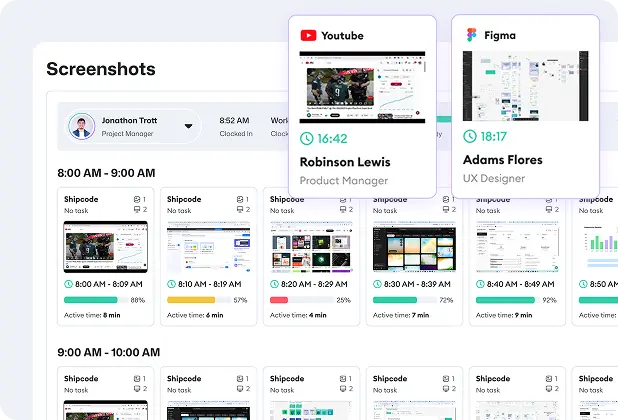
Live feed and instant screenshot help managers act fast.
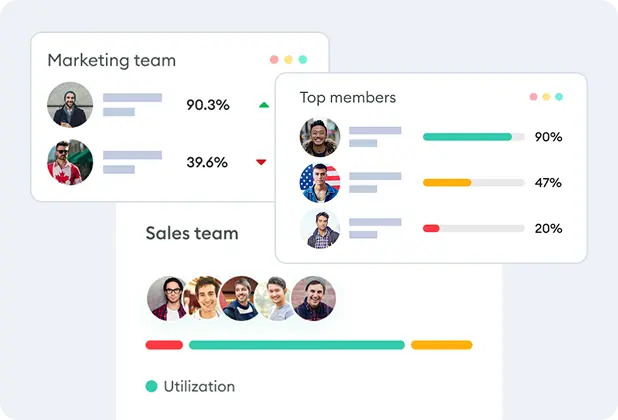
See where work time goes and reduce distractions.

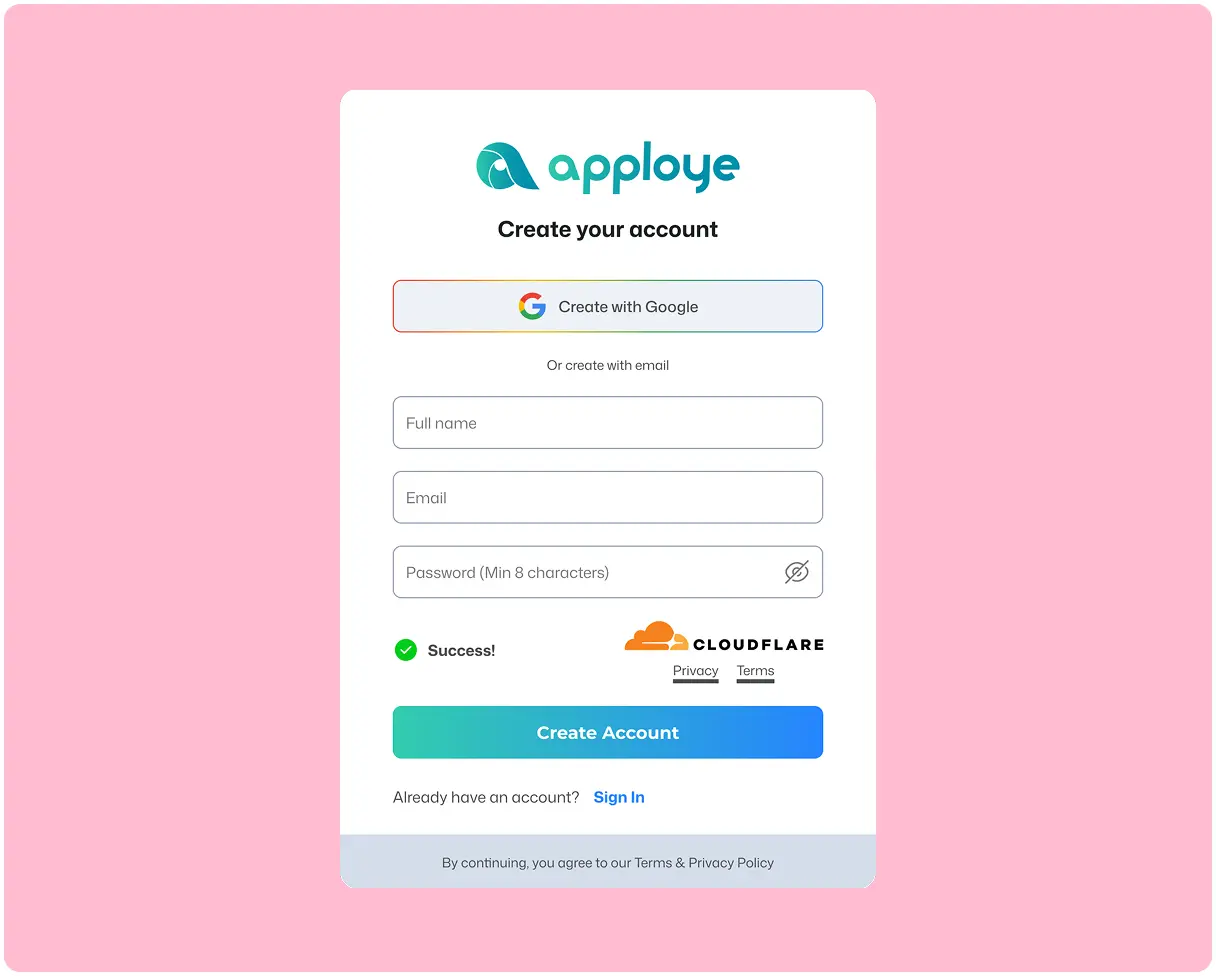
Just enter your email and a new password to sign up, then enter your organization name. That's all. No credit card required, no lengthy forms.

Download and install the Apploye stealth monitoring tool on all your employees' computers.

Now, as soon as they clock in on Apploye, you'll see exactly what your team is doing and how long they are working from a central dashboard.
Sign Up & Set Up for Free
Just enter your email and a new password to sign up, then enter your organization name. That's all. No credit card required, no lengthy forms.
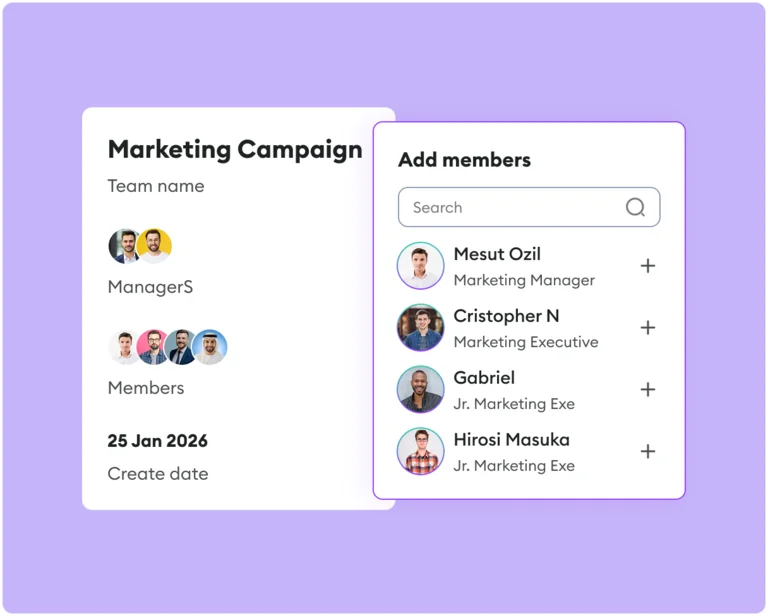
Invite Employees
Send invites to your team directly from the dashboard. Then, they'll join your organization with a single tap.
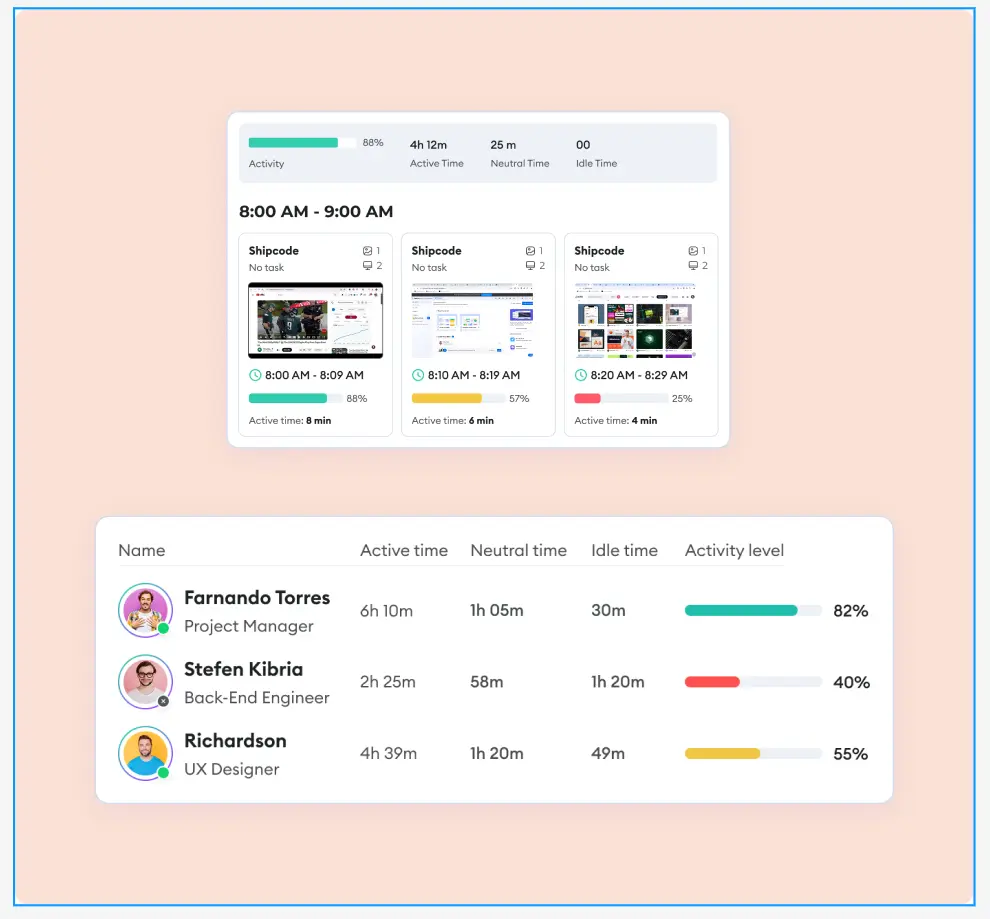
See Employee Productivity Live
Now, as soon as they clock in on Apploye, you'll see exactly what your team is doing and how long they are working from a central dashboard.

Mohamed D.
Co Founder
Education Management
" Our total productivity grew by 28% in less than a year. Thank you, Apploye "
Check out the full reviewApploye stealth mode is available on Windows, macOS and it will be soon available on Linux.
Apploye only records activity data such as active time, idle time, mouse movements, or keypresses. But it does not record the actual characters that are typed on the keyboard or read email or other messenger inboxes. So, Apploye only accesses activity and productivity-related data, no personal information.
Apploye costs $4.5/user/mo for the Elite plan, $8/user/mo for Power, and $10/user/mo for the Enterprise plan. For the Stealth Mode add-on, there’s an extra $2/user/mo. However, Apploye has a Free tier that you can use forever for up to 10 users. Plus, it has all the basic time tracking and employee monitoring features.
Apploye is not spyware. It is a work tool that helps you see time and work signals during work sessions. If you want computer monitoring software that supports real workflows, this is the right category.
With Apploye, you can review:
This is why people also describe Apploye as employee productivity monitoring software and employee activity monitoring software.
Yes, in hidden monitoring mode, Apploye works without any internet connection. Once the stealth monitoring application is connected to the network, it syncs all the information on employee activity.
No, Apploye does not send notifications when stealth mode is enabled. So your employees won’t know that their activities are being tracked. Only the admin can see what Apploye is tracking quietly.
Apploye is an employee monitoring tool that helps to optimize productivity. In other words, it’s a productivity platform. However, it can perform basic IT remote monitoring goals like device usage checks.
Yes, absolutely. When enabled, it supports screenshots and screen views that many teams expect from employee productivity monitoring tools.
This guide will navigate you through the nitty-gritty of employee stealth monitoring software. You will have complete oversight of employee activities and overall monitoring.
Stealth monitoring means a work tool can run quietly in the background on a company device. It helps you get clean work data without asking people to start and stop a timer all day. If you are comparing employee monitoring software, this is the part that usually decides if a tool fits your team.
Apploye is built as a remote monitoring software and a work tracking software platform. It is made for time, activity, and proof of work. Many teams also use it as workforce productivity software when they manage remote or hybrid staff.
The technical setup is straightforward. First, your IT team installs the computer monitoring software on employee devices. During installation, they enable quiet mode. This special setting makes the program invisible to regular users.
Once activated, the silent tracking software runs in the background. It captures the same data as visible monitoring tools, such as screen activity, application usage, website visits, time tracking, and productivity patterns. The difference is in how it operates, not what it collects.
Here's what happens behind the scenes:
Installation Phase: Your administrator downloads the employee monitoring system. Then, they run the installer with stealth parameters. The software copies files to protected system folders so that regular employees can't access them without administrator rights.
Background Operation: The monitoring tool starts automatically when the computer boots up. It doesn't appear in the task manager. It uses minimal system resources, so computers run at normal speed. Employees notice no slowdown or unusual behavior.
Data Collection: Throughout the workday, the software tracks activity. It records which applications are open, logs which websites employees visit. Also, some advanced workforce productivity software can even capture screenshots at regular intervals. And all this data gets encrypted immediately for more general data security. As a result, security threats become lower.
Data Transmission: The employee computer monitoring software sends information to a secure server. This happens over standard internet connections. The data transfer uses the same ports as regular web browsing. So the IT security systems don't flag it as unusual.
Dashboard Access: Managers log into a web-based dashboard to view reports. And the best stealth employee monitoring software provides real-time updates. As a result, you can see current activity or review historical patterns. However, different permission levels determine who sees what data.
The quiet monitoring setup is useful when you need steady work signals that eliminate guesswork. And it is a strong fit when you:
It also works well when your goal is simple: monitor employee productivity without adding extra steps for the team. That is why many businesses look for employee monitoring solutions that can run in the background.
Some teams call this style of setup work-from-home monitoring. Others search for remote worker monitoring software when they want the same view across all home offices. If your team is still asking, “How to monitor employees working from home,” focus on tools that track time plus work context.
In Apploye, stealth tracking is designed to reduce missed time and missing proof. Not to mention the overall employee engagement.
You can also use it as computer tracking for work sessions, without asking a team member to click “start” every time.
This helps when you:
People often search for employee computer monitoring when they want this kind of view.
If you want desktop monitoring, you need something that shows what happened during work time, not a constant live spy camera.
Silent activity monitoring software supports different levels of visibility:
A lot of leaders want help with monitoring employee internet use, but they do not want to micromanage. They honestly want to use the data from silent activity monitoring software for performance coaching.
Background monitoring software supports that in a clean way:
Apploye gives you two main ways to track time. One needs a person to interact with the app. The other runs quietly and tracks based on usage. This is where stealth monitoring becomes a real feature, not a marketing word.
A simple flow looks like this:
This setup is often what people mean when they say employee monitoring tool or productivity tracking tool. It turns work into clear reports you can act on.
Use this quick checklist so the rollout feels fair and simple.
Before you install
Pick your visibility level
This lets you create a work tracking system that matches your culture. It also makes it easier to explain why you chose these productivity monitoring tools.
However, if you are looking for Mac employee monitoring software, plan the rollout in stages. Start with a pilot group. Then expand once support and settings are clean.
Stealth tools can harm trust if you use them carelessly. You can avoid that by keeping the goal clear and the scope small.
Use these rules:
That is how you build a system that helps you monitor remote employee productivity without turning your culture into fear.
If you are trying to pick the best stealth employee monitoring software, look at your real job-to-be-done. Do you need time accuracy, proof of work, or both?
A good tool should:
Here's the truth about work tracking system regulations: they're complicated. Laws vary dramatically by location. What's perfectly legal in Texas might violate laws in California. What works in the United States could be illegal in Europe.
Before you deploy any employee monitoring tool, you need to understand the rules in your area. This isn't just good practice, it's an essential protection for your business.
In most places, employers can monitor activity on company-owned devices. For example, laptops, desktop computers, or company phones. If you own the equipment and provide it for work purposes, you generally have monitoring rights.
However, ownership alone doesn't give unlimited permission. Even on company devices, you must consider:
Think of it this way: You can monitor your company computers. But how you do it, what you collect, and how you use that information all have legal boundaries.
Federal law in the US provides limited guidance on workplace monitoring. The Electronic Communications Privacy Act allows employers to monitor business communications on company systems. But state laws add many extra requirements.
Connecticut: Requires written notice before any electronic monitoring. You must inform employees in writing about what employee computer monitoring software you use.
Delaware: Similar notification requirements. Employers must give notice before implementing computer screen monitoring.
California: Strict privacy protections. While monitoring is legal, you need clear policies. Employees should sign acknowledgments. Courts heavily scrutinize hidden monitoring here.
New York: Requires written notice for email monitoring specifically. Employee monitoring solutions must include proper disclosure.
Texas: More employer-friendly. Fewer specific monitoring laws. But you still need reasonable policies.
Illinois: Recent laws around geolocation tracking. If your remote pc monitoring software tracks location, pay attention to these rules.
Many other states are developing monitoring laws. Check your state's current regulations before deploying any productivity monitoring tools.
Europe takes privacy seriously. The General Data Protection Regulation creates strict rules for any remote work monitoring software.
Key GDPR Principles for Monitoring:
Lawfulness: You need a legal basis for monitoring employees. Usually, this means legitimate business interest plus employee consent. You can't just decide to track employees without justification.
Transparency: Secret monitoring conflicts with GDPR principles. Even if you use silent tracking technically, employees should know monitoring exists through clear policies.
Data Minimization: Collect only what you actually need. If you're tracking productivity, you probably don't need keystroke logging. The best employee tracking software lets you disable unnecessary features.
Purpose Limitation: Use data only for stated purposes. If you collected data for productivity analysis, you can't later use it for unrelated investigations without permission.
Storage Limitation: Don't keep data forever. Set retention periods and delete old monitoring data regularly.
Security: Your employee monitoring system needs robust security. So protect the data you collect. To do this, use encryption and limit access.
Different EU countries add their own requirements on top of GDPR. For example, France has specific rules about hidden monitoring, Germany requires works council approval, and Spain mandates transparent monitoring in most cases.
The UK maintained GDPR principles in its Data Protection Act 2018. Key points for employee productivity monitoring software:
The UK's Information Commissioner's Office provides detailed guidance. They emphasize that trust-based approaches work better than secret surveillance.
Canada's Personal Information Protection and Electronic Documents Act governs workplace monitoring.
PIPEDA's Core Principles:
Consent: Get employee consent for monitoring. This usually happens during onboarding. Make sure consent forms clearly explain what your employee tracking system does.
Limited Collection: Collect only necessary information. Your work-from-home monitoring shouldn't grab more data than needed.
Limited Use: Use data only for stated purposes. Don't repurpose productivity data for unrelated investigations.
Accuracy: Ensure monitoring data is accurate. False positives can harm employee relations.
Safeguards: Protect collected data with appropriate security measures.
Provincial laws add extra requirements. British Columbia and Alberta have additional privacy legislation affecting employee monitoring solutions.
Australia's Privacy Act 1988 applies to larger businesses. Key requirements:
Be advised that state laws add variations. For instance, while New South Wales has specific surveillance legislation, Victoria has different workplace privacy rules. So always check your state's requirements.
Singapore: Relatively permissive monitoring laws, but the Personal Data Protection Act requires notification and consent.
Japan: Cultural preference for transparency. While monitoring is legal, hidden approaches conflict with workplace norms.
India: An evolving data protection framework where new laws are emerging. And employee monitoring app deployment should include a legal review.
Philippines: The Data Privacy Act requires consent for personal data collection. This includes productivity monitoring tools data.
Your industry might add extra monitoring rules on top of general privacy laws.
Healthcare (HIPAA): If you handle patient data, your monitoring must protect health information. To achieve this, access logs are required, and audit trails are made mandatory. Also, screen monitoring software needs to avoid capturing protected health information.
Finance (SOX, PCI-DSS): Financial services face extensive compliance requirements. You actually need employee monitoring systems to prove regulatory compliance. Trading communications must be monitored and archived. Access to financial systems requires tracking.
Government Contractors (NIST, CMMC): Working with government agencies? You'll need specific security controls. This is when user activity monitoring becomes a requirement, not an option. Your productivity tracking tool must meet federal security standards.
Legal Firms: Attorney-client privilege complicates monitoring. Your employee internet monitoring software must exclude privileged communications. That is why special care is needed with remote desktop monitoring software in law firms.
Let's look at exactly what information gets collected. This helps you make smart choices about monitoring.
This is the basic part of any work tracking software. It tracks time automatically when employees boot up the company devices.
The software records when work starts and ends. Someone turns on their computer at 8:47 AM? It logs that. They shut down at 5:23 PM? That gets recorded too. You get exact times without anyone typing them in manually.
This stops arguments about hours worked. No more "he said, she said" about who worked when. The software keeps objective records.
Not all computer time equals work time. Your employee might go to lunch and forget to log out. The monitoring tools catch this automatically.
Here's how: The software watches for keyboard and mouse movement. Typing and clicking mean work is happening. No movement for several minutes? The system marks that time as idle.
You set the rules. Five minutes of inactivity? Ten minutes? Fifteen? You decide what counts as a break. However, most companies use 5-10 minutes.
Employees take breaks during the day, such as coffee runs, bathroom trips, or quick walks. The tracking software captures these naturally.
When someone stops working, the timer pauses. When they come back, it starts again. You can see the total break time per employee. This helps you spot patterns without micromanaging.
Some people take many short breaks. Others take fewer long breaks. Neither way is wrong. But knowing the patterns helps you support your team better.
Where does time actually go? Your tracking system breaks this down by project and task.
When employees work on specific projects, they mark their time. The software automatically tracks how long. No more manual time logs and guessing.
This is super valuable for billing clients. You know exactly how many hours went into each project. Your invoices are accurate, and you can back them up.
Want to know which programs your team uses most? Application tracking shows everything.
The software logs every application that runs. Microsoft Word. Chrome. Slack. Excel. Photoshop. Whatever your team uses.
But just opening a program doesn't mean someone's using it. Many people leave apps open all day. That's why the system also tracks active use.
Active means focused. When Word is open and someone's typing, that counts as active Word time. When they switch to email, word becomes inactive.
This matters a lot. "8 hours in Excel" looks different than "45 minutes active Excel time." The first means the spreadsheet sat open in the background. The second shows actual work.
Modern software groups applications automatically. It sorts programs into helpful categories:
Productive Applications:
Unproductive Applications:
Neutral Applications:
You can change these categories. Maybe Instagram is productive for your social media manager, but not for your accounting team. The software lets you adjust.
The system calculates productivity scores automatically. It looks at application time against your categories. Time in productive apps raises scores. Time spent in unproductive apps lowers them.
These scores give you quick insights. You can spot trends without reading detailed logs. A consistently low score means you should investigate. A high score suggests good work habits.
But remember: Scores are indicators, not the whole story. Someone might score low while thinking deeply about a complex problem. Context always matters.
Your employees spend a lot of time online. Understanding that activity shows productivity patterns.
The monitoring tracks every website that employees visit. The full web address gets logged with timestamps.
This creates a complete browsing history from company devices. You see which sites get visited, when, and for how long.
Like applications, websites get categorized automatically. The tracking tool sorts sites into groups:
Work-Related Sites:
Time-Wasting Sites:
When employees search Google or other engines, the tracking captures those searches. This shows what information people are looking for.
Work-related searches are normal and expected. "How to pivot table in Excel" shows someone learning. "Best practices JavaScript" shows professional development.
Personal searches during work hours might signal issues. Though occasional personal searches are perfectly normal. Everyone checks the weather or looks up directions sometimes.
How long someone stays matters as much as where they go. Spending 3 minutes on Facebook to check notifications is different from spending 90 minutes scrolling feeds.
The software tracks time on each site precisely. You see total daily time and individual visit lengths. This shows the difference between brief checks and extended distractions.
File transfers need attention. Employees downloading work files is normal. Uploading lots of data to personal cloud storage? That needs investigation.
The monitoring features track:
Large or unusual transfers trigger alerts. This helps prevent data theft and policy violations.
Visual monitoring adds context to activity logs. You see what employees actually do, not just which apps they use.
The software captures screenshots at regular intervals. You set how often. Every 5 minutes. Every 10 minutes. Every 30 minutes.
These images provide visual proof of work. Time logs show Excel was open. Screenshots confirm someone actually built spreadsheets rather than just having the program running.
Screenshots get stored securely in the cloud. Managers can review them through web dashboards. The software organizes captures by user, date, and time.
Some situations need immediate capture. Your software can trigger screenshots based on specific events:
This approach reduces storage needs while making sure you capture critical moments.
Advanced monitoring includes activity overlays. Visual indicators show:
These overlays provide context without invading privacy unnecessarily.
Modern software includes privacy protections. Certain elements can be automatically blurred or blocked:
The system recognizes these sensitive fields and hides them. You get monitoring data without capturing private information.
Some software offers video recording instead of periodic screenshots. This creates a complete recording of screen activity.
Video captures everything continuously. But it also creates huge data files and stronger privacy concerns. Most organizations stick with scheduled stealth screenshot capturing as a better balance.
This is the most detailed data collection level. It also raises the most privacy concerns. But it greatly helps identify insider threats early.
Full keystroke logging records every key pressed, every email typed, every document written, and every password entered.
This creates incredibly detailed records. You can see exactly what someone typed and when. For investigations or compliance requirements, this data is invaluable.
But it also feels extremely invasive. Most employees strongly dislike full keystroke monitoring. So, use it only when absolutely necessary and legally allowed.
A middle-ground approach tracks specific keywords instead of everything. The tool watches for predetermined words and phrases:
When these keywords appear, the system captures context and alerts administrators. You get important information without logging every keystroke.
Clipboard monitoring tracks what gets copied and pasted. Someone copying large amounts of data raises questions. Where are they pasting it?
This feature helps prevent data theft. Employees copying customer lists, financial data, or proprietary information trigger alerts. You can investigate before information leaves your organization.
The software analyzes typing patterns without necessarily logging exact content. It measures:
These patterns show engagement level. Steady typing suggests focused work. Long pauses might mean distraction or difficulty.
Digital communication dominates modern work. Monitoring these channels provides important insights.
The app tracks how many emails are sent and received. You see:
High email volume might mean communication inefficiency. Could some emails be replaced with quick calls or messages?
Who communicates with whom? The software logs email recipients without necessarily reading content.
You can identify communication patterns:
Some industries require email content monitoring for compliance. Financial services must monitor for illegal trading discussions. Healthcare needs to protect patient information.
When legally permitted and properly disclosed, the system can scan email content for:
This scanning typically uses automated systems. Humans review only flagged messages.
Slack, Teams, and similar platforms generate massive communication data. The tools track:
When employees email files, that activity gets logged. The features track:
Large attachments to external addresses need attention. Could be legitimate client deliverables. It could also be data theft.
For remote workers and mobile employees, location data adds important context.
Mobile versions can capture GPS coordinates. This verifies:
Location tracking requires careful legal consideration. Some places restrict GPS monitoring heavily. Always check local laws before enabling this feature.
The software logs:
This information helps detect account compromises. An employee usually connects from Chicago. Suddenly, their account logs in from Romania? That's suspicious.
What hardware do employees use? The system tracks:
This helps IT support and security teams as outdated systems get identified automatically. As a result security vulnerabilities become visible.
Employees switch between desktop, laptop, tablet, and phone throughout the day. Thanks to Modern systems, they follow activity across all devices.
Again, you see a complete picture of work regardless of which device someone uses. This is especially valuable for remote workforce analytics and deployments.
Raw data becomes useful through analysis. The tools calculate meaningful metrics.
How much time do employees spend in focused, uninterrupted work? The software measures this automatically.
You see, frequent context switching suggests distraction. Long periods in single productive applications show focus. The system counts both.
Based on your category definitions, the software calculates:
These metrics provide objective performance indicators.
Switching between programs kills productivity. So, the tools count how often employees change between applications.
Say, someone switching programs 50 times an hour likely struggles with focus. On the other hand, someone making 5 switches might be deeply engaged.
Multiple applications open at once. The software identifies:
Some multitasking helps productivity. Other patterns signal distraction.
For regulated industries, specific compliance data gets captured automatically.
The solutions track who accesses:
These logs prove compliance during audits.
When employees break policies, the system documents violations:
This creates evidence for HR actions when necessary.
The software detects potential data theft:
These events trigger immediate alerts to security teams.
Not every organization needs every data type. The best software lets you customize the collection.
Turn off data collection you don't need:
Collecting less data reduces privacy concerns and storage costs.
Configure when data gets captured:
Define productivity your way:
Decide how long to keep data:
Automatic deletion protects privacy and reduces storage costs.
Responsible monitoring includes privacy safeguards.
The tool should exclude:
Automatic filtering of:
For company-wide analysis, use anonymized data. Individual details stay private while you gain insights into team patterns.
Understanding what data gets captured helps you set up your software the right way. So, collect what you need for legitimate business reasons. Forget about everything else. This balanced approach respects privacy while providing valuable insights.
The key is being intentional. Don't capture data just because you can. Capture data because it serves a specific, justified business need. This principle guides the ethical implementation of any productivity tracking tool.