





Clockify Review 2026: Features, Pricing, Pros and Cons
Quick Verdict
Clockify is one of the most popular time tracking tools. But using it every day is very different from just reading about its features. In fact, you can’t choose any tool unless you use it or get some review from a real user.
That’s why we’ve landed here.
This review isn’t based on feature checklists or marketing promises. It’s based on using Clockify daily with real projects, clients, and people.
Clockify works best when people already have decent tracking habits. It gives you the features to track time, manage projects, and review hours. But it doesn’t force compliance.
Later in this review, I compare Clockify with a more guided alternative (Apploye) for teams that need stronger structure in time tracking.
What Is Clockify?
Clockify is a time tracking tool designed to help individuals and teams. It is quite popular for tracking work hours, providing in-depth data visualization, and timesheet management.
Clockify lets you track time using a timer. That time can be assigned to projects, tasks, and clients, and the billability status. Also, it has manual entries, automatic tracking, and other attractive features.
It is renowned as a free time tracking app. You can use it as a solo user or roll it out across an entire company without running into early limits. It also works well for freelancers and remote teams. That scalability is one reason it’s often chosen by growing teams.
Overall, Clockify positions itself as a practical, scalable time tracking solution. With decent pricing, you will get the reason why it holds a prominent position.
Key Features
- Time Tracking (Timer & Manual Mode)- Start/stop timer, manual time entries, Kiosk mode, automatic and break tracking,
- Project & Task Management- Projects, tasks, assign clients,
- Timesheets- Weekly grid-style timesheets for structured hour logging,
- Time Off (PTO) Management- Submit, approve, and track paid leave directly within the system.
- Scheduling- Assign work across a timeline and visualize team workload,
- Reporting & Analytics- Summary, Detailed, and Weekly reports with filtering, exports, and customizable views.
- Invoicing & Expense Tracking- Billable hours into invoices and track expenses for client billing.
- Dashboard with Visual Breakdowns- Real-time analytics dashboard with visual time category breakdowns using pie and line charts.
App Interface (Desktop, Mobile, and Browser Extensions)
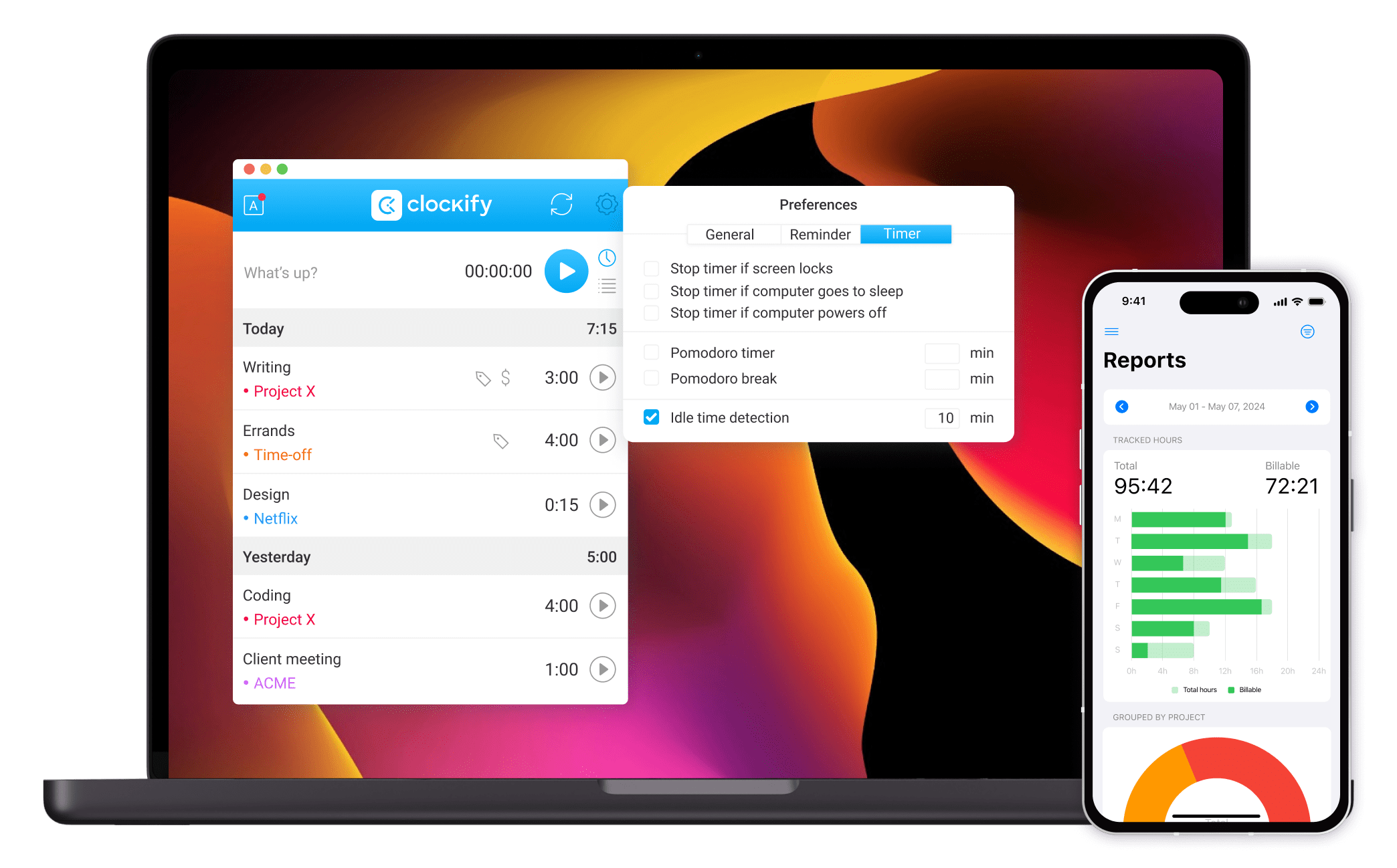
One of the first things I noticed about Clockify is how accessible it is across devices. Because time tracking only works well when it’s easy to start, stop, and easy to ues. The quality of the apps and interface matters more than most features.
Clockify offers a web app, a desktop app for Windows, macOS, and Linux, mobile apps for iOS and Android, and a browser extension for Chrome, Firefox, and Edge.
Web App
First, I've tried their web app. It was pretty rich in functionality and intuitive. I think Clokify has justified being free with its web application. I found that settings and features are exactly where you'd expect them to be. During my extensive testing, I experienced zero glitches and lags, which was refreshing.
Desktop App
The Clockify desktop app mirrors the web experience. It’s clean, familiar, and easy to use, especially if you already know the web version.
Where the desktop app differs is in functionality. Its focus is clearly on task-based time tracking, not administration. You get idle detection, optional auto start/stop behavior, and background activity support. However, many admin-level features are either limited or absent compared to the web app.
Mobile App
The mobile app is intentionally lighter. I mainly use the Android app. It is used to start or stop a timer, check logged hours, or add entries when I’m away from my desk. It’s not built for heavy admin work, but for quick tracking and review. It does its job well.
What I appreciate most is the simplicity and ease of moving between platforms. Clockify behaves the same way whether I’m using the web app, desktop app, or Android app.
Clockify Dashboard
The Clockify dashboard is where time tracking actually starts to make sense for me. Visually, it’s clean and practical. Nothing feels decorative or overwhelming, which makes it easy to come back to regularly without friction.
The dashboard functions as a real-time analytics dashboard. As soon as I start or stop timers, the numbers update instantly. I often check it mid-day to see whether I’m drifting off plan. Again, at the end of the day, sanity check how my time was actually spent.
What I rely on most are the visual time category breakdowns. The charts are simple, but they do their job well. Clockify uses pie and line charts to show how time is distributed. They’re not overly customizable. They’re clear and fast, which matters more when I’m checking them often.
What I appreciate most is that Clockify’s dashboard doesn’t try to overwhelm me. It gives me a clear snapshot first, then lets me dig deeper into employee performance only when I need to.
Time Tracking in Clockify (Daily Use)
When I started using Clockify, the first thing I noticed was that it was effortless.
Everything is sorted, which is exactly what you want in tracking without breaking the workflow.
Nothing about the process pulled me out of my work or forced me into a rigid routine. Instead, Clockify fit around how I already worked.
One-Click Timer That Stays Out of the Way
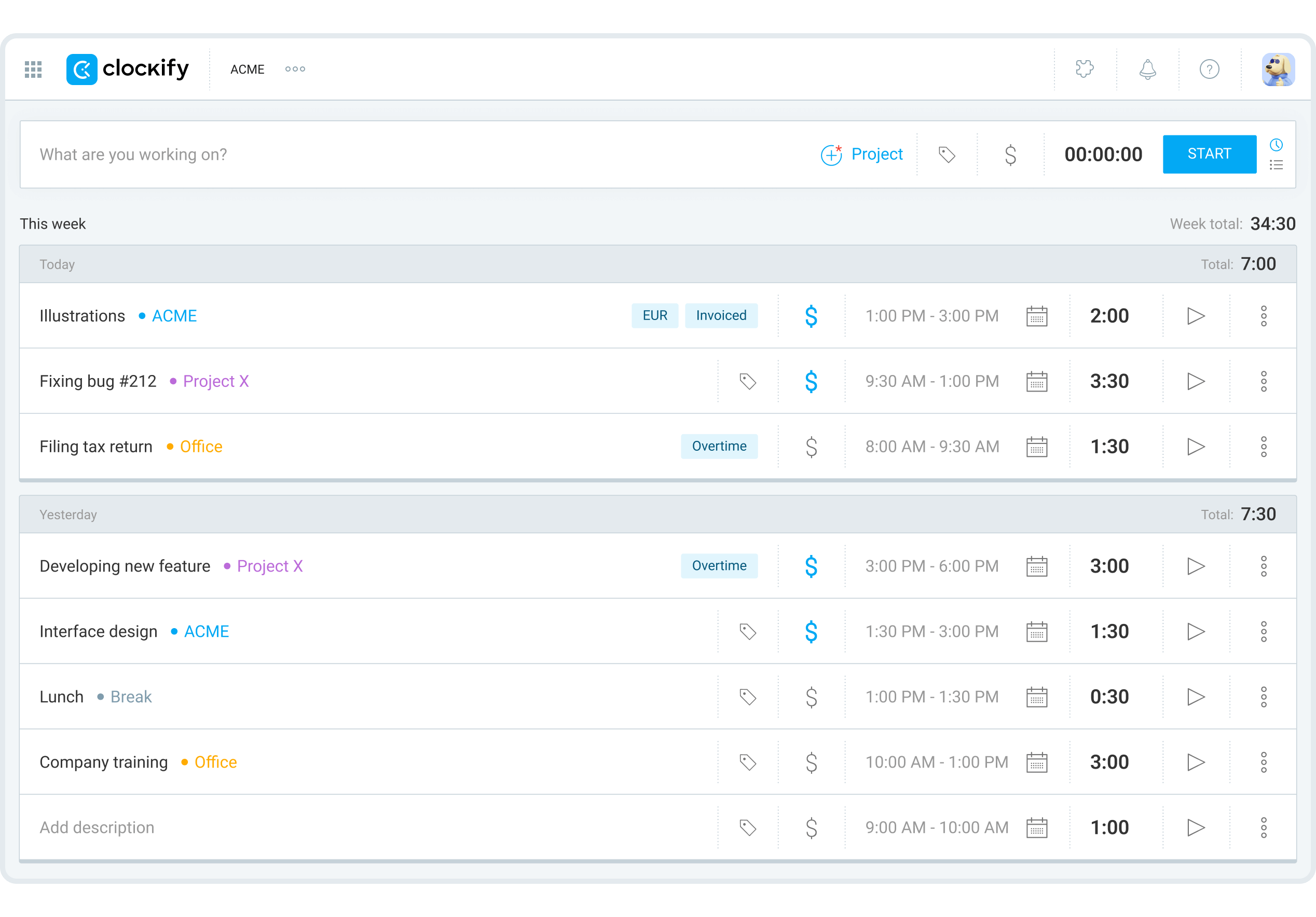
Most of the time, I rely on Clockify’s one-click timer. I start it when I begin working and stop it when I’m done. From there, I can quickly assign the entry to a project or task, add tags if needed, and mark it as billable or non-billable.
All of this happens in a few clicks without interrupting my flow. It keeps everything clean and structured, which makes reporting and billing much easier later.
Manual Entries, Editing, and Real-World Flexibility
No one tracks time perfectly. Meetings run long, calls come out of nowhere, and sometimes you simply forget to start a timer.
Clockify’s manual mode and editing features make this a non-issue. If I miss something, I can add or adjust entries later without friction. This flexibility makes Clockify feel realistic. It adapts to how people actually work, instead of forcing rigid tracking habits.What really impressed me was the bulk entry feature. Once, I completely forgot to track anything. At the end of the day, I sat down and added three different time entries in about three minutes.
Automatic Tracking and Idle Detection
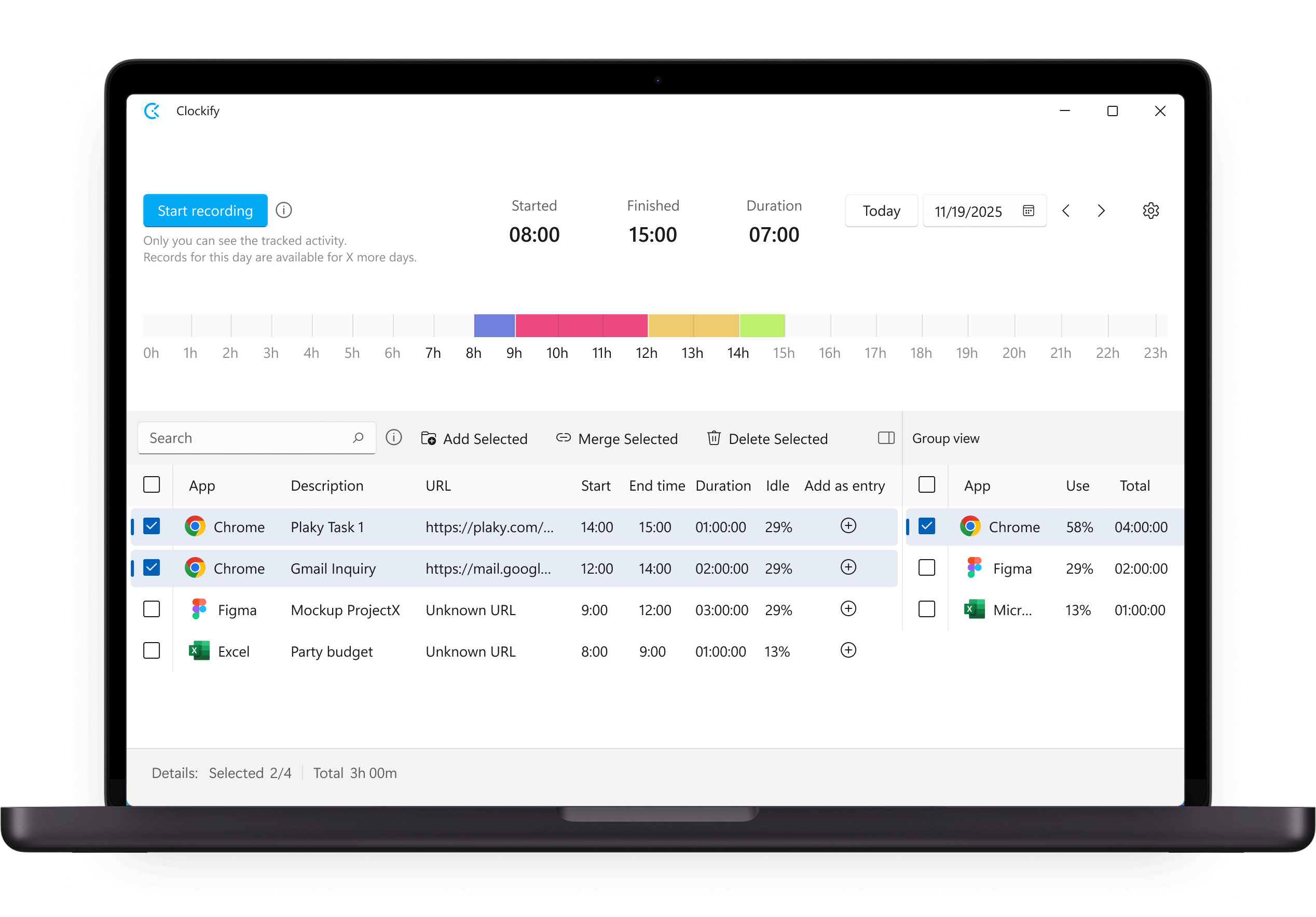
Clockify’s desktop app includes an auto tracker that runs quietly in the background. It quietly records apps and websites I use. Then let me decide what should count as tracked time. I could then click “Convert to time entry” on any activity. Instant time entry with the right duration, automatically logged.
It can work offline and synchronize the data when you get online. Auto-tracking captures everything in the background, and you deal with it later.
You can be concerned about privacy in auto tracking. Me too. I’m not an auto-tracking lover. But it helps those who feel bothered to switch the timer for deep work.
Idle detection plays a similar supporting role. If I step away and forget to stop a timer, Clockify detects inactivity and lets me decide how to handle that time when I return.
Pomodoro and Favorite Entries
Clockify includes a built-in Pomodoro timer in supported apps, which I use occasionally for structured focus sessions. Favorite entries turned out to be a bigger time-saver than I expected. Once my workdays became repetitive, starting timers from favorites sped things up noticeably.
Overall, Clockify’s time tracking feels flexible and forgiving. It doesn’t demand perfect habits. It adapts to real ones, which is exactly what a time tracker needs to do.
Break Tracking
One feature I found particularly useful in Clockify is the break tracking functionality. This allows me to specify exactly when I'm on a break during my workday. In terms of invoicing, I found that only billable break entries get imported. It makes sense for client billing purposes.
Time Off Management
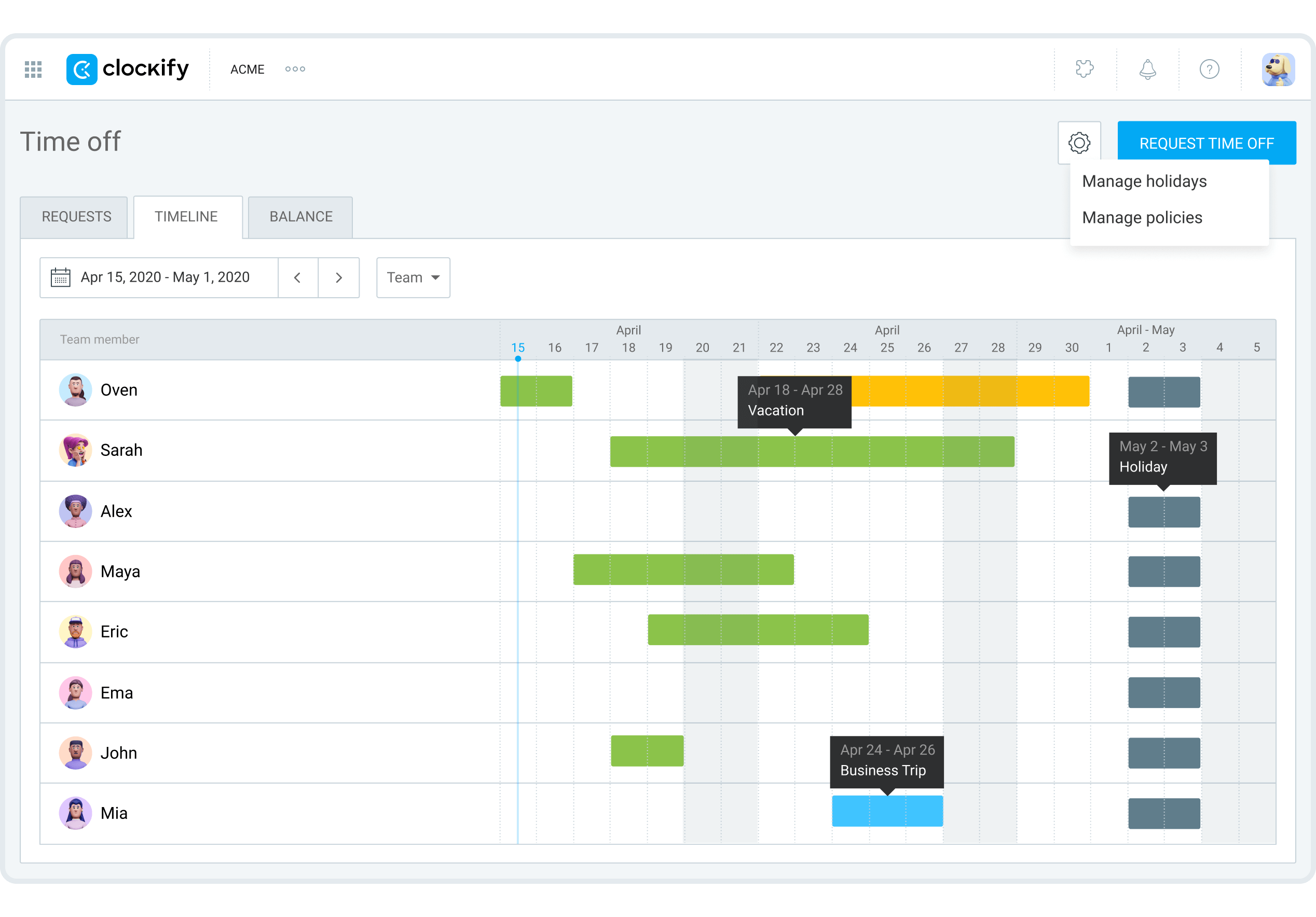
PTO management turned into something I relied on more than expected. Handling time off inside the same tool as time tracking ended up simplifying things. There was no need to cross-check calendars, spreadsheets, and chat messages just to understand who was available.
What made this especially useful is how time off ties into visibility. Approved leave appears directly in Clockify’s analytics dashboard. It helped me understand capacity at a glance.
Timesheets and Approvals
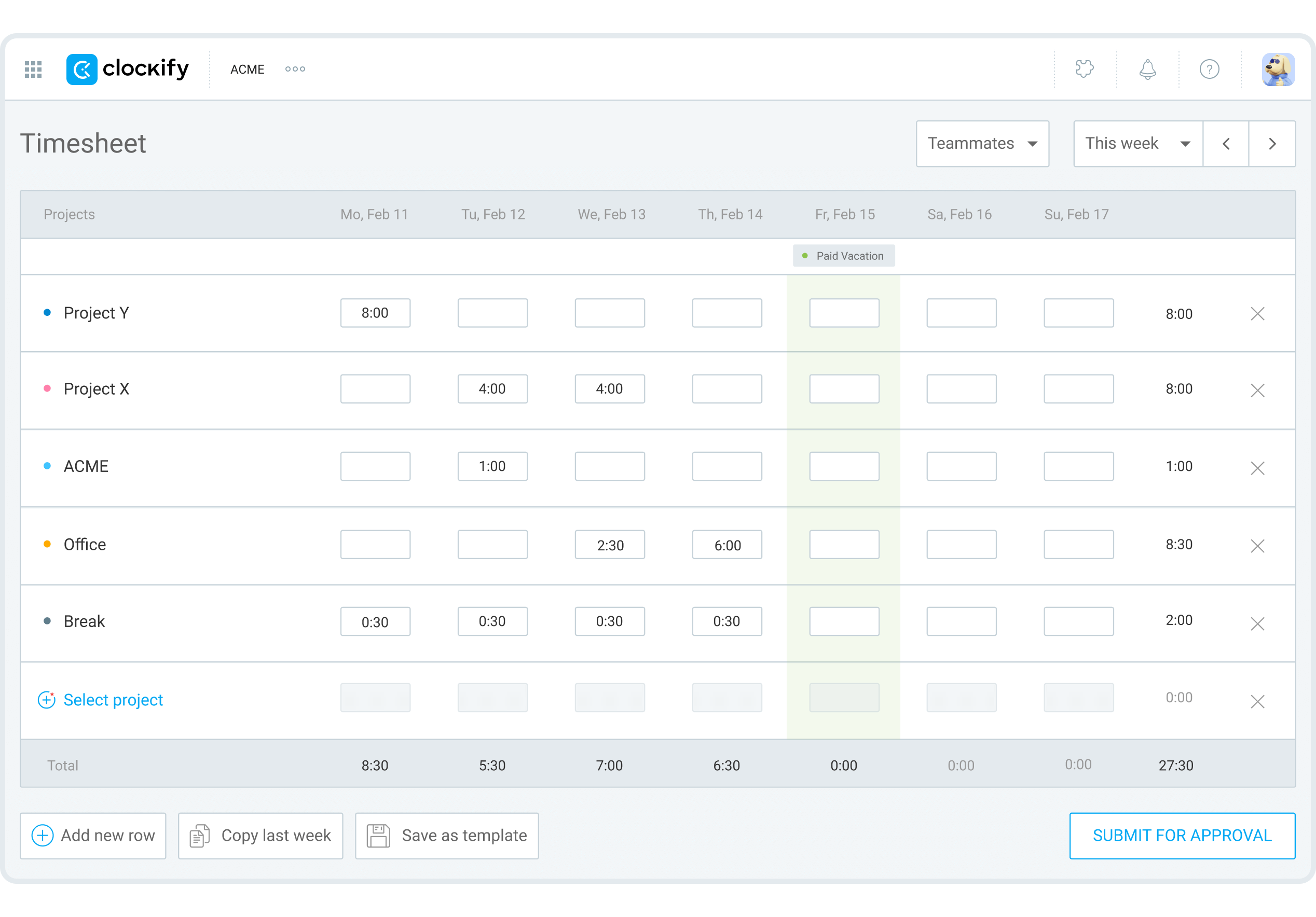
The timesheet and approval flow became part of my routine. I think the design is intentionally basic. It makes it easy to use without overthinking. I just enter hours where they belong and move on.
What helps is the ability to add multiple rows per day. My workdays aren’t built around a single task or project. I move between client work, meetings, internal tasks, and admin work. The timesheet structure reflects project management on one page.
Adding Context Without Overhead
I add short notes like “Client kickoff call” or “Homepage revisions.” It takes seconds, but it makes reviews, project billing, and audits far easier later. Tags are optional, but helpful when I need to filter reports.
Templates, Copy Week, and Repeating Patterns
For weeks that follow a familiar rhythm, templates and the “Copy Week” option save time. Templates work best on empty timesheets. Copy Week is useful when the upcoming week closely mirrors the previous one. I usually copy activities and adjust hours as needed.
Submissions, Locks, and Alerts
Submitting a timesheet for approval is straightforward. Until it’s approved, I can withdraw it, fix mistakes, and resubmit. Once approved, the timesheet locks, which initially felt restrictive. Ultimately, it prevents accidental edits to old data.
Alerts round this out nicely. I get reminders if I haven’t logged time, haven’t submitted a timesheet, or if a project starts pushing past its estimate. The project alerts, especially, have helped catch scope creep early enough to address it calmly.
Overall, Clockify’s timesheet and approval system isn’t flashy. It’s practical, predictable, and easy to live with week after week.
Kiosk
I don’t use Clockify’s kiosk feature every day since I work remotely, but I’ve used it during office visits and spent time talking with the office manager who runs it regularly. Between those perspectives, I got a clear sense of how it works in real office settings.
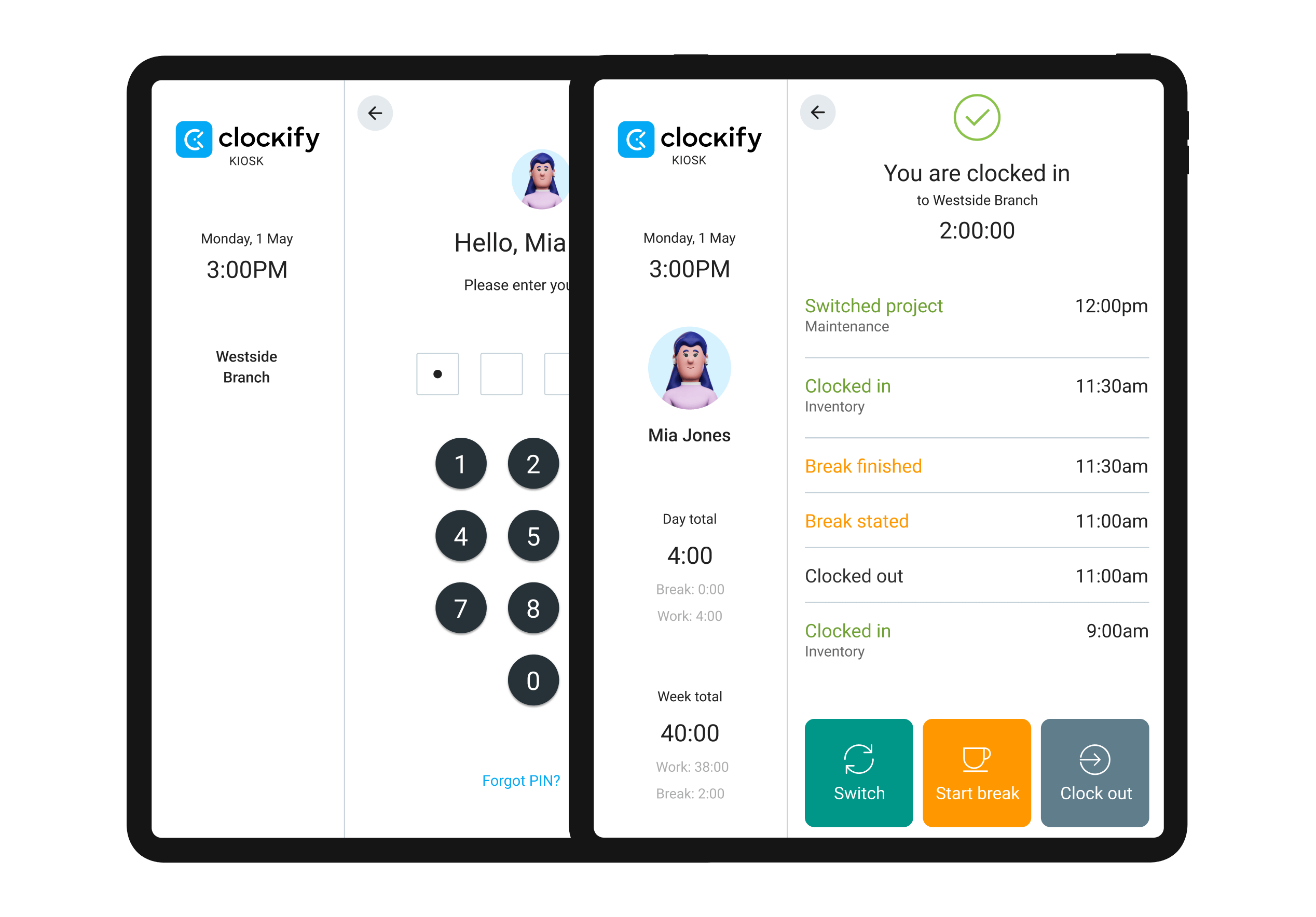
At its core, the kiosk turns a shared device into a digital punch clock. It runs on a tablet near the entrance. Employees clock in and out using their name and a PIN.
From an employee’s side, it’s quick and intuitive. Clocking in takes seconds, and the screen shows daily and weekly hours. It helps people stay aware of their time without logging into their own accounts.
Break tracking exists on paid plans, and on the free plan, kiosk entries are logged under a default project. There’s no biometric verification or facial recognition.
Project and Task Management
It’s worth setting expectations clearly upfront. Clockify is a time tracking tool first, not a full project management system. What I found is a basic project management system.
Setting up projects is simple. I create a project, name it, and assign it to a client when needed. For internal work, I usually skip the client field altogether. One habit that I found so useful was assigning colors to projects. It sounds minor, but when you’re switching between several projects on the same day, those visual cues make a quick scan of time entries.
I’ve split the project into several tasks. I could see exactly how time was split on actual work, meetings, revisions, and admin tasks.
In team setups, task assignment adds another quiet layer of control. Assigning tasks to specific users or groups helps prevent time from being logged in the wrong place.
Time and budget estimates make the project tracking worthwhile. I set hour-based estimates at the project or task level. Clockify tracks progress as time accumulates. On paid plans, budget-based estimates work well for fixed-fee projects.
For recurring work, project templates saved setup time. The project status view gave me a quick snapshot before weekly reviews or check-ins.
Clockify doesn’t pretend to be a full project management system. It stays focused on time, cost, and visibility, which is exactly what I needed it to do.
Calendar Integration
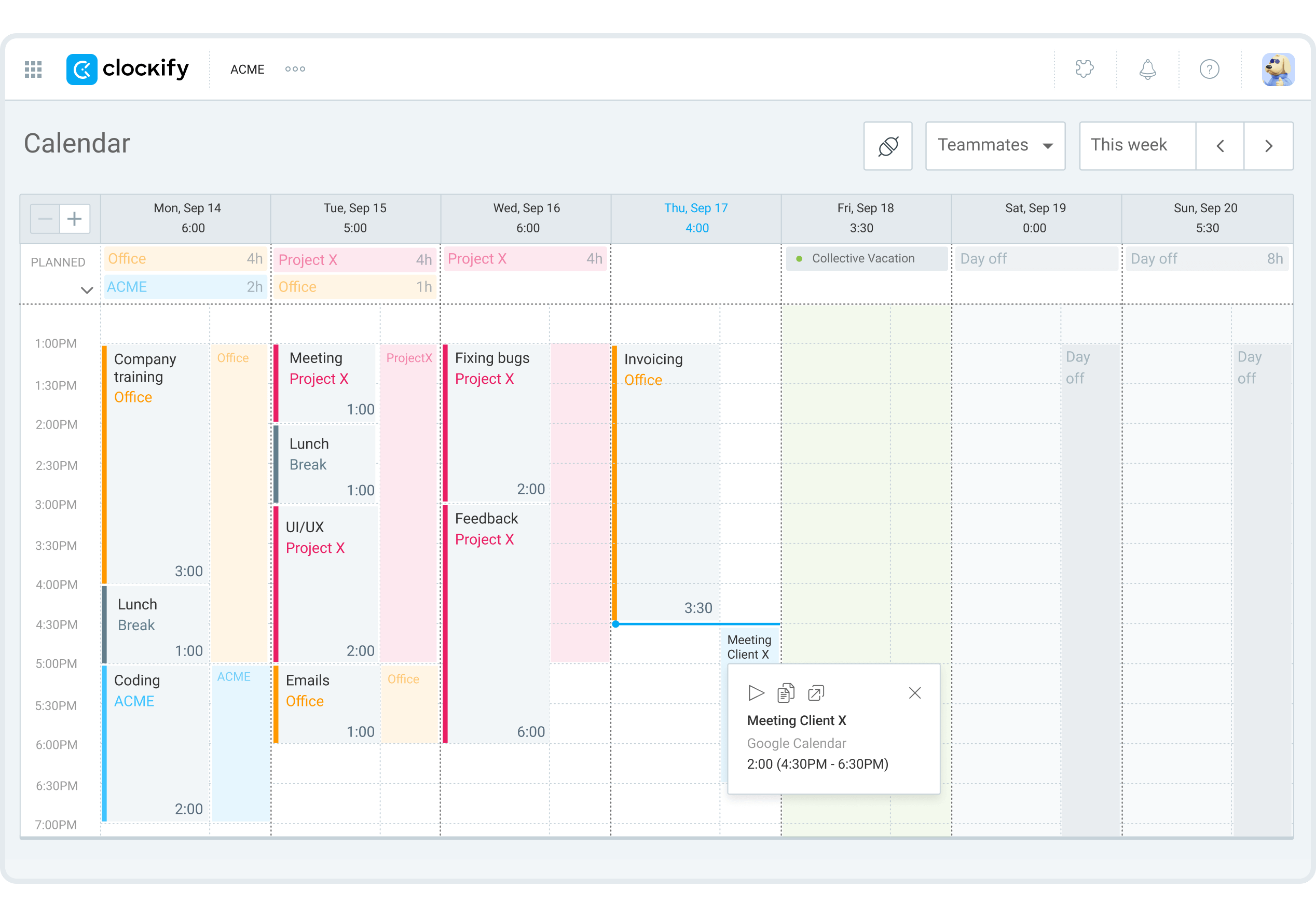
I live inside my calendar. Meetings, focus blocks, deadlines. So when I connected Clockify to Google Calendar, I wasn’t looking for anything fancy. I just wanted to see whether it would make time tracking more honest without adding extra steps.
Setup took less than a minute. Once connected, calendar events appear alongside time tracking in Clockify’s calendar view.
That comparison is where the real value shows up. If I block two hours for something and end up spending three, the gap is immediately visible. Seeing planned time next to tracked time has made me better at estimating work. Also, it provides a realistic view of how long tasks actually take.
I can also start a timer directly from Google Calendar. I treat my calendar as the planning layer and Clockify as the tracking layer.
Calendar data remains read-only within Clockify, and I can choose which calendars to display.
Clockify Scheduling
Employee scheduling is available on the Pro and Enterprise plans.
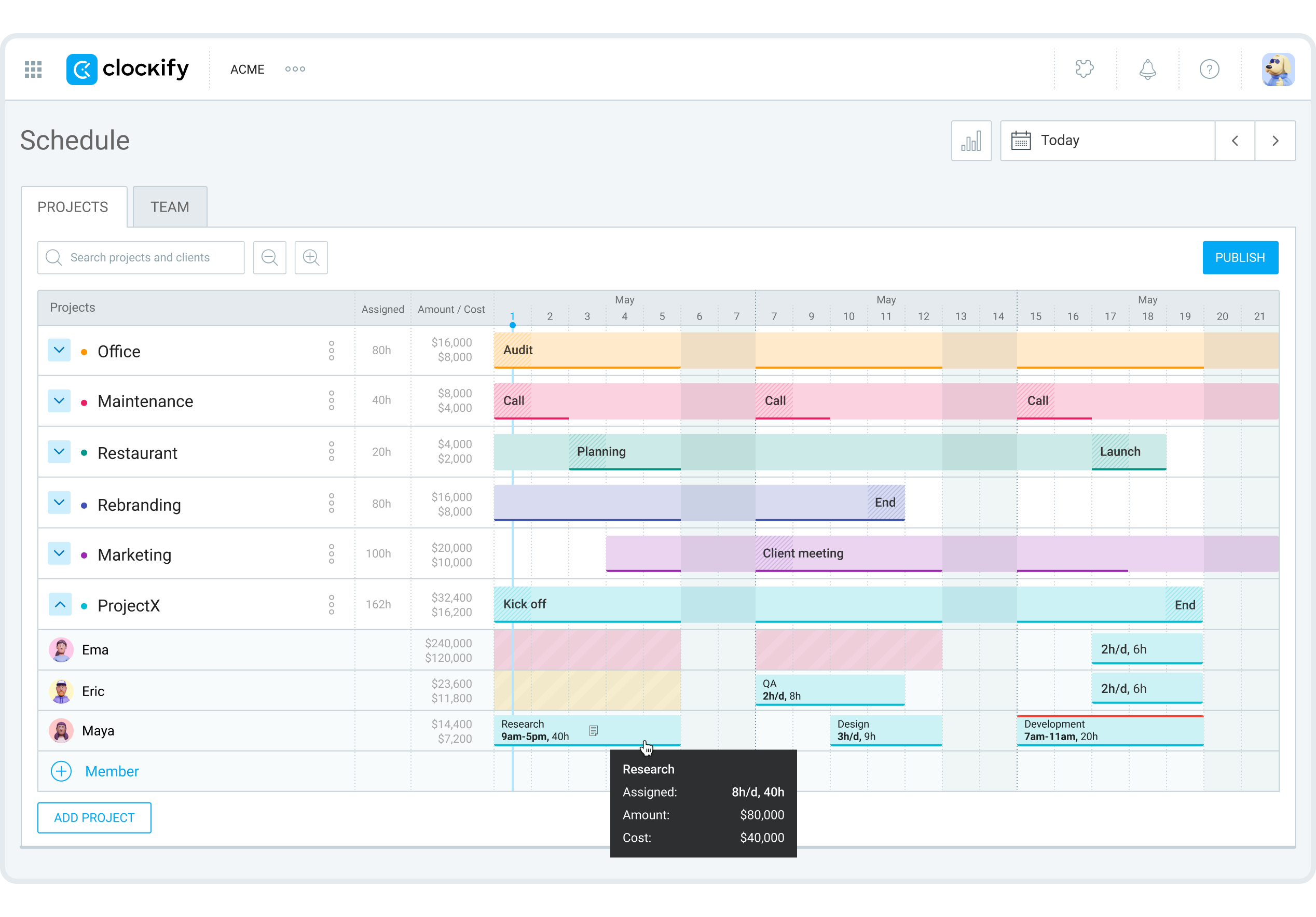
The key thing to understand is that Clockify’s scheduling is about capacity planning, not workforce scheduling. It lets you assign work on a timeline. So you can see the work distribution.
I mainly use the Team view. As assignments are added, each person’s daily capacity fills up visually. Clockify doesn’t block over-assignment. But it makes those trade-offs visible instead of hidden.
Creating assignments is simple, and recurring assignments save time for ongoing work. One feature I genuinely appreciate is draft scheduling. I can plan and adjust assignments privately before publishing them to the team. Once published, people see their schedules and get notified.
Approved time off appears directly on the schedule, which helps avoid obvious conflicts. Scheduling works best for short-term planning, and edits can’t be made from the mobile app.
Clockify Reports and Analytics
Clockify’s reporting features are where time tracking starts turning into something actionable. What surprised me is that Clockify includes reports on the free plan.
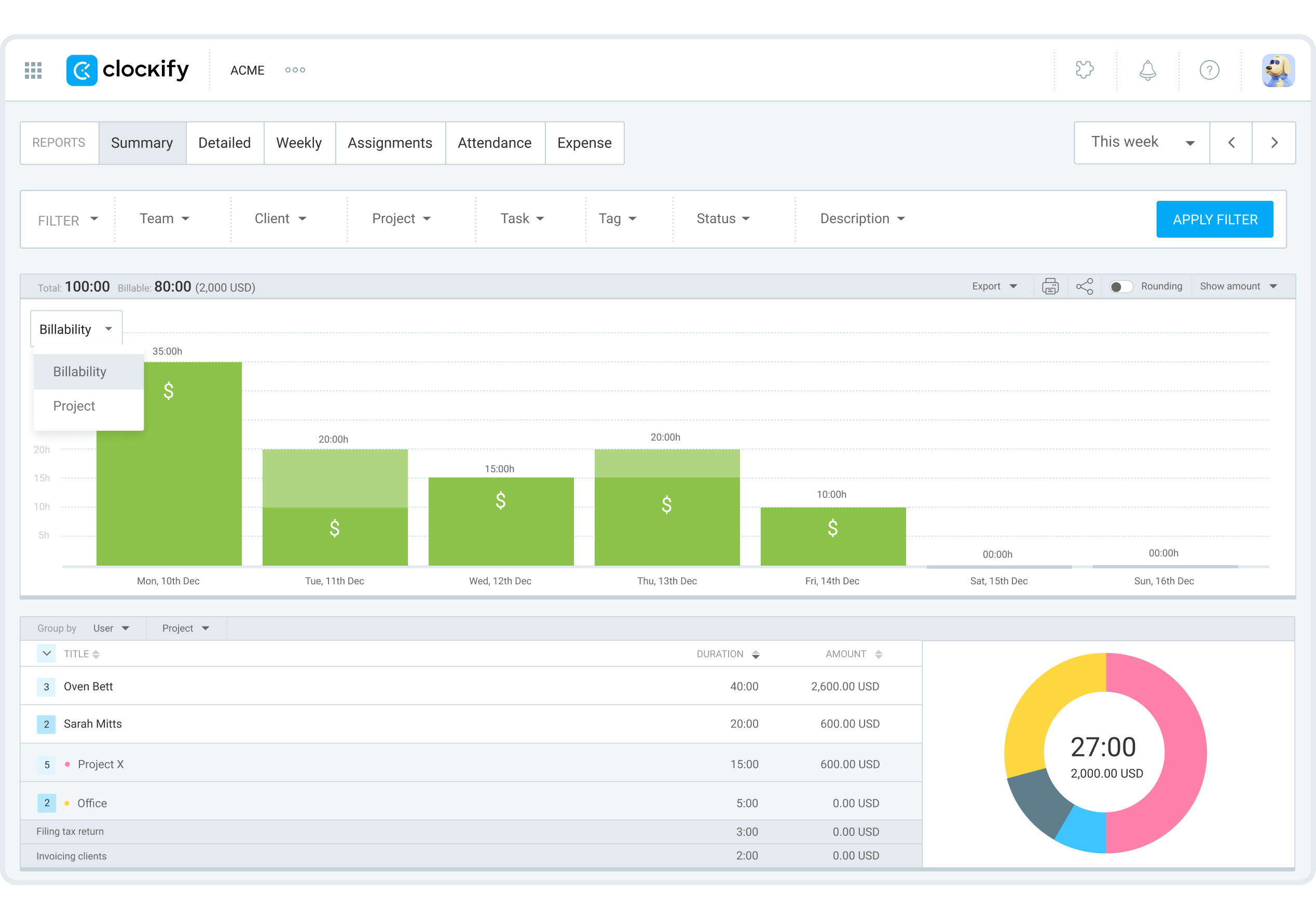
Most of my reporting work happened in the Summary and Detailed views. What stood out early is how flexible the reporting structure is without feeling overwhelming. I could start simple and go deeper only when I needed to.
When I needed a high-level overview, I relied on customizable time and project reports. For more granular checks, the Detailed report became essential. This is where activity logs really come into play. Seeing individual time entries laid out chronologically.
Time audit reports became particularly useful once approvals and reviews were part of the workflow. Being able to audit time entries.
What I appreciated most is how smooth report generation feels in practice. Filters and exports do most of the practical work here. I regularly export reports to Excel files when I want to slice the data differently or share it with clients. On paid plans, scheduled reports can be emailed automatically, which helped keep reviews consistent once I stopped wanting to remember to pull reports manually.
Clockify’s reporting tools aren’t flashy, and they don’t try to over-interpret the data. But they’re reliable, clear, and good enough for everyday reporting without turning analysis into extra work.
Invoicing and Expense Management
Once I started billing clients directly from Clockify, invoicing and expense management became much more relevant. Invoicing starts on the Standard plan, while expense tracking is available on the Pro and Enterprise plans.
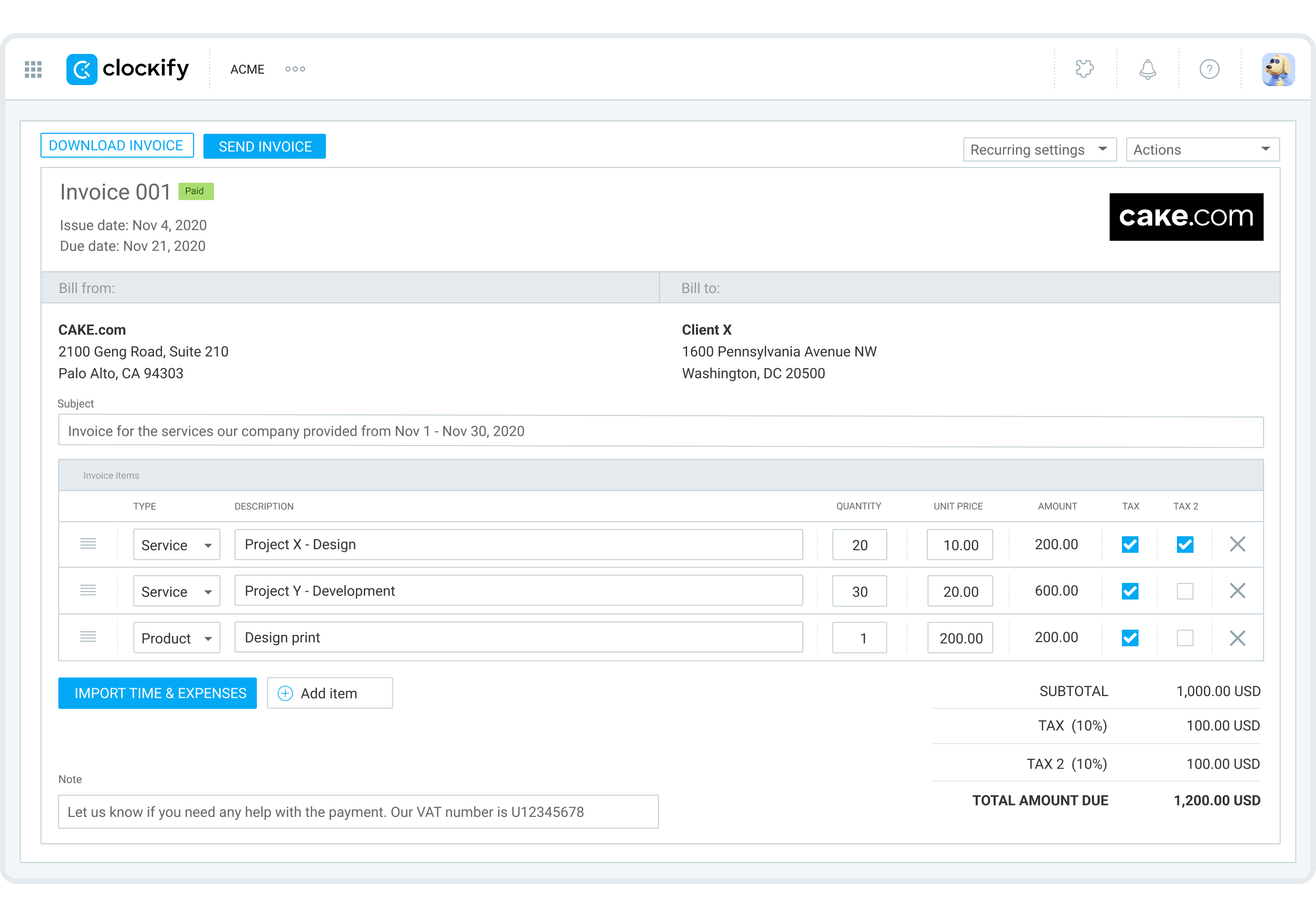
Creating invoices is straightforward. The invoices look professional and are ready to send without extra setup.
Clockify doesn’t process payments, so I handle that separately and update the invoice status manually.
Recurring invoices work well for retainers, and automated reminders help with unpaid invoices. Expense tracking is simple once enabled. Expenses can be marked billable and included directly in invoices, which keeps billing aligned with tracked work.
Everyday invoicing and billing covers what most teams and freelancers actually need.
Integrations
Integrations are a big reason Clockify works long-term for me. The browser extension, in particular, makes a noticeable difference. Clockify integrates with a wide range of tools, including project management platforms, calendars, and accounting software like QuickBooks. I’ve also seen teams pair Clockify with scheduling tools such as Zoho Shifts. For anything more custom, there’s an API that allows teams to connect Clockify to internal systems or automate specific workflows.
Overall, they help time tracking feel like part of the workflow instead of a separate task. For teams that rely on multiple tools and value smoother team collaboration, that flexibility matters.
Clockify Security Compliance
When a time tracking software starts holding detailed work logs, project data, and billing information, access and data handling are taken seriously.
As I dug a bit deeper into how Clockify handles trust and compliance, I found that it supports recognized security certifications commonly expected from business software. Clockify aligns with ISO and SOC 2 certifications, including ISO/IEC 27001:2013, which focuses on information security management systems.
On the technical side, Clockify uses SSL encryption to protect data in transit. Other than that, Clockify approaches this in a practical, enterprise-aware way. From a day-to-day perspective, role-based permission controls are what I interact with most.
Clockify Pricing and Plans (Free vs Paid)
Clockify offers a genuinely usable free plan with unlimited users, making it one of the more accessible time tracking tools for individuals and teams.
Clockify’s paid plans don’t lock away basic tracking. Instead, they add features gradually as your needs grow. I’ve used both the free and paid plans, so this reflects how the pricing feels in real workflows, not just a feature list.
Some features like screenshots, GPS tracking, and enforced timers, depend on platform support, permissions, and workspace settings, and availability can change over time.
Clockify Pricing Overview
Individuals & small teams needing basic time tracking
Timer & manual tracking, unlimited users/projects/clients, dashboard, Summary/Detailed/Weekly reports, calendar view, kiosk mode, web/desktop/mobile apps, browser extensions, Pomodoro timer, idle detection
tighter control over time entries
Everything in Free, plus editing others’ entries, required fields, time rounding, audit history, project templates, advanced exports
Teams handling billing, approvals, and payroll
Everything in Basic, plus invoicing, timesheet approvals & locking, time off management, overtime tracking, attendance reports, task-level billing rates, QuickBooks integration
Teams needing scheduling, expenses, and cost visibility
Everything in Standard, plus scheduling & capacity planning, expense tracking, GPS tracking, screenshot tracking (desktop), custom fields, forced timer mode, profit & labor cost tracking
Large organizations with security & compliance needs
Everything in Pro, plus SSO, advanced audit logs, custom subdomain, data region selection, priority support
Teams wanting Clockify + PM + Chat
Clockify (advanced features) + Plaky (project management) + Pumble (team chat)
(Kiosk-only)
Clock-in/out via
kiosk only;
no dashboards, reports,
or admin access
How the Pricing Feels in Real Use
- Free plan: Fully usable long-term for reliable time tracking, with no user cap and no credit card required.
- Basic: Adds tighter data control, but I skipped it since approvals and invoicing mattered more for my workflow.
- Standard: Clockify starts to feel like a team tool, especially once billing, approvals, and payroll workflows enter the picture.
- Pro: Adds scheduling, expenses, and cost visibility, which makes coordination and capacity planning easier for teams.
- Enterprise: Designed for organizations with stricter security, compliance, and management requirements.
Annual billing is discounted compared to monthly plans. Clockify also offers a 7-day Pro trial without requiring a credit card. Refunds aren’t guaranteed, so it’s worth confirming plan details before upgrading.
Clockify Pros and Cons
After using Clockify with real projects and real teams, a few strengths stand out clearly and so do some limitations. This isn’t based on a feature checklist, but on how the tool behaves in everyday use.




After using Clockify, I feel it gives you more freedom for time tracking. It can work best for freelancers or independent contractors. However, it lags behind when it comes to monitoring employees.
Apploye as an Alternative to Clockify
That’s where Apploye started to make a lot of sense to me as an alternative.
Clockify gives users a lot of freedom. You can track time in multiple ways, customize projects and tasks, and decide how strict or relaxed your workflow should be. When teams are disciplined, this works well.
Apploye takes a more guided approach. Time tracking feels simpler and more structured, which makes it harder to get things wrong in the first place.
Visibility is another difference. Clockify leans more on manual accountability. Monitoring features exist, but they aren’t central to the experience. Apploye places more emphasis on work visibility by default. It makes it suited for remote or hybrid teams.
Reporting also feels different. Clockify’s reports are flexible and detailed, but they can feel spreadsheet-heavy and often require exporting for deeper analysis. Apploye’s insights felt more readable to me, which can save time for managers who want quick answers.
Clockify doesn’t really focus on how work is done. Only how long it took. That felt respectful, but sometimes incomplete. Apploye goes deeper with activity levels and optional screenshots. I felt it gave a clearer picture of productivity.
Other than Apploye, Clockify has several good alternatives you may try.
Final Thoughts
Clockify does what it’s built for: time tracking very well. It offers one of the strongest free plans on the market. It doesn’t overwhelm you on day one.
However, it’s not an all-in-one business platform. If you understand that going in, Clockify can fit neatly into your workflow and grow with you as your needs evolve.
If your team works remotely or in a hybrid setup and wants to spend less time cleaning up data, Apploye may feel like a more natural fit.
Overall, Clockify helped me understand where time goes. Apploye helped me understand how work actually happens.
Frequently Asked Questions
Yes. Clockify offers a free plan with unlimited users, projects, and time tracking. Core features like timers, manual entries, basic reports, timesheets, calendar view, and the time kiosk are included. Features related to billing, approvals, scheduling, and expense management are available on paid plans.
Clockify works well for teams that are disciplined and value flexibility. Teams that consistently track hours and submit timesheets tend to get the most value. Teams that need stricter guidance or enforced workflows may prefer more structured time tracking tools.
No. Clockify is primarily timer-based. It offers optional computer monitoring that shows app and website usage, which users can review and convert into time entries manually. Time is not tracked automatically without user confirmation.
Screenshot tracking is available on paid plans and supported desktop apps, and only when enabled by workspace administrators. It is optional and not active by default. Mobile apps do not support screen monitoring.
Yes. Clockify is widely used by remote and hybrid teams because it works across web, desktop, mobile apps, and browser extensions. Its flexible approach suits distributed teams, though it relies more on self-reporting than strict monitoring.
It depends on your needs. Many individuals and small teams can use the free plan long-term. Paid plans become worthwhile when you need features like approvals, invoicing, scheduling, expense tracking, payroll-related reports, or workload visibility.
Yes. Clockify uses standard security practices such as role-based permissions and encrypted connections. Optional monitoring features are disabled by default, allowing teams to balance visibility with privacy.